

Load balancing for Workspace ONE Tunnel connections
Overview
This guide focuses on the connections between Workspace ONE® Tunnel client app and Tunnel gateway and demonstrates how that understanding can be applied when configuring a load balancer.
Purpose of this tutorial
This guide explains the data communication process between the Workspace ONE Tunnel client and the Tunnel gateway, whether deployed on Unified Access Gateway™ (UAG) or within a container. It also covers key considerations for Tunnel gateway behind a load balancer and provides troubleshooting best practices.
Audience
This guide is intended for IT administrators and product evaluators who are familiar with Workspace ONE UEM™ and Tunnel gateway (UAG or container). Familiarity with networking, firewall and load balancing configuration is assumed, and hands-on experience deploying and configuring Tunnel gateway and Workspace ONE UEM for tunnel use cases is desired.
Components
The core components of Omnissa Workspace ONE that are used in a Tunnel connection are described in the following table:
| Component | Description |
| Workspace ONE Tunnel client | The Workspace ONE Tunnel client app is installed on a client device to access an internal resource (website, applications, etc.) through the Tunnel gateway. |
| Workspace ONE UEM Console | Administration console for configuring policies within Workspace ONE UEM to monitor and manage devices and the environment. It allows the administrator to configure and deploy the Workspace ONE Tunnel client app to enable per-app or device tunnel. |
| Tunnel gateway (UAG or container) | When providing access to internal resources, Tunnel gateway can be deployed within the corporate DMZ or internal network, and acts as a proxy host for connections to your company’s resources. Tunnel gateway directs authenticated requests to the appropriate resource and discards any unauthenticated requests. If deployed on UAG, it can also perform the authentication itself, leveraging an additional layer of authentication when enabled. Access to an internal resource can be enabled through:
|
TLS and DTLS connection for UDP and TCP traffic
Tunnel gateway supports TCP and UDP traffic, and the Workspace ONE Tunnel client app seamlessly sends the UDP traffic over DTLS and TCP over TLS. After the TLS channel is established, the Workspace ONE Tunnel client app establishes a secondary DTLS channel if the UDP port is open on the firewall. Otherwise, UDP traffic is sent over the TCP channel.
This chapter provides in-depth details on Tunnel communication over TLS and DTLS.
Main channel (TLS)
When a device connects to the Tunnel gateway, the Workspace ONE Tunnel client app (Tunnel client) on the device establishes a single TCP session (encrypted with TLS 1.3) to the Tunnel gateway.
Authorized (allowed list) applications on the device all share this single TLS session. For example, Chrome is added to the allowed list in the Device Traffic Rules (DTR) when configured for per-app tunnel traffic and can start 4 TCP connections to different hosts. In this case, the Workspace ONE Tunnel client app establishes flow #1, 2, 3, and 4, and tags each connection with a flow ID. Tunnel gateway uses the same flow IDs to identify the connections. This way, data between the Workspace ONE Tunnel client app and Tunnel gateway can be identified and transmitted in both directions using the established TLS channel.
Another allowed listed application, such as Microsoft Remote Desktop client, can create another 3 connections to hosts. So, flows #5, 6, and 7 will be assigned by the Workspace ONE Tunnel client app so there are a total of 7 flows maintained by the Workspace ONE Tunnel client app and Tunnel gateway.
This also applies to UDP traffic, so both TCP and UDP traffic are tagged with flow IDs and handled similarly.
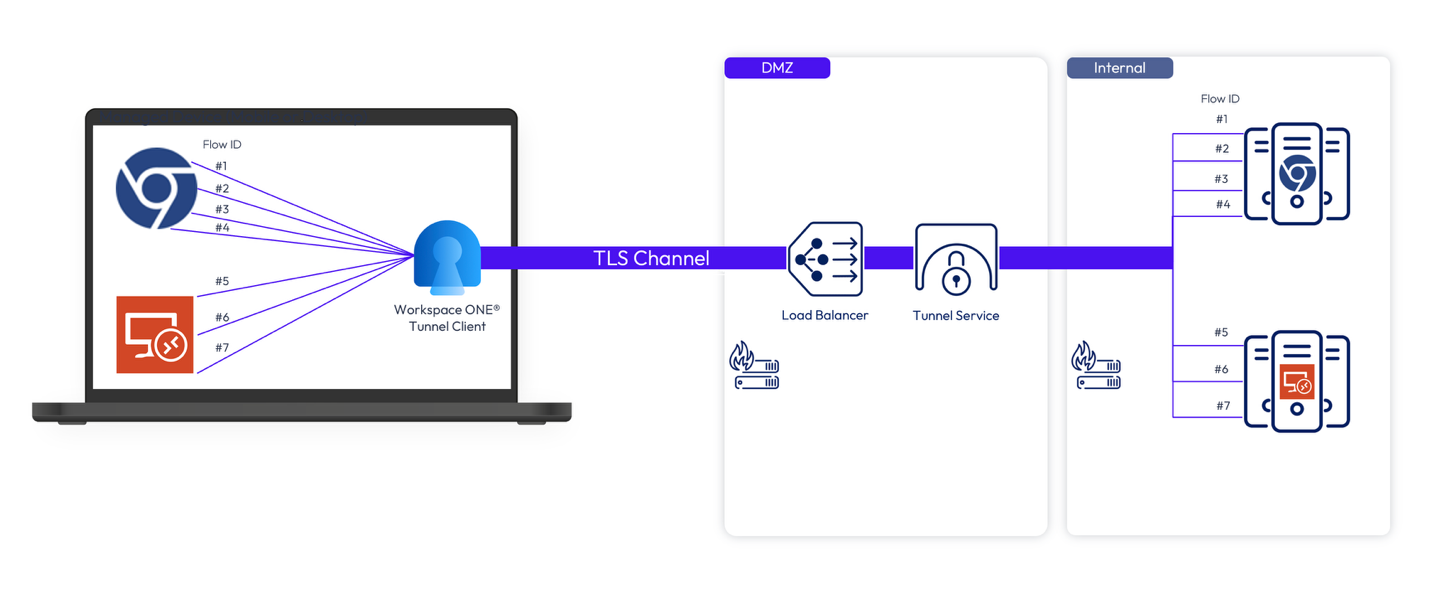
Figure 1: Device to Tunnel gateway – Main Channel (TLS)
Secondary channel (DTLS)
An DTLS channel can be established between the Workspace ONE Tunnel client app and Tunnel gateway to handle UDP traffic. This allows real-time data such as video or voice to be handled in a timelier fashion, avoiding TCP resend delay between Workspace ONE Tunnel client app and Tunnel gateway. The TCP resend delay can create an echo-like effect for voice and video delays. In this case, opening UDP will switch video traffic when carried by UDP to DTLS to reduce the TCP resend problem. Once a DTLS channel has been established, it is merged with the TLS session and handles only UDP traffic.
In the previous example, if Chrome flow #3 and #4 and Remote Desktop client #7 are UDP, they will be transmitted through the DTLS channel instead of TLS (see Figure 2 below).
The DTLS channel is optional, so if the Workspace ONE Tunnel client app fails to establish the DTLS channel with a Tunnel gateway (such as firewall blocking), UDP traffic can still be transmitted through the TLS channel. On the other hand, if the DTLS channel can be established, UDP traffic will start using the DTLS channel instead of the TLS channel.
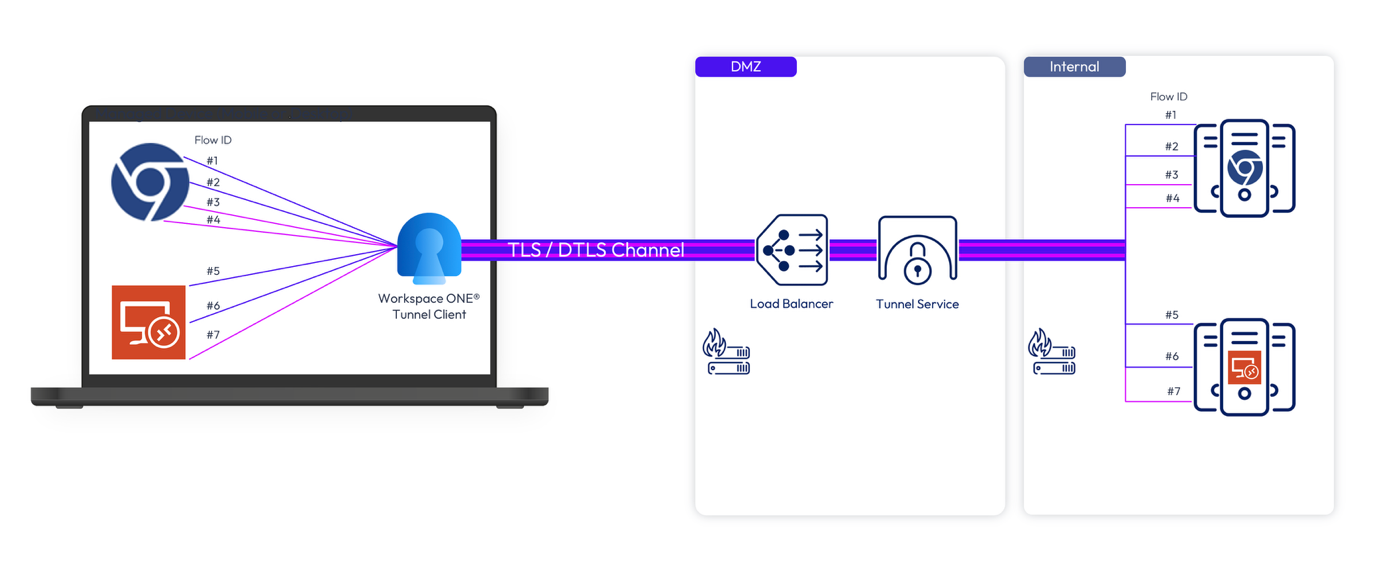
Figure 2: Managed Device to Tunnel - Secondary Channel (DTLS)
When using a load balancer to handle a DTLS channel, the DTLS channel must be connected to the same Tunnel gateway handling the TLS channel, because both channels need to be handled as a pair.
DTLS channel is encrypted just like TLS and has a TLS session ID, so all persistence rules applied to TLS should also apply to the DTLS channel.
Main channel (TLS) considerations for cascade mode deployment
When Tunnel Service is configured for Cascade mode deployment, meaning a Tunnel gateway (front-end) deployed on the DMZ and another Tunnel gateway (back-end) on the internal network, it is important to take into consideration the following aspects.
When a device establishes a TLS connection to the front-end, a TLS connection is also established from the front-end to back-end to handle traffic for that device (see Figure 3 below). For each device connection, only one TLS connection will be established between the front-end and back-end and will remain connected for the duration of the Workspace ONE Tunnel client app-connected session. Therefore, the duration of this connection is the same as the duration of the TLS connection between the device and the front-end. In other words, if there are 100 devices to front-end connections, there will be 100 front-end to back-end connections.
When the device to front-end connection is disconnected, the front-end to back-end connection will also be disconnected. Similarly, if the front-end to back-end connection is disconnected (for example, due to Tunnel gateway shutdown), a device to the front-end connection will also be disconnected.
There is no DTLS channel between the front-end and back-end. The reason is due to the closer proximity between front-end and back-end (usually in the same facility) and therefore we expect very little delay and loss in data. Also, the additional complexity of opening a UDP port between DMZ and internal network and maintaining two DTLS channels outweigh the insignificant gain in voice or video quality, so it was decided that DTLS is not needed between front-end and back-end.
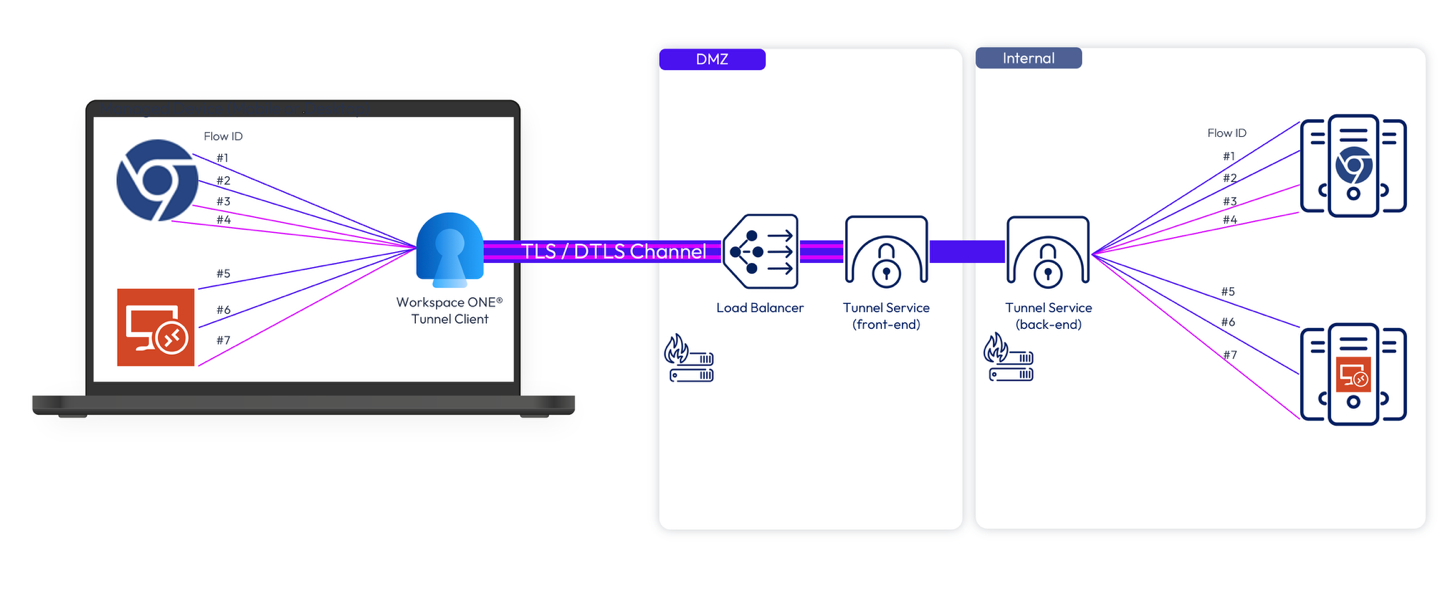
Figure 3: Communication from Tunnel Service front-end to back-end through TLS Channel only
Load balancer requirements
For production deployments, a load balancer is required for any Tunnel gateway. There are specific requirements required to allow the Workspace ONE Tunnel client app to establish a TLS and DTLS connection to the Tunnel gateway.
The firewall must allow the TCP and UDP traffic in and out of the Tunnel gateway TCP and UDP listening port. For example, if the Tunnel gateway is set up to listen on port 443, the TCP and UDP port 443 must be opened at the firewall to allow all the incoming connections from the devices.
Keep in mind that the Unified Access Gateway HA (supporting on the VIP up to 10,000 concurrent connections) feature can be leveraged to balance Tunnel Service traffic when:
- Unified Access Gateway is deployed on vSphere or Hyper-V
- Tunnel service is configured to use port 443
If both criteria cannot be achieved, a third-party external load balancer is required.
This chapter provides detailed guidance on the load balancer requirements for Tunnel gateway.
Load balancer checklist for Tunnel gateway
Before diving into the load balancer requirements, the following checklist contains the recommended load balancer settings to properly handle the traffic on Tunnel gateway.
| Load balancer requirements | Tunnel gateway |
| Port | 443 or 8443 |
| Protocol | TCP (Required) UDP* (optional and only applicable to front-end) |
| SSL Requirement | Passthrough (No SSL inspection) |
| SSL Certificate Details | N/A |
| Persistence Options Supported | Source IP (required only for UDP traffic) |
| Persistence Timeout | Deactivated |
| Load Balancing Algorithm Supported | Least connection, round robin (for DTLS, see additional info below) |
| Health Check Options (UAG only) | HTTPS GET |
| Health Check URL (UAG only) | /favicon.ico |
| Health Check URL Response (UAG only) | HTTP/1.1 200 OK |
| Health Check Frequency (UAG only) | 30 seconds |
*Important notes for UDP requirements:
- UDP is optional; however, when tunneling UDP traffic, it is highly recommended to open the UDP port on the firewall to enable Tunnel DTLS communication on Front-End only. This allows real-time data such as video or voice to be handled in a timelier fashion, avoiding TCP resend delay. The TCP resend delay can create an echo-like effect for voice and video delays. In this case, opening UDP will switch video traffic when carried by UDP to DTLS to reduce the TCP resend problem.
- UDP is not required between Tunnel gateway front-end and back-end.
- NATed address - When Tunnel gateway front-end is behind a NAT, all clients behind the same NAT device have the same source IP address. Therefore, all DTLS traffic from these clients is routed to the same front-end, which might not follow the front-end where the initial TLS connection was established. For DTLS to work properly Tunnel gateway front-end cannot be behind a NAT.
Session persistence
Some level of persistence should be maintained so the TLS channel can remain intact for the duration of the TLS session, since Tunnel gateway maintains a timer and will disconnect the TLS channel once the on-demand timeout has been reached. Timeout settings at load balancers should be set to disabled and should let Tunnel gateway determine when to disconnect.
When UDP traffic is allowed on the firewall and the load balancer can handle DTLS, the DTLS channel must be connected to the same Tunnel gateway handling the TLS channel, because both channels need to be handled as a pair. Session Persistence for the UDP protocol is required.
SSL offloading and SSL re-encryption
SSL offloading and SSL re-encryption are not supported and must be turned off. This is because Tunnel gateway uses certificate pinning between the client and server side, creating an end-to-end encrypted tunnel that does not allow SSL manipulation. The encrypted tunnel between client and server can only be decrypted by the Tunnel gateway. All TCP and UDP traffic to the Tunnel gateway must be allowed to pass.
Traffic can only be inspected after the Tunnel gateway forwards the traffic into the internal network. For cascade mode deployment, this is after the back-end.
Health check configuration (UAG only)
For the load balancer to properly forward the traffic to the Tunnel Service, the load balancer must check the health of the Unified Access Gateway appliances to determine if it is reachable or not.
To achieve that, configure the load balancer Health Check URL setting to perform an HTTPS GET on /favicon.ico on each of the Internet IP addresses of the Unified Access Gateways deployed. The response could be:
-
HTTP/1.1 200 OKwhen Tunnel Service is up and running and appliance health -
HTTP/1.1 503when Tunnel Service is down, or the Unified Access Gateway appliance is in Quiesce Mode
Using quiesce mode for maintenance and upgrades (UAG only)
Unified Access Gateway can be put into quiesce mode, after which it will not respond to the load balancer health monitoring request with an HTTP/1.1 200 OK response. Instead, it will respond with HTTP/1.1 503 to indicate that the Unified Access Gateway service is temporarily unavailable. This setting is often used prior to scheduled maintenance, planned reconfiguration, or planned upgrade of a Unified Access Gateway appliance. In this mode, the load balancer will not direct new sessions to this appliance because it will be marked as unavailable but can allow existing sessions to continue until the user disconnects or the maximum session time is reached. Consequently, this operation will not disrupt existing user sessions.
The appliance will then be available for maintenance after a maximum of the overall session timer, which is typically 10 hours. This capability can be used to perform a rolling upgrade of a set of Unified Access Gateway appliances in a strategy resulting in zero user downtime for the service.
The administrator can configure quiesce mode using the Unified Access Gateway Admin UI under System Configuration or via REST API.
Balancing traffic between front-end and back-end (cascade mode)
When using cascade mode with multiple Tunnel gateways, routing traffic between the front-end and the back-end can be achieved with two methods:
- DNS round robin
- Load balancer
Method 1 – DNS round robin
DNS round-robin can be used by the front-end when a load balancer is not available between the front-end and back-end.
For example, backend.example.com can be set up as the back-end hostname on Workspace ONE UEM tunnel configuration to resolve to the following two Tunnel gateway IP addresses:
- 10.5.5.1
- 10.5.5.2
During initialization, the front-end determines how many back-end IP addresses can be resolved, and if there are more than one, it puts the addresses in a list. During operation, for each new device connection, the front-end picks the next one in the list in a round-robin fashion.
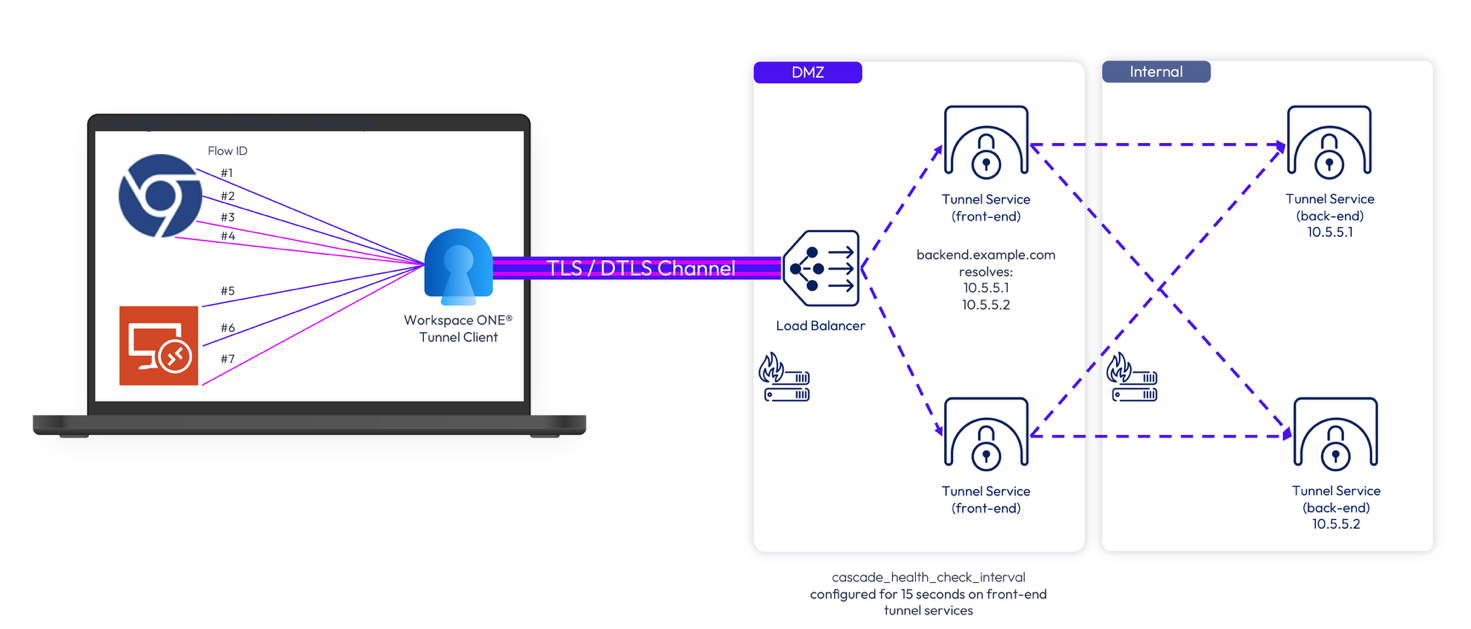
Figure 4: Load balancing between front-end and back-end through DNS round robin
Health check configuration required between front-end and back-end
When using DNS round-robin, the front-end needs to detect and skip the offline back-end appliance. Failing to detect an unreachable back-end will cause every other device connection to fail in our example.
The cascade_health_check_interval setting must be configured to control the check intervals. The administrator can configure that in Workspace ONE UEM Console under the Tunnel Configuration / Custom Settings. Once set, the front-end will perform TCP Ping to the back-ends. If a back-end is unreachable, it will be marked as down and skipped.
The cascade_health_check_interval value is defined in seconds. When not defined or set to 0, the health check between front-end and back-end is turned off.
-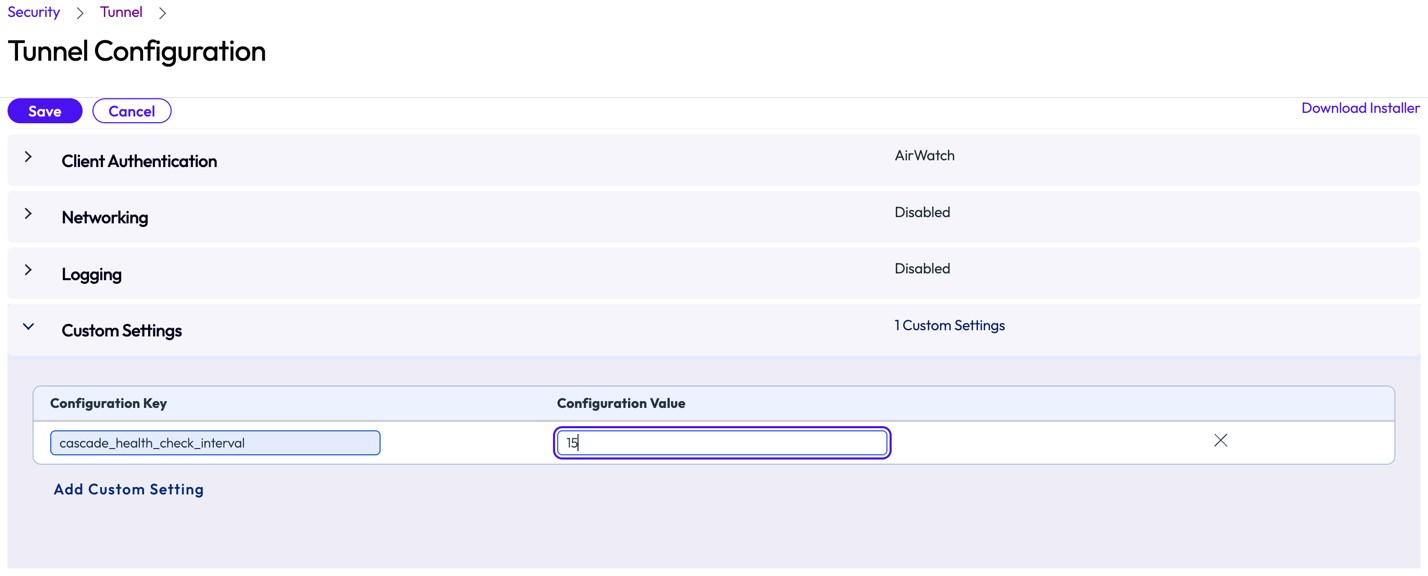
Figure 5: Adding cascade_health_check_interval custom setting option for Tunnel Configuration in Workspace ONE UEM Console
Method 2 – Load balancer
When setting up a load balancer between the front-end and back-end, the persistence rules between the front-end and back-end should be like the persistence rules between the device and the front-end, because of the similar type of communication (TLS). The timeout interval (default 5 minutes) is controlled by the Tunnel client's on-demand feature, so the timeout value at the load balancer should be set to disabled as well.
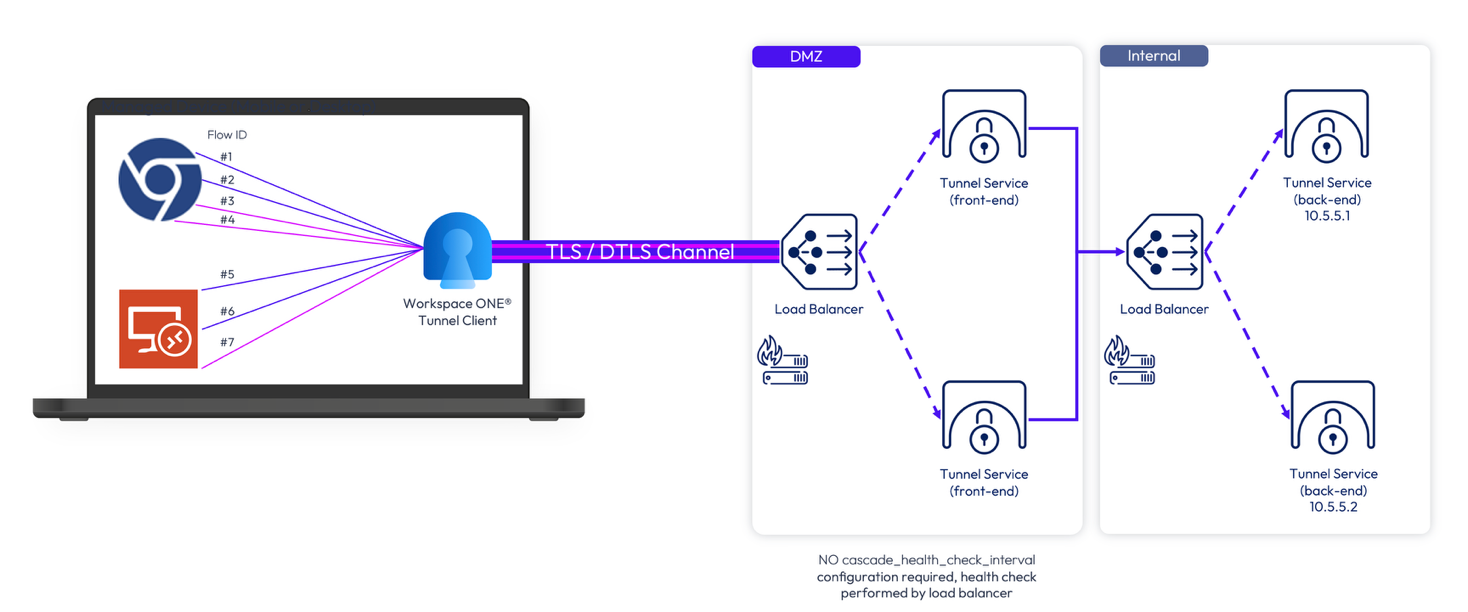
Figure 6: Load balancing between front-end and back-end through load balancer
Troubleshooting
This section will cover how to troubleshoot various connectivity scenarios.
Validate device to tunnel service connectivity
There are multiple ways to validate. If a user can access internal/external applications through Workspace ONE Tunnel client app, the ultimate test consists of enrolling a device and launching the applications that will tunnel traffic to a specific domain defined on the Device Traffic Rules. However, a simple test via the openssl command can help to validate the communication between the device and Tunnel gateway, depending on the network that the device is connected to. You will also be validating the connection through a load balancer or directly into Tunnel gateway when on the internal network.
To ensure theTunnel gateway is properly configured, it is recommended to perform the openssl test from a device connected as follows:
- First, from the internal network without passing through the load balancer. This will help you confirm that any issue on that communication is not related to the load balancer, but to the internal network or Tunnel gateway configuration.
- Second, after successfully testing from the internal network, now try from the external network where the traffic from the
openssltest will pass through a load balancer. Any issue in this test most likely is related to load balancing configuration.
Test connectivity between device and Tunnel Service
To test connectivity from an endpoint (Windows, macOS, or others) connected to an internal network, execute the following openssl command replacing the parameters between <> with the respective values:
openssl s_client -connect <Tunnelgateway-IP/FQDN>:<PORT> -servername <Tunnelgateway-FQDN>
To test connectivity from an endpoint (Windows, macOS, or others) connected to the internet, execute the following openssl command replacing the parameters between <> with the respective values:
openssl s_client -connect <LB-IP/FQDN>:<PORT> -servername <LB-FQDN>
The expected result is the tunnel certificate followed by the message: Acceptable client certificate CA names.
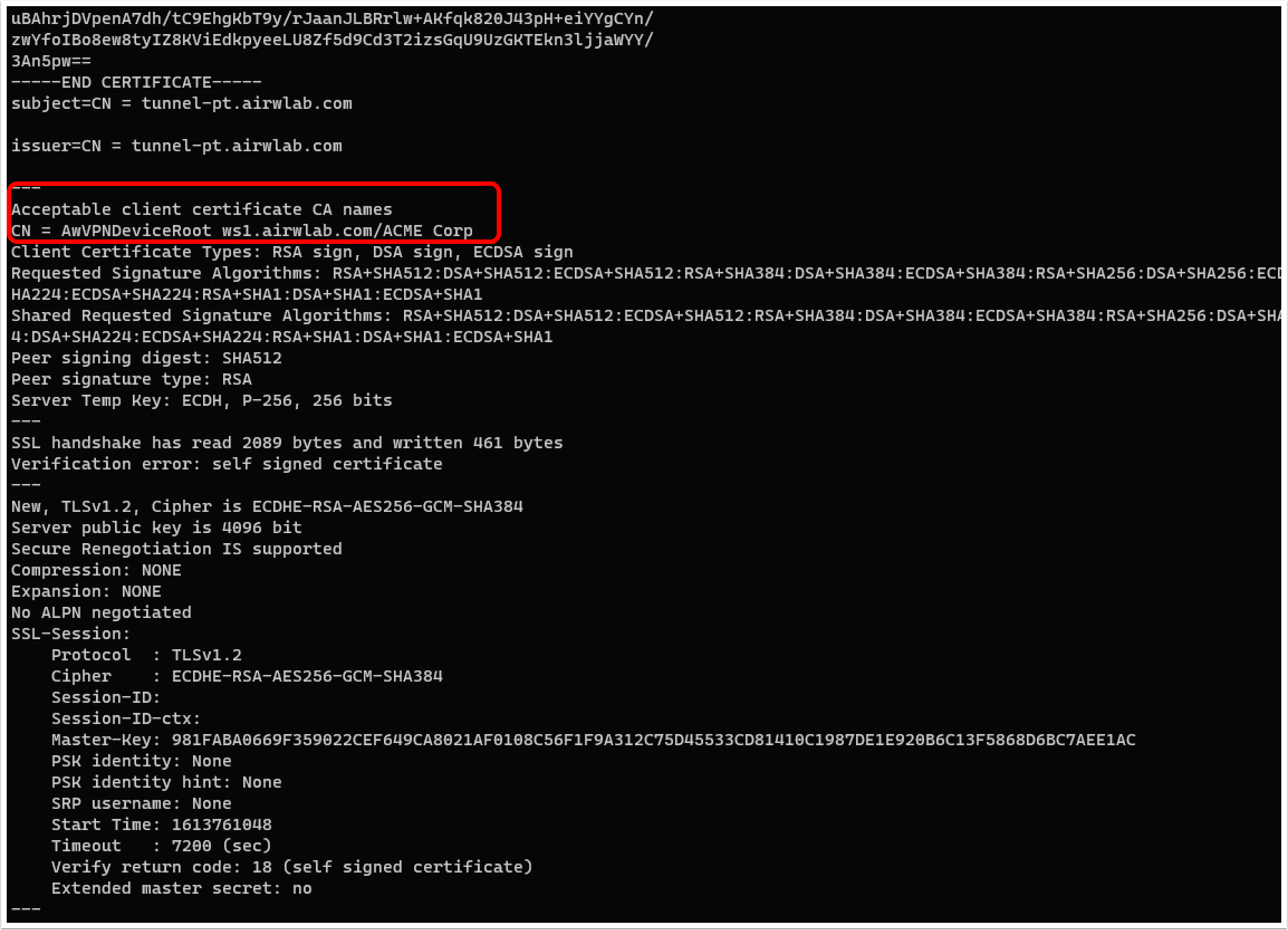
Output results that indicate a load balancer configuration issue include:
- The message "No client certificate CA names sent" indicates that the handshake failed and did not hit Tunnel Service at all. In case the test is going through the load balancer, this might indicate that SSL offloading is configured on the load balancer or another mechanism that strips the certificate or inspects the traffic.
- If the return is only a CONNECTED string and no certificate response, this means a connection with the load balancer was established, but the load balancer did not receive a response from Tunnel gateway.
Additional device troubleshooting
For additional troubleshooting related to devices and Workspace ONE UEM configuration, refer to the Deploying Workspace ONE Tunnel: Workspace ONE Operational Tutorial which covers end-to-end deployment and configuration of the Workspace ONE Tunnel app for all supported device platforms.
Validate front-end and back-end connectivity (cascade mode only)
When deploying Tunnel gateway in cascade mode, the device request hits the tunnel front-end first and the request gets forwarded to the back-end. For that reason, both Tunnel gateways must be able to communicate through the configured port and hostname defined on the Workspace ONE UEM Console.
The following command executed from the front-end appliance will validate if both appliances can communicate, displaying connect as output response:
curl -v telnet://<Tunnelgateway-BACKEND-FQDN>:<PORT>
Validate Tunnel gateway connectivity to internal resource
It is also important to ensure that the Tunnel gateway can communicate with the internal resource, when the device request hits the Tunnel gateway that will be forwarded to the internal resource, such as an internal web application, desktop machine, etc.
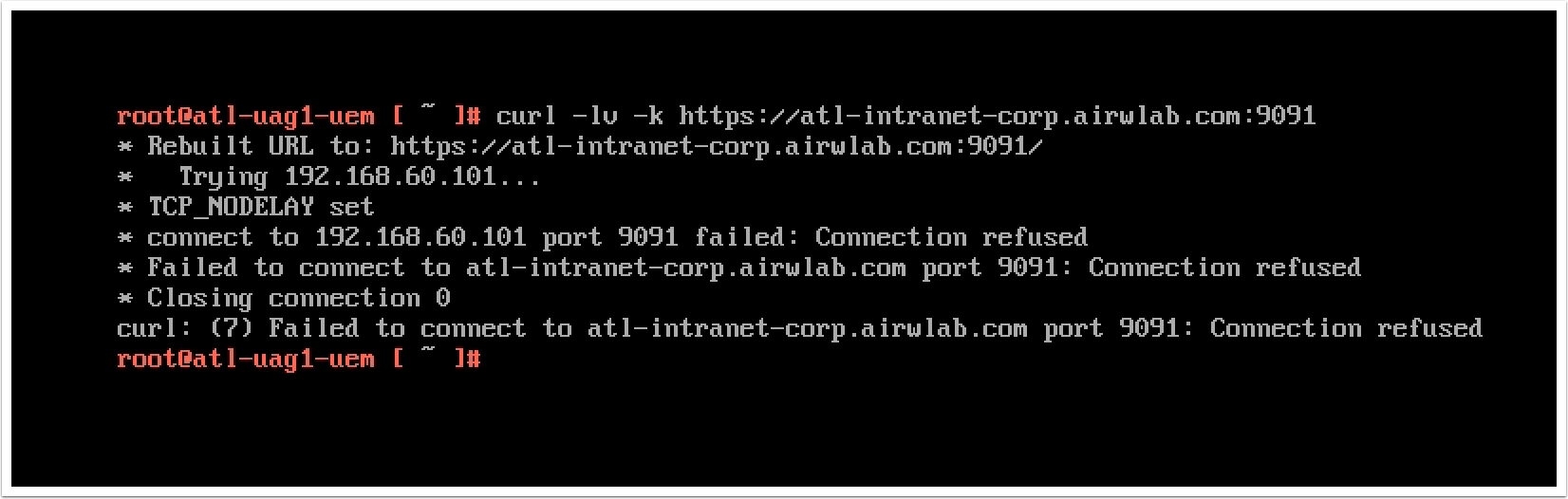
A simple curl command from the Tunnel gateway console can help you determine if the internal resource is reachable:
curl -lv -k <INTERNAL HTTP(s) URL>:<PORT>
A successful connection returns a connected status and HTML response for the respective website. Otherwise, a "Connection refused" error is raised, as in the following image:
Summary and additional resources
This guide described the data communication between Workspace ONE Tunnel client app and Tunnel gateway (Unified Access Gateway or container). It covered considerations for setting up Tunnel gateways behind a load balancer and provided troubleshooting best practices. The focus was on understanding connections between the Workspace ONE Tunnel client app and Tunnel gateway to aid in setting up load balancers and resolving connection issues.
Additional Resources
For more information about Workspace ONE Tunnel, you can explore the following resources:
Changelog
The following updates were made to this guide:
| Date | Description of changes |
| 2026/07/14 |
|
| 2024/05/09 |
|
| 2021/03/01 |
|
About the author and contributors
This tutorial was originally written by:
- Andreano Lanusse, Omnissa alumnus
With significant contributions from:
- Benson Kwok, Staff Engineer and Workspace ONE Tunnel Lead Architect, Omnissa
And maintained by:
- Lewis Riley, Senior Product Specialist, Omnissa
Feedback
Your feedback is valuable. To comment on this paper, either use the feedback button or contact us at tech_content_feedback@omnissa.com.