

Getting started with the Workspace ONE ITSM Connector for ServiceNow
Overview
IT service desks are under constant pressure to resolve incidents faster, with fewer escalations, while supporting an increasingly hybrid and device-diverse workforce. Service desk analysts often work inside an IT Service Management (ITSM) platform, such as ServiceNow, but the device data, remote support tools, and remediation actions they need live in a separate console, Workspace ONE UEM. This forces analysts to switch context between systems, slows down triage, and increases mean time to resolution (MTTR).
The Workspace ONE ITSM Connector closes this gap. It brings Workspace ONE UEM device and session details, actions, Workspace ONE Experience Management data, and Workspace ONE Assist remote support sessions directly into the ITSM console, starting with ServiceNow, so analysts never have to leave the ticket to troubleshoot a device.
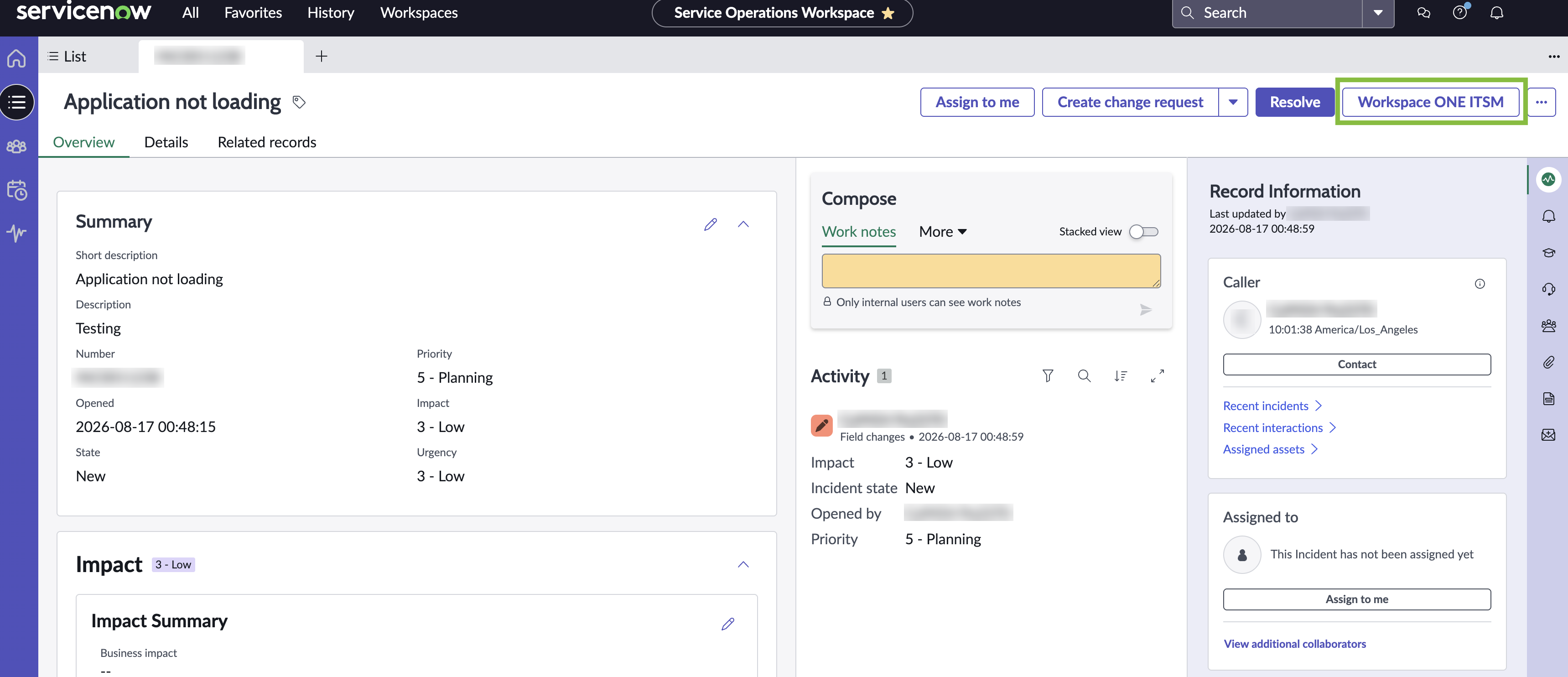
Figure 1: Workspace ONE ITSM button on the ServiceNow incident form
By surfacing real-time device health, compliance status, and experience scores next to the incident record, and by enabling one-click remediation actions such as syncing, locking, or wiping a device, the ITSM Connector helps service desks reduce operational complexity while improving key metrics like MTTR and first-call resolution.
Purpose of this tutorial
This document provides a technical overview of the Workspace ONE ITSM Connector for ServiceNow, including prerequisites, installation, configuration, and the core capabilities available to service desk administrators and employees. It also covers example use cases that show the value the connector delivers to service desk operations.
Audience
This guide is intended for IT administrators, ServiceNow administrators, and product evaluators who are familiar with Workspace ONE UEM and, ideally, Omnissa Intelligence. Familiarity with ServiceNow administration (plugins, OAuth application registries, roles, and the Incident and Service Catalog modules) is assumed. Knowledge of REST API concepts is helpful but not required to complete this tutorial.
ITSM Connector basics
What is the Workspace ONE ITSM Connector?
The Workspace ONE ITSM Connector is a ServiceNow application, available from the ServiceNow Store, that integrates Workspace ONE UEM, Omnissa Intelligence, and Workspace ONE Assist directly into the ServiceNow Incident and Service Catalog experience. Rather than administering endpoints from the Workspace ONE UEM console, service desk analysts can view device details and take remediation actions from the tools they already use every day.
At a high level, the connector enables three categories of capability:
- UEM device actions – Perform common troubleshooting and remediation actions (sync, lock, wipe, change passcode, and more) directly against the configuration item (CI) or device attached to an incident.
- Experience Management data – Surface device health, Experience Score, and contributing factors (boot time, app hang time, app crash data, and more) sourced from Omnissa Intelligence, so analysts can see why a device is having a problem, not just that it is.
- Remote support – Launch a Workspace ONE Assist session directly from the incident to view or control the device, transfer files, and run commands in real time.

Figure 2: The Workspace ONE ITSM Connector bridges the ServiceNow Incident console with Workspace ONE UEM, Omnissa Intelligence, Horizon and Workspace ONE Assist
How does it work?
The Workspace ONE ITSM Connector is installed as a ServiceNow application and connects outbound to the Workspace ONE UEM REST API (and, optionally, the Omnissa Intelligence API) using either OAuth 2.0 or Basic Authentication. Once configured, the connector adds a Workspace ONE UEM tab to the Incident form and a Workspace ONE category to the Service Catalog.
When an analyst opens an incident with a configuration item or device attached, the connector matches that CI to a device record in Workspace ONE UEM, using the device serial number and the user’s email address, and retrieves live device data. Actions selected from the Workspace ONE UEM Action drop-down are sent from ServiceNow to Workspace ONE UEM over the same API connection, and the result is written back to the incident as a note.
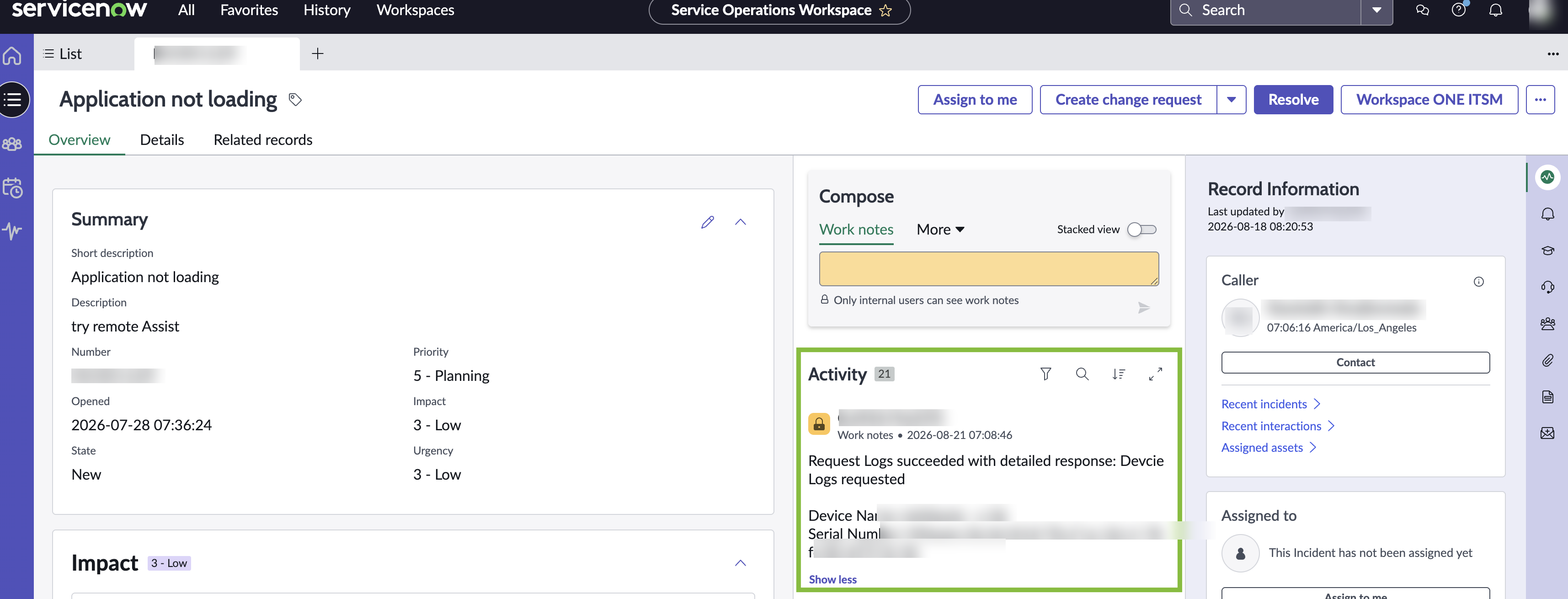
Figure 3: Device Actions request logged as a work note on the ServiceNow incident
Prerequisites
Before you can perform the procedures in this tutorial, ensure you have the following components installed, licensed, and configured:
- ServiceNow instance – Yokohama release or later
- Workspace ONE UEM – 2107 or later (latest preferred)
- Workspace ONE Assist – 21.03 or later, licensed and registered to the Assist server, if remote support actions will be used
- Omnissa Intelligence tenant integrated with your Workspace ONE UEM tenant, if Experience Management data will be surfaced in ServiceNow
- Admin access to Workspace ONE UEM at the Organization Group relevant to this setup — typically the highest parent Organization Group that includes all the device and application data you want visible in ServiceNow
- A ServiceNow administrator account with rights to install applications from the ServiceNow Store and complete Guided Setup
Authentication options
The ITSM Connector supports two authentication methods to connect ServiceNow to the Workspace ONE UEM API:
| Authentication method | Description |
| OAuth 2.0 | Industry-standard protocol for secure, token-based authentication. Requires an OAuth client (Client ID and Client Secret) created in Workspace ONE UEM. This is the preferred method. |
| Basic Auth + Tenant Code | Uses a dedicated Workspace ONE UEM service account (username and password) plus the tenant's AirWatch API Tenant Code. |
Regardless of the method chosen, Omnissa recommends creating a dedicated service account (rather than an individual admin's credentials) and assigning it a role scoped to only the permissions the ITSM Connector needs. See Assigning roles later in this guide for the specific access rights required.
Installing and configuring the ITSM Connector
The following sections walk through installing and configuring the Workspace ONE ITSM Connector for ServiceNow. In addition, see this video for installation steps.
Installing the connector from the ServiceNow Store
- Log in to your ServiceNow instance as an administrator.
- Navigate to the ServiceNow Store and search for Omnissa Workspace ONE ITSM Connector.
- Click Get (the application is free) and install it to your instance.
- Once installation completes, open Plugins and confirm the Workspace ONE ITSM Connector plugin is Active.
- Launch Guided Setup for the Workspace ONE ITSM Connector application to begin configuration.
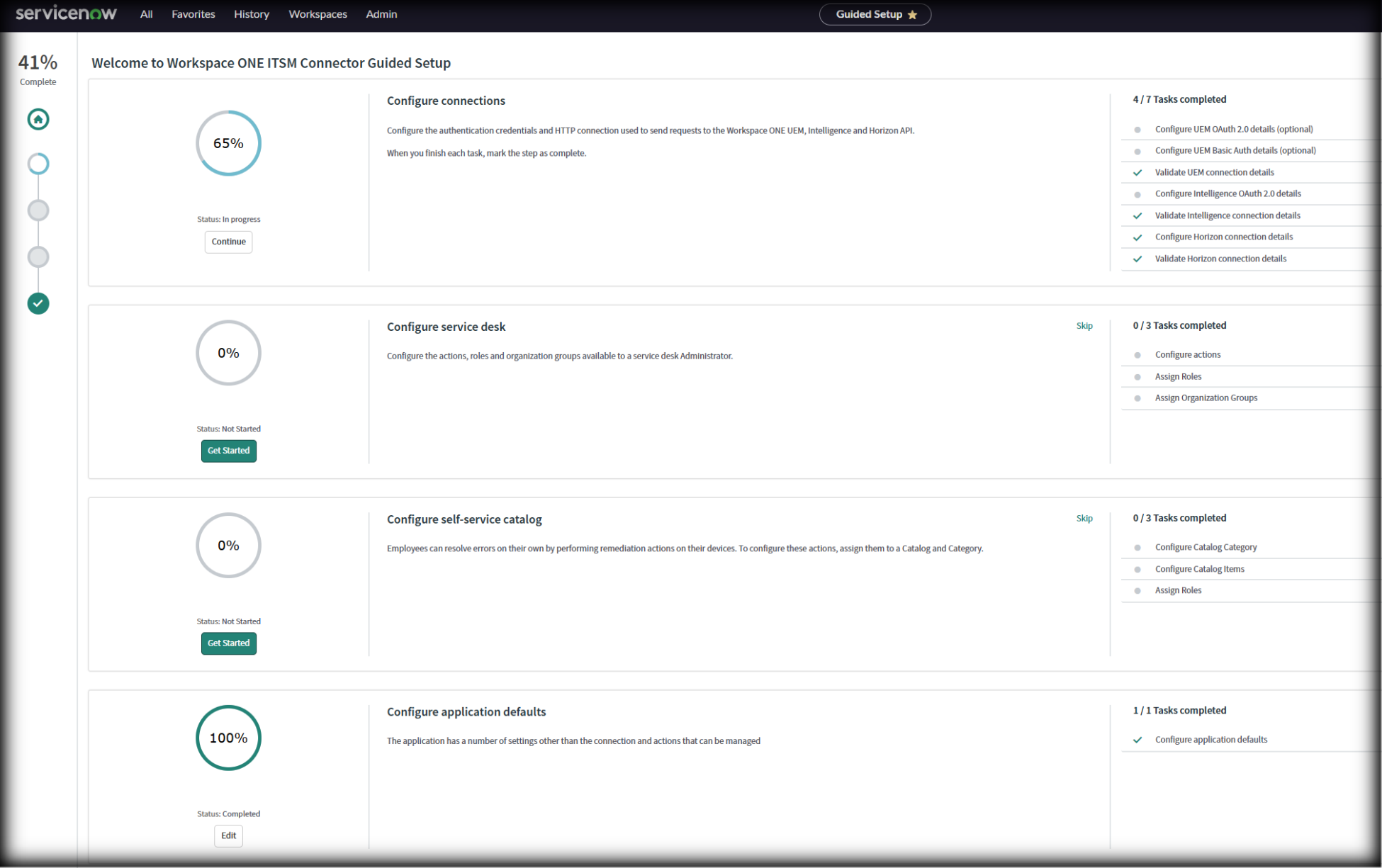
Figure 4: Workspace ONE ITSM Connector Guided Setup screen in ServiceNow, listing each configuration step
Note: Guided Setup tracks configuration progress as a percentage. If the percentage does not reach 100% after completing every tab, revisit each configuration screen and confirm it is marked Complete.
Guided Setup walks you through four core configuration actions:
- Configure the connection – Connects your ServiceNow instance to Workspace ONE UEM (and, optionally, Omnissa Intelligence)
- Configure the actions – Configures which Workspace ONE UEM actions are available to ITSM agents
- Configure the application defaults – Sets default application behavior, including audit notes
- Assign roles – Assigns Workspace ONE ITSM Connector roles to ServiceNow users and groups
Configuring the connection
Option 1: OAuth 2.0 (recommended)
- Before beginning in ServiceNow, switch to the Workspace ONE UEM console and create an OAuth client under Groups & Settings > Configurations > OAuth Client Management. Note the Client ID, Client Secret, and Token URL.
- In ServiceNow, go to the Configure OAuth Host details tab and click Configure.
- Update the Host field with the hostname of your Workspace ONE UEM API (found under Groups & Settings > All Settings > System > Advanced > Site URLs).
- Select the Active checkbox. Leave all other preconfigured fields unchanged.
- Go to the Configure OAuth Client details tab and click Configure.
- Enter the Client ID, Client Secret, and Token URL you noted from Workspace ONE UEM.
- Click Update.
Option 2: Basic Auth + Tenant Code
- Inside ServiceNow, go to the Configure Basic Auth Host tab and click Configure.
- Update the Host field with your Workspace ONE UEM API hostname and select Active.
- Go to the Configure Basic Credentials tab and click Configure. Enter the User Name and Password for the dedicated Workspace ONE UEM service account, then click Update.
- Go to the Configure Tenant Code tab and click Configure. Enter the Tenant Code for your environment, found under Groups & Settings > All Settings > System > Advanced > API > REST API > AirWatch API, then click Update.
Validating the connection
- If you configured OAuth 2.0, click Verify OAuth Token. A confirmation message appears if a token was retrieved successfully. If an error appears, re-check the Client ID, Client Secret, and Token URL and try again.
- Click Test Connection. ServiceNow confirms the connection and displays the Workspace ONE UEM platform version. If an error code and message appear instead, verify and correct your credentials.
- Mark the connection tab Complete before continuing to configure actions.
Configuring actions
By default, all supported Workspace ONE UEM actions are enabled for ITSM agents. Inside ServiceNow, on the Configure the Actions tab, deselect any actions you don't want available to your service desk team, based on your organization's support tier model and risk tolerance, for example, many organizations restrict Device Wipe and Enterprise Wipe to a senior tier only (see Assigning roles).
Configuring application defaults
On the Configure the Application Defaults tab, configure the Workspace ONE UEM Note application default setting. When enabled, every successful action performed from ServiceNow adds a note to the corresponding device record in Workspace ONE UEM, recording the time, the action taken, and the ServiceNow user who performed it. This is a valuable audit trail for compliance and change-tracking purposes and is enabled by default.
Assigning roles
The Workspace ONE ITSM Connector application includes three preconfigured roles that control what ITSM agents can see and do.
Table 1: Workspace ONE ITSM Connector roles
| Role | Description |
| WS1UEMStandard | Grants access to common, lower-risk device actions. |
| WS1UEMAdvanced | Grants access to the full action set, including destructive actions such as Device Wipe and Enterprise Wipe. |
| WS1ConsoleViewer | Adds a button to open the Workspace ONE UEM console directly from the incident for advanced troubleshooting. Independent of the two roles above. |
Table 2: Example action-to-role mapping
| Action | WS1UEMStandard | WS1UEMAdvanced |
| Change Passcode | Yes | Yes |
| Lock Device | Yes | Yes |
| Remote Assist | Yes | Yes |
| Request Logs | Yes | Yes |
| Send Message | Yes | Yes |
| Soft Reset | Yes | Yes |
| Sync Device | Yes | Yes |
| Device Wipe | No | Yes |
| Enterprise Wipe | No | Yes |
To assign roles:
- Go to the Assign roles to User Groups or Assign roles to Users tab and click Configure.
- Select the User or User Group.
- Go to the Role tab, click Edit, and add the required role(s).
- Click Save.
Note: If you are creating a new, dedicated Workspace ONE UEM account for the connector's API access (rather than reusing an existing admin account), grant it Edit rights to REST API device read/write/execute/advanced permissions, Assist, and the specific Device Management permissions used by device actions (messaging, lock, wipe, passcode, check-in, remote control, and remote view), plus Read rights to REST API Users. Scope the account's role as tightly as possible to the actions your service desk actually needs.
Supporting multiple UEM and Intelligence tenants
Larger organizations that operate more than one Workspace ONE UEM or Omnissa Intelligence tenant can connect a single ServiceNow instance to multiple tenants. Configure additional connections and then map each Workspace ONE UEM tenant to its corresponding Omnissa Intelligence tenant:
- From the connector's Configure connections screen, scroll to the Configure Intelligence OAuth 2.0 details section and select Configure Additional OAuth Connections.
- On the Workflow Studio homepage, select Integrations, then search for or locate the WS1 Intelligence ITSM Connection tile.
- Click Add Connection to add another Omnissa Intelligence tenant or View Details to review existing connections.
- Return to Configure Intelligence OAuth 2.0 details and select the UEM to Intelligence Mapping tab, then click Configure.
- In the mapping dialog, pair each Workspace ONE UEM connection (left column) with its corresponding Omnissa Intelligence connection (right column), then click Save.
Note: The exact navigation path for adding additional OAuth connections varies slightly by ServiceNow release; earlier releases (such as Vancouver) surface the connection screen directly, while later releases route through Workflow Studio.
Using the ITSM Connector
Workspace ONE UEM actions for service desk administrators
Once configured, a Workspace ONE UEM tab appears on the Incident form for any administrator assigned the WS1UEMStandard or WS1UEMAdvanced role. The tab is active only when the incident status is In Progress and both a caller and a configuration item are assigned. From the Workspace ONE Action drop-down, analysts can select an action to run against the device attached to the incident.
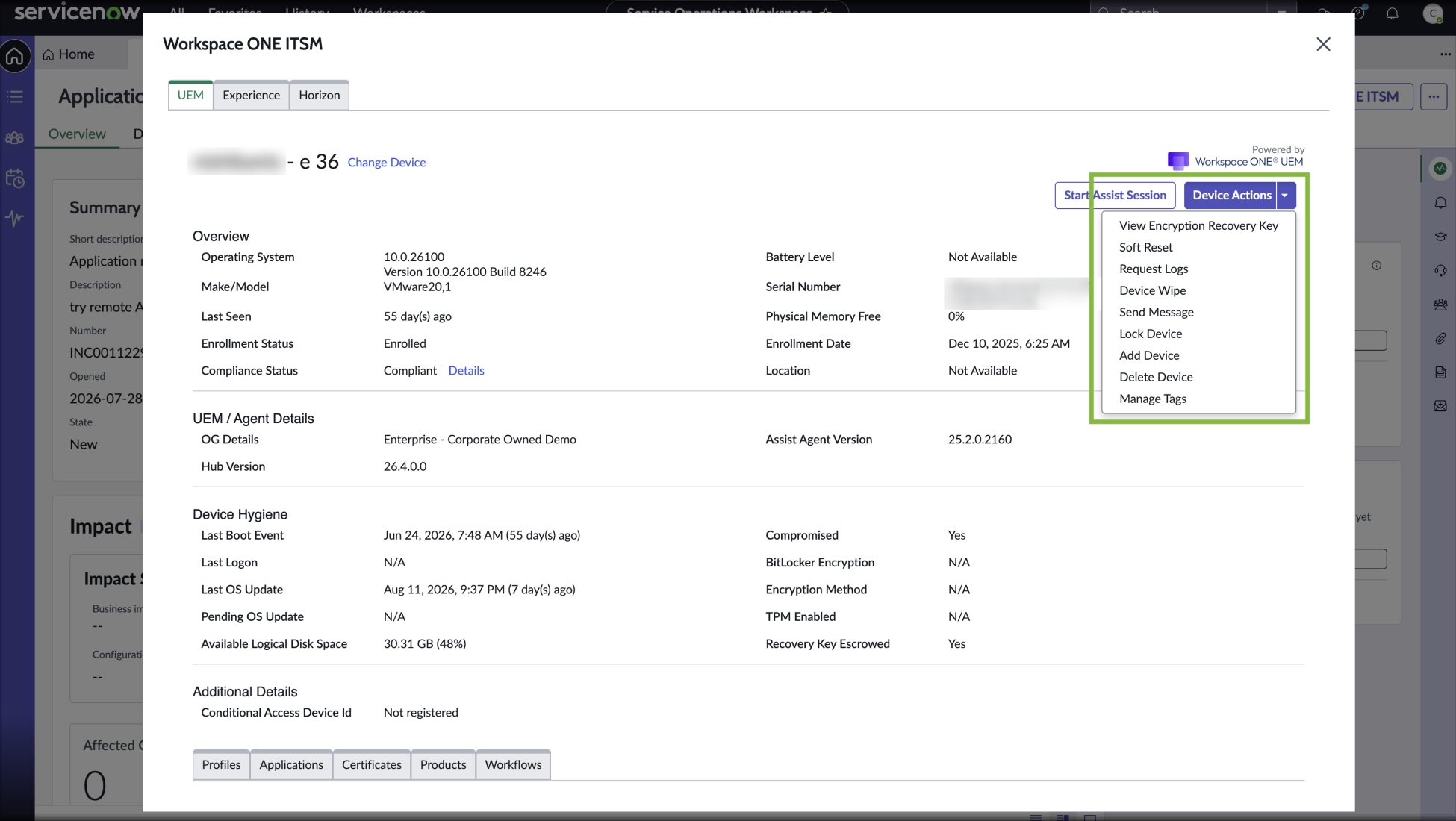
Figure 5: Workspace ONE UEM tab on ServiceNow Incident, showing device details and the Action drop-down menu
Table 3: Common Workspace ONE UEM actions available to service desk administrators
| Action | Description |
| Add Device | Enroll a device in Workspace ONE UEM. |
| Find Device | Send a message and audible alert to help locate a misplaced device. |
| Change Passcode | Replace the existing device passcode with a new one. |
| Lock Device | Remotely lock the device until it's unlocked. |
| Soft Reset | Remotely restart the device. |
| Sync Device | Force the device to check in with Workspace ONE UEM. |
| Send Message | Push a message to the device or its user. |
| Request Logs | Request the device send its logs to Workspace ONE UEM. |
| View Encryption Recovery Key | Retrieve the device's encryption recovery key. |
| Manage Tags | Add or remove tags to identify a device without a profile, smart group, or compliance policy. |
| Lost Mode | Lock the device and display a custom message and contact number on the lock screen. |
| Execute Workflows and Scripts | Run a Freestyle Orchestrator workflow or Workspace ONE UEM script on Windows or macOS devices. |
| Process Products | Force-process the products assigned to the device. |
| Device Wipe | Factory-reset the device, clearing all data and the OS. This action cannot be undone. |
| Enterprise Wipe | Remove all managed enterprise resources (apps and profiles) from the device. This action cannot be undone. |
Note: An action only succeeds if the configuration item's serial number matches a device record in Workspace ONE UEM, and the user’s email address matches the assigned user on that device. Destructive actions such as Device Wipe and Enterprise Wipe cannot be undone, restrict these to the WS1UEMAdvanced role and a limited set of trusted analysts.
If the WS1ConsoleViewer role is assigned, a Workspace ONE UEM Console button also appears on the incident, letting the analyst open the full Workspace ONE UEM console for deeper troubleshooting when the CI isn't matched or additional context is needed.
Workspace ONE Experience Management data in ServiceNow
When Omnissa Intelligence is connected, the ITSM Connector also surfaces Experience Management data on the Workspace ONE UEM tab: the device's Experience Score, the top contributing factors behind that score (such as boot time, CPU or memory utilization, and application performance), recent device events, application hang and crash data, and the device's last known GPS coordinates.
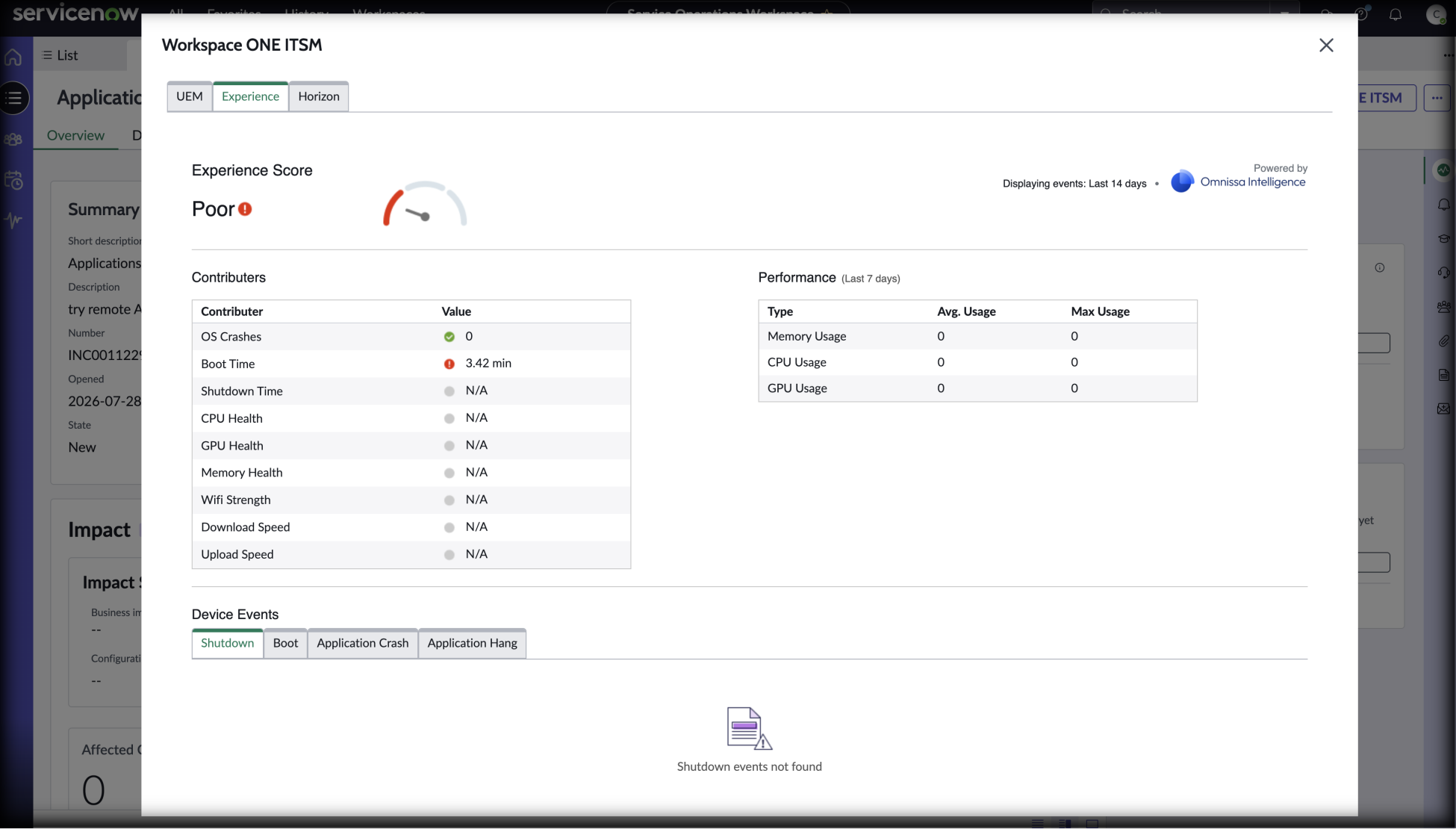
Figure 6: Device Experience Score and contributing factors displayed within a ServiceNow incident
This turns the incident from a bare description ("my laptop is slow") into an evidence-backed troubleshooting starting point, the analyst can see, without leaving the ticket, whether a device's poor experience is driven by memory pressure, a specific misbehaving application, or a hardware issue, and act accordingly.
Workspace ONE Assist remote support
For issues that require hands-on troubleshooting, analysts with Remote Assist permission can launch a Workspace ONE Assist session directly from the incident. Assist lets the analyst view or control the device's screen, transfer files, and run commands in real time, without asking the end user to install anything separately or the analyst to leave ServiceNow.
Note: Workspace ONE Assist requires an Assist license and device registration to the Assist server before a session can be started from an incident.
Self-service actions for employees
The ITSM Connector also adds a Workspace ONE category to the ServiceNow Service Catalog, so employees can resolve common device issues themselves without opening an incident.
Table 4: Self-service actions available to employees
| Action | Description |
| Add Device | Send the employee an email with enrollment instructions. |
| Change Device Passcode | Replace the existing device passcode with a new one. |
| Find Device | Send a text message and alert tone to help locate a missing device. |
| Lock Device | Lock the device until it's unlocked. |
| Sync Device | Sync the device to Workspace ONE UEM and refresh its Last Seen status. |
| View Encryption Recovery Key | Retrieve the device's encryption recovery key. |
Self-service reduces incoming ticket volume for routine, low-risk requests and gives employees a faster path to resolution for problems they're able to solve on their own.
Auditing actions with Notes
When the Note application default is enabled (see Configuring application defaults), every successful action taken from ServiceNow is recorded as a note on the device in Workspace ONE UEM, and on the Notes tab of the incident in ServiceNow, including the time, the action performed, and the ServiceNow user who performed it. Use this audit trail to review agent activity, support compliance requirements, and investigate any unexpected device state changes.
Example use cases
The ITSM Connector delivers value across three broad scenarios: faster triage using in-context device data, remediation without console-switching, and proactive support driven by device telemetry.
Reducing MTTR with in-context device data
A help desk analyst receives a call from an employee reporting that their laptop "keeps freezing." Without the ITSM Connector, the analyst would typically gather the device's asset tag or serial number, log in separately to the Workspace ONE UEM console, search for the device, and cross-reference performance data in Omnissa Intelligence, all while the employee waits on the line.
With the ITSM Connector, the analyst opens the Workspace ONE UEM tab on the incident and immediately sees the device's current Experience Score, along with the top contributing factor: high memory utilization tied to a specific application. Rather than requesting logs manually, the analyst confirms the issue, runs a Sync Device action to refresh state, and uses Remote Assist to close the offending application live with the employee on the call. The incident is resolved in a single interaction, with no console-switching and a note automatically recorded on the device for audit purposes.
Proactive ticket creation from device health signals
An IT planning team wants to reduce the number of "cold call" incidents where employees report vague symptoms with no supporting data. By combining Experience Management insights in Omnissa Intelligence with Freestyle Orchestrator automation, the team configures a workflow that automatically creates a ServiceNow incident whenever a managed device's Experience Score drops below a defined threshold, or a specific compliance violation is detected.
Because the incident is created with the device already attached, the assigned analyst opens the ticket to find the Workspace ONE UEM tab already populated with device health data and the contributing factors, no need to ask the employee to describe the problem. This proactive approach lets the service desk resolve, or at least start investigating, many issues before the employee even notices a disruption.
Extending visibility with Intelligence Analytics
A service desk manager wants to understand how much value the Workspace ONE ITSM Connector is delivering, which actions are used most, how quickly incidents involving device actions are resolved compared to those without, and where Workspace ONE ITSM Connector usage clusters by device platform or location. By configuring ServiceNow as a data source in Omnissa Intelligence, the manager can build custom dashboards that combine incident data with ITSM Connector activity (such as installed profiles or actions taken), giving IT leadership a data-driven view of service desk performance and connector adoption over time.
Summary and additional resources
The Workspace ONE ITSM Connector brings Workspace ONE UEM device actions, Workspace ONE Experience Management data, and Workspace ONE Assist remote support directly into the ITSM console analysts already use. By eliminating context-switching between systems, the connector helps service desks resolve incidents faster, reduce escalations, and give employees more effective self-service options, all while maintaining a clear audit trail of every action taken.
Additional resources
To learn more about the Workspace ONE ITSM Connector and related solutions, explore the following resources:
- Using the Workspace ONE ITSM Connector for ServiceNow
- Integration with the Workspace ONE ITSM Connector for ServiceNow
- Getting Started with Omnissa Intelligence
- Getting Started with Workspace ONE Experience Management
- Digital Employee Experience (DEX) Solution technical resources
- Omnissa Workspace ONE ITSM Connector in the ServiceNow Store
Changelog
The following updates were made to this guide:
| Date | Description of Changes |
| 2026/09/17 | Guide was published. |
Author and contributors
This document was written by:
- Cy Whitfield, Senior Product Specialist
- Cara Pong, Product Specialist
Feedback
Your feedback is valuable.
To comment on this paper, contact the Omnissa Product Specialist Team at tech_content_feedback@omnissa.com.