

Power Management with Horizon
Introduction
As organizations scale their virtual desktop and application delivery environments, efficient resource utilization and capacity management become increasingly important. Idle virtual machines, desktops remaining powered on, when not required and environments unable to adapt to changing user demand can lead to underutilized resources and operational inefficiencies across both on-premises and cloud infrastructures.
Power management addresses this challenge directly. In the context of VDI, power management refers to the set of policies, controls, and automation capabilities that govern the power status of virtual machines based on real user demand, session activity, and organizational schedules. Horizon power management addresses this challenge directly across both its on-premises and cloud-delivered platforms. When implemented correctly, it ensures that computing resources are available when users need them and reclaimed when not required- without constant manual intervention from administrators.
This guide explains what power management is in a VDI context, why it matters, and how it can be implemented within Horizon Cloud and Horizon 8. Each platform is described on its own terms, covering the specific features and configuration capabilities available to administrators in that environment.
Audience
This guide is intended for datacenter administrators and IT professionals who want to improve resource utilization and operational efficiency across virtual desktop and application environments. It provides practical guidance for using power management capabilities in Horizon 8 and Horizon Cloud and serves as a reference for effectively managing infrastructure resources across Horizon platforms. This guide is written for datacenter administrators and IT personnel who want to optimize the costs of running a Virtual Desktop and Application solution by minimizing the amount of time that the resources are being consumed. It can help you work with Horizon 8 and Horizon Cloud, and it provides a reference as you become more proficient.
Overview & Benefits
Omnissa Horizon power management capabilities include power-based, load-based, and schedule-based policies that control how virtual machines behave when their associated desktops are not in use (spare VMs).
Power management configurations control how a virtual machine (VM) behaves when the associated desktop or server is not in use. A desktop is considered not in use both before a user logs in, and after a user disconnects or logs off. A multi-session VM is considered not in use when the last user session is ended from that host. Power policies also control how a virtual machine behaves after administrative tasks are completed, such as refresh, recompose, farm expansion, and farm refresh.
The primary reason for using power management policies is to reduce the amount of infrastructure resources necessary to support users, while still providing enough powered-on and available resources for users when they need them. Leveraging these policies effectively will help you adhere to lower cost on infrastructure spending.
Business Outcomes and the Power Policy Feature Matrix
Implementing power management policies in Horizon 8 and Horizon Cloud helps organizations achieve both operational and financial benefits by aligning infrastructure consumption with actual user demand.
- Lower Infrastructure Costs: Dynamically powering off unused VMs and reclaiming idle sessions reduces compute and cloud consumption costs.
- Infrastructure Optimization: Optimizes desktop utilization across on-premises, hybrid, and cloud-based SDDC deployments.
- Consistent User Access and Performance: Intelligent scaling ensures desktops are ready when users need them, with no disruption to active sessions during scale-down events.
- Spare Capacity Management: Maintains spare desktops for immediate user access during peak demand.
- Power Off Protect Time: Delays desktop shutdown to prevent aggressive power cycling during sudden demand spikes.
- Automated, Demand-Driven Scaling: Environments adapt to changing user demand automatically without requiring manual intervention.
- Automation and Intelligence: Provides policy-driven scaling and lifecycle management based on administrator-defined settings.
- Load-Based: By using Pools, Pool Groups, and desktop farms as the building blocks for load-based power management, a core shared capability that can adjust desktop capacity based on real-time user demand.
- Schedule-Based: Allows desktop capacity to align with business operating hours.
- Provisioning Policies: Controls desktop provisioning and scaling behavior based on configured thresholds.
- Business Continuity and Simplified Administration: User sessions are preserved during periods of inactivity, and routine capacity management tasks are handled by the platform rather than by administrators.
- Hibernate / Suspend Capability: Supports suspend functionality to preserve desktop state while reducing active compute usage. Horizon 8 uses the Suspend power policy, while Horizon Cloud supports enhanced Hibernate functionality exclusively on Microsoft Azure providers. This Microsoft Azure-specific capability enables session preservation while reducing active compute resource usage.
- Session Timeout Handling: Determines how the system manages user sessions when they become inactive or disconnected.
Note: The configuration examples in this guide are intended to demonstrate how different power management features can be applied. Actual settings including thresholds, schedules, timeout values, and desktop capacity will vary based on environment size, user demand patterns, application workloads, and operational requirements.
Horizon Cloud Power Management Configurations
Power management in Horizon Cloud is configured through the Horizon Universal Console at both pool and pool group levels. This centralized approach provides administrators with comprehensive control over power policies, scheduling, and timeout settings to optimize the environment.
Horizon Cloud’s architecture supports both reactive and predictive capacity management, allowing you to choose the level of automation that best fits your operational model. When implemented effectively, these policies deliver advanced capabilities to auto-scale resources, forecast power demands, and efficiently manage inactive VMs.
Load-Based Power Management policies
Load-based power management is set up manually and dynamically adjusts desktop capacity based on real-time user demand and session utilization. Instead of always maintaining a fixed number of powered-on virtual machines (VMs), the system continuously monitors desktop usage and automatically powers VMs on or off according to configured thresholds and policy settings.
As more users connect, additional desktops are powered on or provisioned. When demand decreases, unused desktops are powered off to reduce resource consumption. This helps ensure desktop availability while optimizing infrastructure utilization and costs.
Auto Scaling Mode is available for both floating and multi-session pool groups and allows you to control how your virtual machine resources are utilized and optimized to balance performance and cost. Choose between four power management modes to control how aggressively the system scales.
| Mode | Low / High Threshold High Threshold | Best For |
| Prioritize Availability | 23% / 50% | Prioritizes user experience by powering on additional desktops earlier, helping ensure capacity is ready before demand increases. This approach uses more compute resources to maintain higher desktop availability |
| Balanced | 31% / 66% | Moderate balance between timely user availability and capacity cost savings |
| Prioritize Cost Savings | 38% / 80% | Minimizes capacity cost with potential brief user delays by maximizing utilization before scaling |
| Fixed | N/A | Fixed number of spare desktops always powered on, predictable, consistent availability |
Table 1: Pool Group Auto Scaling Mode options
Note: The Low and High Threshold percentages represent desktop occupancy levels used by Horizon Cloud to manage capacity. The Low Threshold helps determine when excess capacity can be reduced, while the High Threshold determines when additional desktop capacity should be powered on. Lower thresholds prioritize availability, whereas higher thresholds allow greater utilization before scaling up.
Desktop startup time can vary depending on VM size, applications, and startup services. Optimizing boot times can improve user experience and help reduce infrastructure costs.
Navigation: Horizon Universal Console > Pool Groups > [Select Pool Group] > Edit > Auto Scaling > Capacity Management
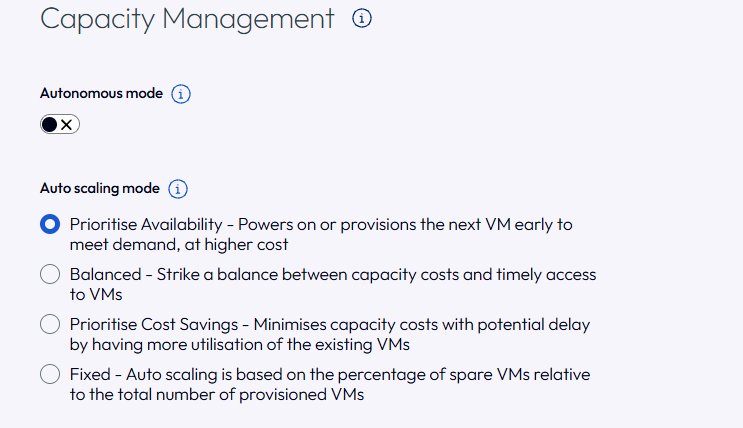
Figure 1: Auto Scaling Mode
For more information, refer to the Horizon Cloud Using and Managing documentation: Managing Power Options for Pools and Pool Groups.
Configuration Example: Global Services Organization
Scenario: A pool group supports 1,000 users with usage patterns that fluctuate throughout the day. Peak demand occurs between 8:00 –10:00 a.m. when users begin logging in, while utilization drops significantly during evenings and overnight hours.
Configuration:
- Power Management Mode: Balanced
- Minimum Spare VMs: 20
- Maximum Capacity: 1,000 VMs
- Load-Based Scaling: Enabled
- Power Off Protect Time: 30 Minutes
Business Outcome: As users begin connecting in the morning, Horizon continuously monitors desktop utilization and automatically provisions additional desktops when usage exceeds the configured upper threshold. For example, if 500 desktops are in use and demand continues to increase, Horizon powers on additional desktops to maintain available capacity and prevent login delays. During periods of lower utilization, unused desktops are gradually powered off after the Power Off Protect Time expires, reducing unnecessary resource consumption.
If the policy is changed to Prioritize Availability, desktops are provisioned earlier, and more spare capacity is maintained, improving login responsiveness. If changed to Prioritize Cost Savings, Horizon waits longer before adding capacity and removes unused desktops more aggressively, reducing infrastructure costs but potentially increasing login wait times during sudden demand spikes. This dynamic scaling ensures desktop capacity closely aligns with actual user demand throughout the day.
Schedule-Based Power Management Policies
Horizon Cloud also supports schedule-based power management, referred to as Auto Scaling. This is also set up manually and allows administrators to adjust desktop capacity based on specific days and times. Scheduled policies can automatically increase capacity during business hours and reduce resources during off-hours to optimize infrastructure usage. For example, one schedule can be used for weekdays and another for weekends.
Auto Scaling allows administrators to define time-based power policies that adjust desktop capacity during specific hours or days. It can be applied globally to all pool groups or targeted to individual pools, providing greater flexibility to manage resource availability and optimize infrastructure usage based on workload patterns.
Navigation: Horizon Universal Console > Pool Groups > [Select Pool Group] > Edit > Auto Scaling > Capacity Management > Auto scaling Schedule >Add
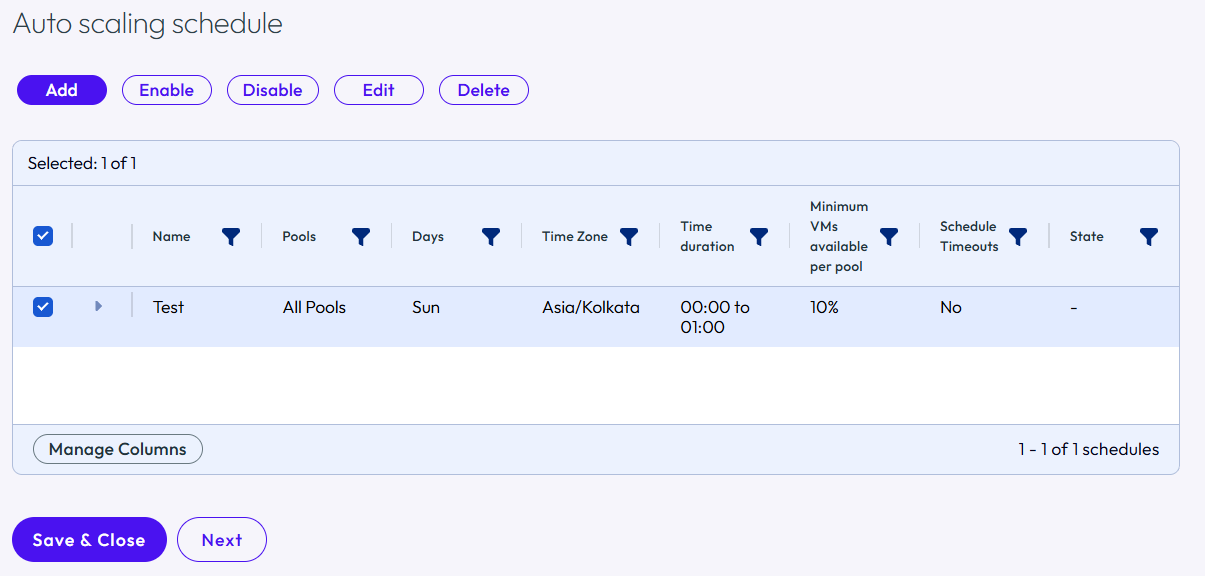
Figure 2: Add Auto Scaling Schedule
Note: You can have up to 10 schedules for VDI desktop assignments (floating or dedicated). If schedules overlap and have different minimum VM values, the system uses the largest value of minimum number
For complete configuration options, refer to the Horizon Cloud Using and Managing documentation: Schedule Auto Scaling.
Configuration Example: Corporate HQ - Business Hours and Weekend Staffing (500 Users)
Scenario: A 500-user pool group with standard Monday–Friday usage and minimal weekend activity.
Configuration:
- Schedule 1: Weekdays 7am–7pm: Minimum VMs = 100.
- Schedule 2: Weekdays 7pm–7am: Minimum VMs = 10.
- Schedule 3: Weekends: Minimum VMs = 5.
Business Outcome: Between 7am and 7pm, Horizon maintains at least 100 desktops to support employee logins and workload demand. At 7pm, capacity is automatically reduced to 10 desktops, and on weekends only 5 desktops remain available for occasional access. If the minimum weekday value were increased to 150 desktops, more users could be serviced immediately during peak hours, but infrastructure consumption would also increase. This approach ensures capacity closely aligns with business operating hours while minimizing unnecessary cloud consumption during off-peak periods.
Session Time Out Management
Timeout settings determine how the system manages user sessions when they become inactive or disconnected. Administrators can manually configure values such as Maximum session lifetime, Idle session timeout, and define behavior for Disconnected session, where the system can either Log Off the user after a specified time or take No Action. These settings determine when desktops become eligible for power management actions, helping optimize resource utilization and infrastructure costs.
For Floating Pool Groups, timeout policies help reclaim unused desktops more quickly, making them available for other users and reducing unnecessary resource consumption.
For Dedicated and Shared Session Pool Groups, timeout settings can be used to log off inactive users and power off after a defined period. Properly configured timeout policies help balance user experience, resource efficiency, and operational costs while minimizing the risk of disrupting active user sessions.
Navigation: Horizon Universal Console > Pool Groups > [Select Pool Group] > Edit > Auto Scaling > Timeouts
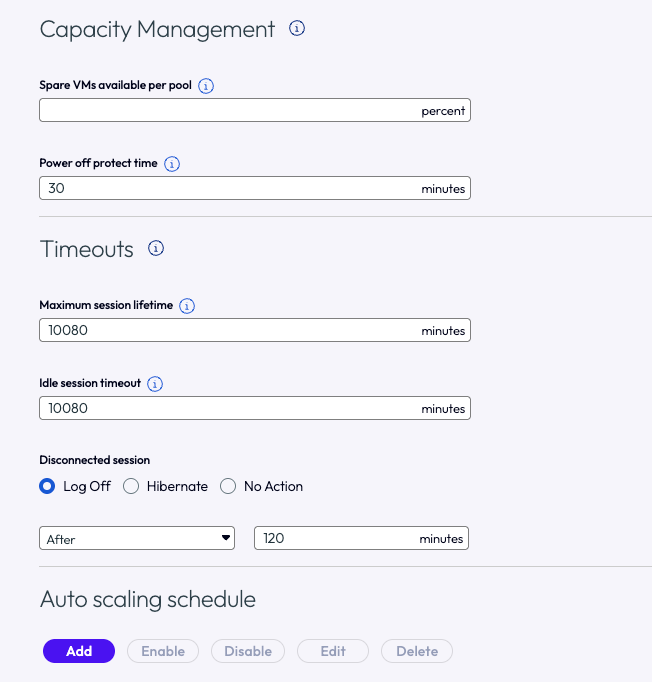
Figure 3: Session Timeout Settings
For complete configuration options, refer to the Horizon Cloud Using and Managing documentation: Timeout Handling of Pool Groups
Configuration Example: Floating Pool for Shift Workers
Scenario: A 300-user call center with rotating 8-hour shifts running floating desktop pools.
Configuration:
- Maximum session lifetime: 480 minutes (8 hours).
- Idle session timeout: 20 minutes.
- Disconnected session: Log Off after 30 minutes.
Business Outcome: Users who leave their desktop idle for more than 20 minutes become candidates for timeout handling, while disconnected sessions are automatically logged off after 30 minutes. Once logged off, the desktop becomes available for reuse by incoming shift workers and can be powered down based on pool policies. Increasing the disconnect timeout to 2 hours would preserve user sessions longer but delay resource reclamation. This configuration helps maintain desktop availability while preventing unused desktops from consuming resources.
Power Off Protect Time
In Horizon cloud the Power Off Protect Time is the duration a newly powered-on Virtual Machine is protected from being automatically powered off due to a headroom error (VM which is considered unnecessary based on the current load) or auto-scaling capacity adjustments.
Manually configure the Power Off Protect Time setting to define how long the system should wait before powering off an unused VM, after confirming that no users are connected to it.
Setting Value:
- Default Value: 30 minutes.
- Configurable Range: 1 to 60 minutes.
Navigation: Horizon Universal Console > Pool Groups > [Select Pool Group] > Edit > Auto Scaling > Capacity Management > Power Off Protect Time

Figure 4: Power off protect time setting
Configuration Example: Large Office with Morning Login Storm
Scenario: A 400-user office where most employees log in between 8:00am and 8:45am, creating a rapid 45-minute demand spike.
Configuration: Set Power Off Protect Time to 45 minutes.
Business Outcome: As users begin logging in, Horizon powers on additional desktops to satisfy demand. Any desktop powered on during this period remains protected from automatic power-off for 45 minutes, even if utilization temporarily drops below scaling thresholds. This prevents desktops from being powered on and off repeatedly during short-term demand fluctuations. If the protect time were reduced to 10 minutes, desktops could be reclaimed sooner but might also be removed too aggressively during periods of rapidly changing demand.
Autonomous Mode
Autonomous Mode is an intelligent power management capability in Horizon Cloud that automatically adjusts the availability of virtual machines (VMs) in a desktop pool based on observed user demand patterns. When enabled, administrators are asked to choose their preferred Auto Scaling mode. They can prioritize user availability, infrastructure cost efficiency, or use balanced or fixed configuration. Once the auto scaling mode is set, Horizon Cloud will collect 14 days of data and analyze your specific usage trends to dynamically power VMs on or off automatically, maintaining your optimal balance preference.
When Autonomous Mode is enabled, it overrides the last manually configured scaling and availability settings and takes control of capacity management by analysing usage patterns and historical trends to predictively adjust resources. It is available for Single-Session environments, Floating and Multi-Session pool groups to optimize scaling for both busy and quiet periods. If disabled, your previously configured auto scaling mode settings will be restored.
Navigation: Horizon Universal Console > Pool Groups > [Select Pool Group] > Edit > Auto Scaling > Capacity Management > Autonomous Mode
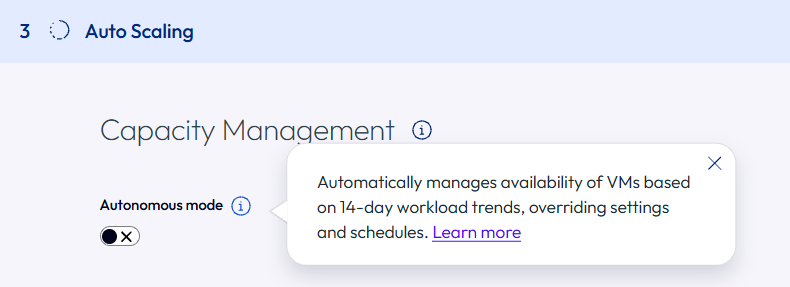
Figure 5: Enable Autonomous mode
For more information, see Autonomous Mode in the Horizon Cloud Using and Managing documentation.
Configuration Example: Higher Education Environment
Scenario: A university provides virtual desktops to 2,000 students. Usage patterns are highly predictable, with increased demand during weekday class hours (8:00 AM–5:00 PM), reduced activity in the evenings, and minimal usage overnight and during semester breaks.
Configuration:
- Autonomous Mode: Enabled
Business Outcome: Autonomous Mode analyses historical usage patterns and automatically adjusts desktop capacity based on predicted demand. For example, if usage data shows approximately 800 students typically connect between 8:00 AM and 10:00 AM, Horizon proactively increases capacity before the morning rush. As demand decreases throughout the day, unused desktops are automatically deprovisioned. This helps maintain desktop availability while reducing administrative effort and unnecessary resource consumption
Hibernate Pools and Virtual Machines (VMs for Azure Mode)
The Hibernate feature in Horizon Cloud (Azure provider only) allows desktops to save their current state and enter a low-cost hibernated state instead of remaining powered on. When users reconnect, they can resume their session from where they left off, helping reduce compute costs while preserving the user experience.
Note: Hibernation is only supported on Windows desktop pools with Azure provider. Linux desktop pools are not supported.
Key Considerations:
- Hibernate is supported only for Windows desktop pools on Azure.
- Once Hibernate is enabled for a pool, it cannot be disabled for existing VMs. It is recommended to validate the configuration in a test or pilot pool before broad deployment.
- In mixed Pool Groups (containing both Hibernate-enabled and non-Hibernate pools), the available timeout actions are limited to Log Off and No Action.
- In Hibernate-only Pool Groups, the available timeout actions are Log Off, Hibernate, and No Action.
- For Dedicated Pool Groups, hibernated VMs are deallocated during inactivity, meaning organizations are billed only for storage while the VM is hibernated.
- Users can reconnect and continue their session from the point where they disconnected.
This feature is manually configured and particularly useful for reducing Azure compute costs while maintaining user productivity and session continuity.
Navigation: Horizon Universal Console > Pool Groups > [Select Pool Group] > Edit > Hibernate Settings > Enable Hibernate
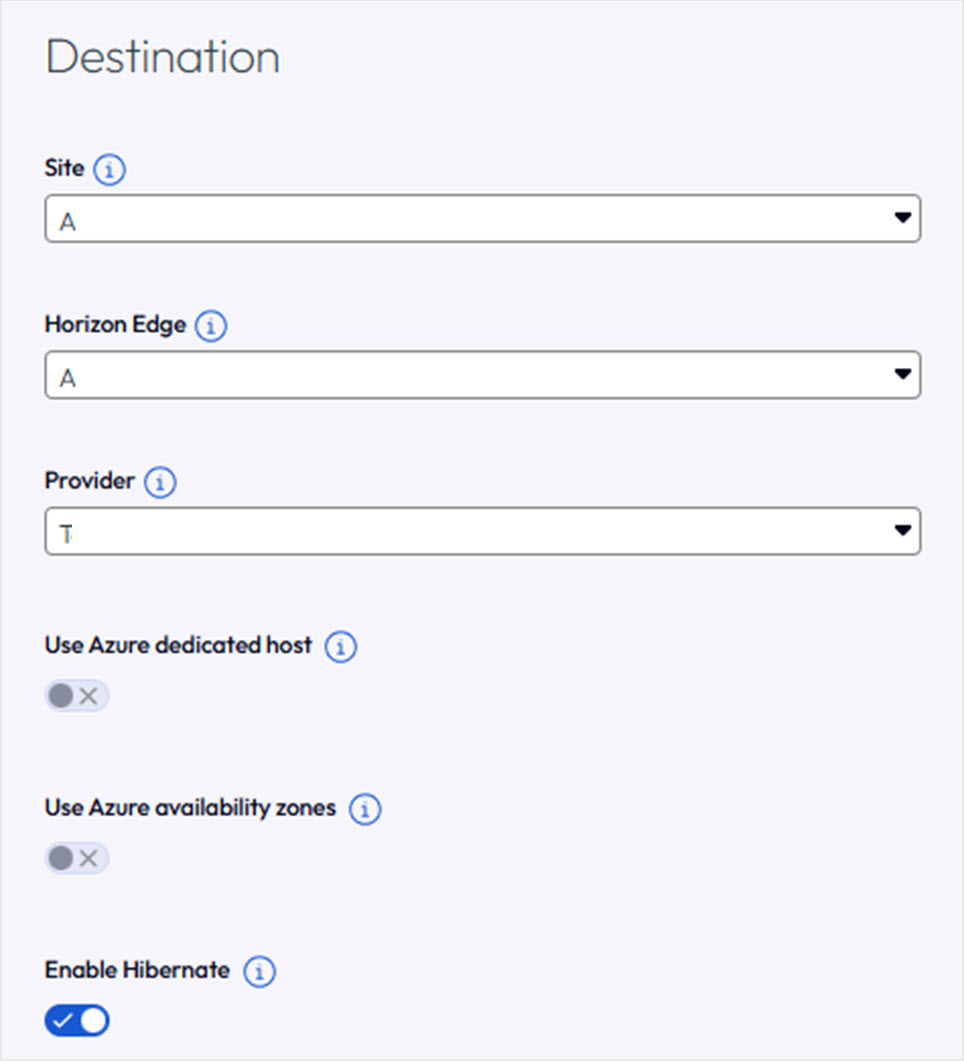
Figure 6: Enable Hibernate
For complete configuration options, refer to the Horizon Cloud Using and Managing documentation: Hibernate Pools and Virtual Machines
For reference information on virtual machine hibernation on Microsoft Azure, refer to the Microsoft Azure documentation on VM hibernation.
Configuration Example: Knowledge Workers on Azure Dedicated Desktops
Scenario: A 500-user workforce on dedicated Azure desktops, averaging 6 hours of active work per day.
Configuration: Enable Hibernate on the dedicated pool group. Set Disconnected session timeout action to Hibernate after 15 minutes.
Business Outcome: When users disconnect, their desktops remain available for 15 minutes before entering a hibernated state. The VM state, applications, and user data are preserved, while Azure compute resources are released. When users reconnect, the desktop resumes from its previous state instead of performing a full reboot. If the timeout were increased to 60 minutes, desktops would remain active longer before hibernating, increasing compute consumption but allowing a larger reconnect window.
Horizon 8 Power Management Configuration
Power management in Horizon 8 is focused on pool-level lifecycle management, giving administrators precise control over how desktop pools respond to user demand, session activity, and operational schedules. The goal is to intelligently manage the VMs within those pools powering them on when needed, suspending or powering them off when not to maximize utilization of the available infrastructure while ensuring desktop availability for users.
Power management in Horizon 8 is configured within the Horizon Administrator console, directly at the desktop pool and farm level. Each pool’s power management behavior is defined through a combination of power policies, provisioning settings, spare capacity parameters, timeout configurations, and schedule definitions.
Additional session management and timeout settings can also be applied globally through Global Settings or centrally managed using Active Directory Group Policy Objects (GPOs) with Horizon ADMX template.
Load-Based Power Management Policies
Load-based power management in Horizon 8 automatically adjusts desktop capacity based on user demand and desktop pool utilization. The system maintains a configured number of spare desktops and dynamically provisions, powers on, suspends, or powers off desktops as utilization changes. This helps ensure desktops are available when users need them while efficiently managing infrastructure resources.
Navigation: Horizon Console > Inventory > Desktops > [Select Pool] > Edit > Provisioning Settings
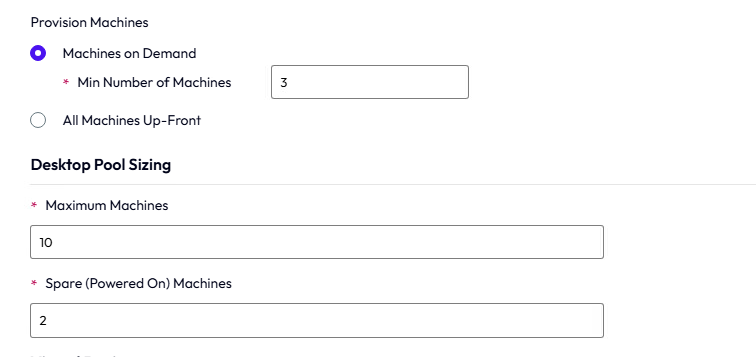
Figure 7: Horizon 8 schedule-based power management policies
For complete configuration options, refer to the Omnissa documentation: Setting Power Policies for Desktop Pools
For automated desktop pools, choose from the following Power Policy options:
| Parameter | Description |
| Minimum Number of Machines | The smallest number of VMs that will ever be provisioned in the pool. |
| Maximum Machines | The upper limit of VMs that can be provisioned. |
| Spare (Powered On) Machines | The number of unassigned, powered-on desktops to always keep ready. |
| Machines on Demand | VMs are provisioned as users connect (vs. All Up-Front, where all VMs are created at pool creation). |
Table 2: Power policies for load-based power management
These power policies work together with provisioning settings such as minimum machines, spare desktops, and provisioning thresholds to determine how the desktop pool responds to changing workload demands.
Configuration Example: 150 User Floating Pool for Office Workers
Scenario: A 150-user floating instant clone pool for general office workers with predictable peak hours.
Configuration:
- Minimum Machines: 5.
- Maximum Machines: 150.
- Spare (Powered On) Machines: 10.
- Provision: Machines on Demand.
- Power Policy: Power Off.
Business Outcome: Horizon maintains 10 powered-on desktops ready for immediate user logins. As concurrent usage increases, additional desktops are provisioned on demand until the pool reaches 150 desktops. During off-peak hours, unused desktops are powered off after users log out, eventually returning the pool to the minimum required capacity. Increasing the spare machine count to 25 would improve login responsiveness during peak periods but would require more desktops to remain powered on.
Schedule-Based Power Management
Schedule-based power management in Horizon 8 allows administrators to control desktop availability and resource consumption based on predefined schedules.
In Horizon 8, schedule-based management is typically achieved through Scheduled Tasks, vSphere DRS and power operations, desktop pool provisioning settings that work together to manage desktop lifecycle operations throughout the day.
Navigation:
- Horizon Console > Inventory > Desktops > [Select Pool] > Edit > Provisioning Settings
- Horizon Console > Monitor > Scheduled Tasks > Add Task
For complete configuration options, refer to the Omnissa documentation: Setting Power Policies for Desktop Pools
Configuration Example: Enterprise Pool with Business Hours Scaling
Scenario: A 200-user enterprise pool used primarily Monday–Friday, 7am–7pm.
Configuration:
- Scheduled Task 1 (weekdays 6:30am): Set Spare Machines to 20.
- Scheduled Task 2 (weekdays 7pm): Set Spare Machines to 2.
- Scheduled Task 3 (weekends): Set Spare Machines to 2.
Business Outcome: Before employees begin work, Horizon increases spare desktop capacity to 20 desktops, ensuring users can connect immediately without waiting for provisioning. After 7pm and throughout the weekend, the pool maintains only 2 spare desktops, significantly reducing infrastructure consumption. Increasing the weekday spare count would improve login responsiveness during peak time, while decreasing it would reduce resource usage but could increase login wait times
Session Timeout Handling
Session timeout handling in Horizon 8 provides administrators with controls to manage desktops when user sessions become inactive or disconnected.
Session timeout settings can be configured at the desktop pool or farm level depending on the deployment model and use case.
Common session timeout configuration options include:
| Setting | Description |
| Maximum Session Time | Maximum connected session duration before the session is automatically terminated. |
| Idle Session Timeout | How long a session can be inactive before a timeout action is triggered. |
| Disconnected Session Timeout | How long a disconnected session is retained before Horizon acts on it. |
| Log Off Disconnected Sessions | Automatically logs off users after the disconnected session timeout expires. |
| No Action | Sessions remain active or disconnected indefinitely until the user reconnects or manually logs off. |
Table 3: Power policies for Session Timeout settings
Navigation:
- Horizon Console > Inventory > Desktops > [Select Pool] > Edit > Session Management (pool-level)
- Horizon Console > Settings > Global Settings > General (global-level)
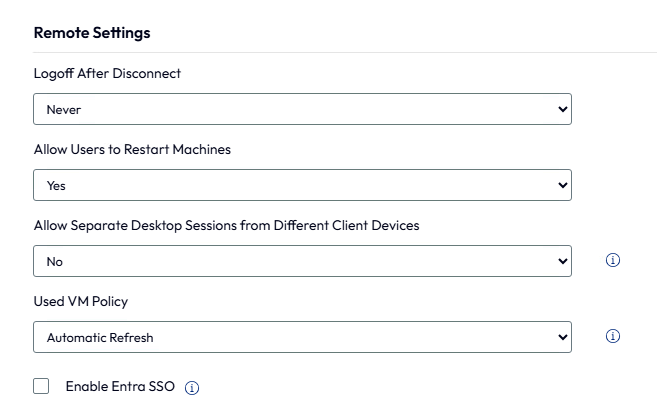
Figure 8: Horizon 8 Session Timeout settings
For complete configuration options, refer to the Omnissa documentation: Configure Windows Desktop Session Timeouts in Horizon Console
Configuration Example: Floating Instant Clone Pool with Power Off Policy
Scenario: A floating instant clone pool where users frequently disconnect without logging off.
Configuration:
- Maximum Session Time: 240 minutes.
- Idle Session Timeout: 30 minutes.
- Disconnected Session: Log Off after 60 minutes.
Business Outcome: Users who disconnect remain connected to their session for up to 60 minutes. After that period, Horizon automatically logs them off, allowing the desktop to be powered off and returned to the pool. If the disconnect timeout were increased, users would have more time to reconnect, but desktops would remain unavailable for reuse for a longer period. This configuration balances user flexibility with efficient desktop utilization.
These policies can be combined with desktop power management settings to control when desktops become eligible for suspend or power-off operations, helping administrators balance user experience with resource efficiency.
Power Policies
Power policies in Horizon 8 determine how desktops are managed when users log off, disconnect, or when desktops are no longer actively required. These policies help administrators balance desktop availability, user experience, and infrastructure utilization by controlling the power state of virtual machines within a desktop pool.
Power policies can be configured through the Horizon Console by navigating to:
Navigation: Horizon Console > Inventory > Desktops > [Select Desktop Pool] > Edit > Provisioning Settings
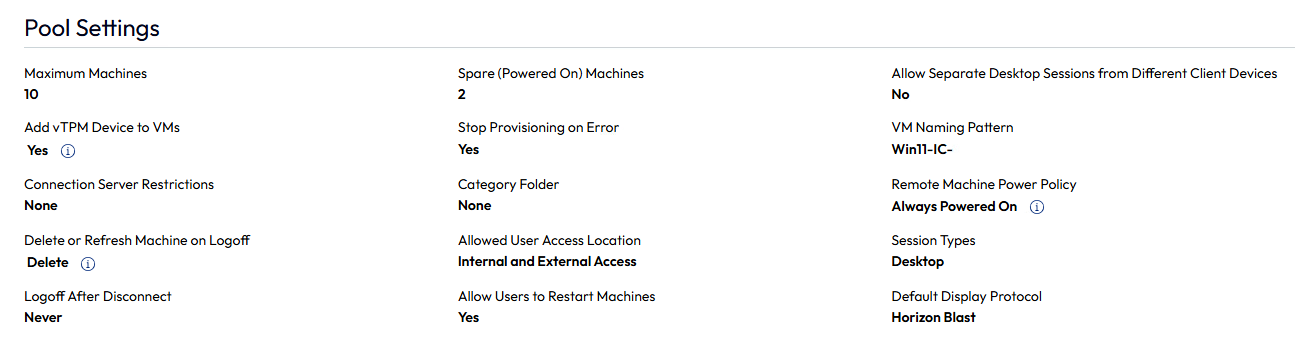
Figure 9: Horizon 8 power policies pool settings
For complete configuration options, refer to the Omnissa documentation: Power Policies for Desktop Pools
The following power policy options are available:
| Power Policy | Description | Best Use Case |
| Take No Power Action | VM stays in its current state after logoff. No automatic power change is applied. | Pools managed externally or requiring manual power control. |
| Always Powered On | Always Keeps desktops on; automatically powers them back on if shut down. | Mission-critical or dedicated pools that require instant access. |
| Suspend | Suspends VMs after logoff, preserving session state while reducing active compute. | Dedicated pools where fast resume is more important than compute cost savings. |
| Power Off | Powers off VMs after logoff, fully reclaiming all compute and memory resources. | Floating pools in cost-sensitive environments where VM startup time is acceptable. |
Table 4: Power policies in Horizon 8
These policies work in conjunction with provisioning settings such as Minimum Number of Machines, Spare (Powered On) Machines, and Provisioning Thresholds to determine how desktop capacity is maintained and managed based on user demand.
Configuration Example 1: Floating Pool - Cost Optimized
Scenario: A 100-user floating instant-clone pool for shift workers. VMs are stateless; cost reduction is the priority.
Configuration:
Power Policy: Power Off.
Spare Machines: 5.
Session Management: Log Off disconnected sessions after 30 minutes.
Business Outcome: After each user logs off, the VM powers down immediately, freeing compute resources. Five powered-on VMs always remain available for the next shift. This reduces active VM count to 5 during off-peak hours versus 100 under an always-on configuration, a 95% reduction in wasted idle compute.
Configuration Example 2: Dedicated Pool - User Experience Optimized
Scenario: A 50-user dedicated full-clone pool for developers with persistent profiles, long compile jobs, and open IDE sessions. Fast resume is critical.
Configuration:
Power Policy: Suspend.
Session Management: Disconnected Session. Set No Action (users expect to resume their session the next morning).
Business Outcome: Developer VMs are suspended when inactive, preserving all open applications and reducing active memory and CPU consumption on the host. When developers reconnect the next morning, their session resumes in seconds — no reboot, all work exactly where it was left. This improves developer productivity and satisfaction while reducing the compute footprint compared to an always-on policy.
Summary and Additional Resources
This guide explored the power management capabilities available across Omnissa Horizon 8 and Horizon Cloud, highlighting how each platform helps organizations optimize desktop availability, improve resource utilization, and automate infrastructure management. While both platforms provide core power management capabilities such as load-based scaling, schedule-based policies and session timeout handling, Horizon Cloud extends these capabilities with cloud-native features including Autonomous Mode, Hibernate, Power Management Modes, and Pool Group-based policies.
The guide covered:
- Understanding power management concepts across Horizon platforms
- Business outcomes of implementing power management policies
- Configuring power management in Horizon 8 and Horizon Cloud
- Load-based, schedule-based and session timeout policies
- Horizon Cloud enhancements, including Autonomous Mode, Hibernate and Power Off Protect Time
- Platform-specific capabilities and feature support
- Example configurations to help plan real world deployments
For more information, see the following resources:
- Omnissa Horizon Documentation
- Horizon 8 Documentation - https://docs.omnissa.com/category/Horizon_8
- Horizon Cloud Service Documentation - https://docs.omnissa.com/category/HorizonCloud
- Power Policies for Desktop Pools (Horizon 8)
- Omnissa Tech Zone
- Omnissa Product Documentation
Change Log
The following updates were made to this guide:
| Date | Description of Changes |
| 2026-07-20 |
|
| 2024-03-21 |
|
| 2020‑10‑12 |
|
About the Author and Contributors
This document was written by the following collaborators:
- Babita Mazumdar, Product Specialist and Technical Enablement
- Rick Terlep, Director, Product Specialist and Technical Enablement team, Omnissa.
Feedback
Your feedback is valuable. To comment on this paper, either use the feedback button or contact us at tech_content_feedback@omnissa.com.