

Omnissa MCP (Model Context Protocol) Server
Your AI tools and Omnissa, through a single interface
Managing multiple Omnissa products often means juggling separate consoles, each with its own interface, logins, and workflows. Your teams lose time jumping between tools instead of getting work done. With Omnissa MCP Server, AI becomes the bridge that brings your products together into a single interface. Through your AI tool of choice, you can crawl and synthesize data, predict outcomes, generate content, and automate processes across all the tools you already use, all from one place. No more bouncing between consoles. It's built to fit seamlessly into your company's AI strategy, so you get one unified experience instead of many fragmented ones.
Purpose of this article
This article explains the challenges that MCP Server solves, outlines the high-level architecture, mentions how to integrate and activate the service, and describes cases where your AI tool can work with your Omnissa products to save time and increase efficiency.
Audience
This article is intended for IT administrators and product evaluators who are familiar with Omnissa Workspace ONE and Omnissa Horizon. Familiarity with AI tools, Model Context Protocol (MCP), and MCP servers is assumed.
Challenges
AI now runs across nearly every business, retail, healthcare, education, and federally regulated industries alike. What makes it so broadly useful is that it bridges the gaps between the many tools a business runs, each with its own UI and settings. An AI agent becomes a single interface to all of them. Tools are integrated once, and employees act across them through natural language with no code required.
Yet the AI landscape itself is fragmented. Offerings are numerous, often paid, and each brings its own setup overhead and security exposure. Omnissa MCP Server addresses this directly, letting you use your existing AI tools with your Omnissa products to improve processes and the employee experience, troubleshoot and resolve issues, and predict and automate solutions before issues arise.
What is an MCP server and why do I need it?
An MCP server is a piece of software that implements the Model Context Protocol (MCP), an open standard (originally introduced by Anthropic) for connecting large language models (LLMs) like Claude to external tools, data sources, and services in a consistent, structured way.
The core idea
An LLM on its own is powerful but isolated. It can reason, write, and answer from what it learned in training, but it can't act on the world or reach your private data. Before MCP, every time you wanted an LLM to use an external system (a database, a file system, a SaaS app like Slack or Jira), someone had to build a custom, one-off connector for that specific model-and-tool pair. MCP standardizes this, so a single protocol can connect an LLM to many different systems, and a single MCP server can be reused across many different LLM-powered clients.
How it works at a high level
MCP server
Exposes a set of capabilities that are usually tools (functions the LLM can call, like "create a Jira ticket"), resources (data the LLM can read, like a file or database record), and sometimes prompts (reusable prompt templates) through a standardized interface.
MCP client
Lives inside the AI application (e.g., Claude Desktop, an IDE, or another app powered by an LLM) and talks to one or more MCP servers to discover what they offer, then invokes them on the LLM's behalf.
Transport
Communication happens over a defined protocol (often JSON-RPC), which can run locally (e.g., over stdio) or remotely (e.g., over HTTP/SSE).
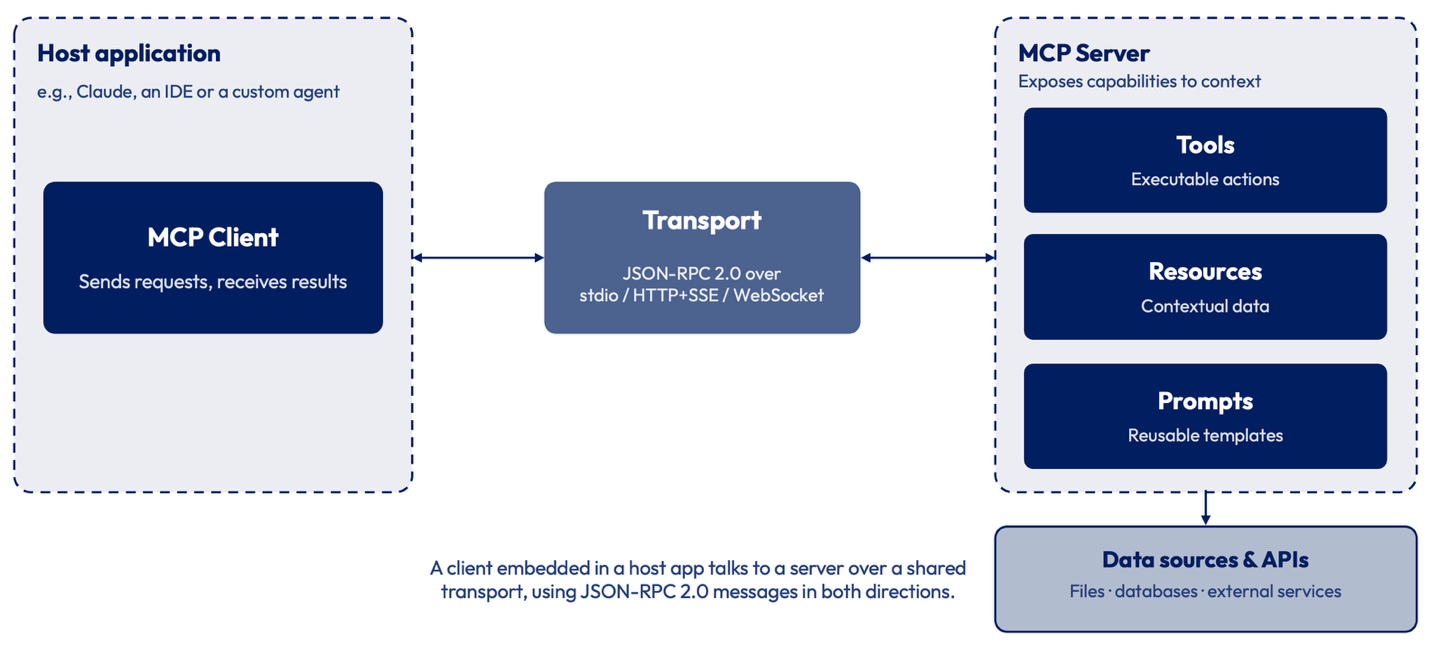
Figure 1: General MCP server high-level architecture
Where the LLM fits in
The LLM itself is the brain that decides when to call a tool and what arguments to pass. When the LLM determines it needs outside information or action, the MCP client routes that request to the right server, the server executes it and returns the result, and the LLM folds that result back into its reasoning. This is essentially tool calling / function calling made interoperable.
A concrete example
An MCP server for Google Drive might expose tools such as "search files" or "read file contents." When you ask an LLM-powered assistant to find a document, the LLM recognizes the request requires external data and triggers the "search files" tool. The assistant's MCP client sends the request to that server, the server executes the Google Drive API call and returns the result back to the LLM, all without accessing the Google Drive UI. The LLM then reads the returned content and answers you.
Why this matters
Interoperability
One server can work with many different LLM clients, and one LLM client can work with many different servers, instead of everyone building bespoke integrations for each model.
Separation of concerns
The people who know a given system best (say, the Workspace ONE API) can build and maintain the server for it, while LLM application developers just need to support the protocol.
Extensibility
New capabilities can be given to an LLM assistant just by connecting a new MCP server, without changing the assistant's core code or retraining the model.
Prerequisites
To use Omnissa MCP Server, first, reach out to your Omnissa Global Customer Support representative to confirm your eligibility.
Then, ensure you have your AI tool set up to mitigate risks and consider using human reviews and approvals before pushing any changes to your Omnissa services. You also need a current subscription to either Omnissa Workspace ONE UEM (version 2607 or later), Omnissa Horizon, Omnissa Intelligence, Omnissa Access, or Omnissa Workspace ONE Hub Services.
You also need to be onboarded to Omnissa Connect and have an Omnissa Connect organization Owner or Administrator grant you authentication and roles-based access control (RBAC) permissions to the MCP Server.
Architecture
Omnissa MCP Server is built on three reinforcing principles, which are that it is stateless, filtered at fan out, and resilient. Together, these principles produce a service that scales horizontally without sticky sessions, enforces least privilege continuously, and degrades gracefully under partial failure.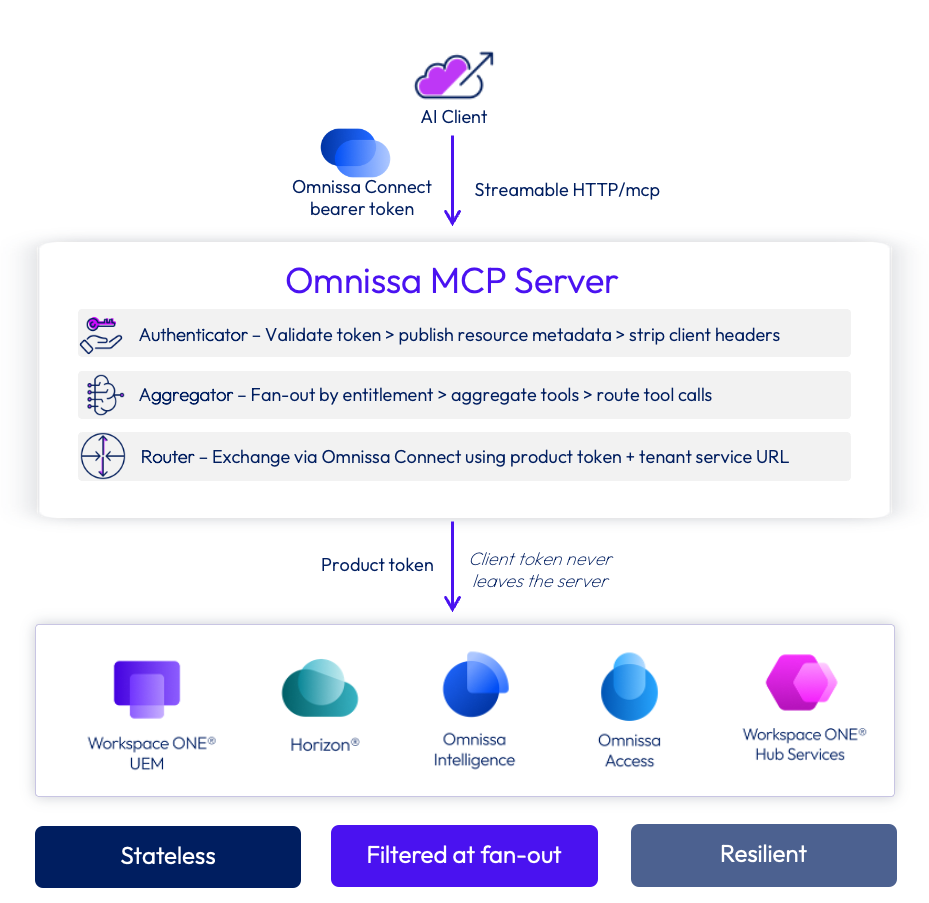
Figure 2: A high-level diagram of communication through Omnissa MCP Server
Stateless
MCP Server holds no session state between calls, so any request can route to any available instance. There are no "sticky sessions" to constrain capacity, so it scales horizontally to handle peak demand without disruption. Each request carries its own fresh authorization context, validated on every call, so there's no long-lived session that could go stale relative to your current permissions. The same design makes the system resilient. If an instance restarts, a cache is evicted, or a failover occurs, nothing is lost, because any state needed to complete a request can be regenerated from the request itself. The net effect is a more dependable, secure, and elastic service that scales smoothly as usage grows.
Filtered at fan out
MCP Server only surfaces the tools you're authorized to use, and only the ones relevant to your session. It does not dump every available API into the LLM's context. When a request fans across multiple products, the server filters discovery to the products in your token's entitlement set, and each product further trims its tool list by your granted scope before the LLM ever sees what's available. This process keeps the tool catalog small and focused, which improves tool selection accuracy and stays within practical LLM limits. The design also enforces least privilege. A read-only session can't discover a tool that changes data, let alone invoke one, and every call is re-authorized at invocation time, adding a second layer of protection. Each downstream product enforces its own tenant isolation with a product-specific exchanged token rather than forwarding your original credentials.
Resilient
The server keeps serving users even when an individual connection falters. During tool discovery (tools/list), the server queries each authorized Omnissa service in parallel and aggregates the results. If one connection fails or times out, the MCP Server omits it from the current response and returns the tools from the remaining, responsive services. The user still receives a populated tool list rather than an empty one. The failing service connection is dropped from that aggregation cycle, not queued or retried later. When a tool is invoked (tools/call), the server waits up to 60 seconds for a response. If the call fails, the failure is returned as a clean, safe error message.
Intents
Think of an intent as a goal you want to reach, like investigating a device, figuring out why an app won't launch, or pulling a report. An intent is packaged as something your AI client can call.
For Omnissa MCP Server, each intent is backed by one or more MCP tools, so you never have to touch the underlying APIs, consoles, or query syntax. You just describe what you want in plain language, and your AI client picks the right tools and turns your request into structured calls.
Intents follow a particular naming convention, depending on Omnissa product and functionality. For instance, any query or action with the prefix of “intel” will be directly related to Omnissa Intelligence. This helps provide insight as to the category of information the intent can access, for both humans and agentic AI agents. Advanced workflows can join datasets from multiple products.
MCP Server works across Workspace ONE UEM, Omnissa Access, Omnissa Intelligence, Horizon, and Workspace ONE Hub Services. Ask something like, "Why can't user X access app Y?" and the server will resolve the user, check the app's entitlement, verify access, and hand you an answer with no console hopping required.
Intents help you build queries, find root causes, and suggest fixes. And where your role allows, and you approve, they can act. Intents can run a workflow or send a device command. Read intents only retrieve and diagnose while Full Scope intents can make changes, and some of those need a preview and your explicit confirmation before changes execute. Everything runs under the user’s existing Omnissa permissions, so you can build AI-driven workflows in plain language without ever exceeding your own access.
Find a list of supported intents in Building with AI on the Omnissa Docs site.
Integration
To integrate your AI tool with Omnissa, you must have your Omnissa environment onboarded to Omnissa Connect because this console is where you configure authentication and access permissions. Also required is the organization Owner or Administrator role to integrate your AI tool with your Omnissa products.
Log in to your Omnissa Connect console and navigate to the organization where you want to manage your MCP Server and AI tool integration. In the Administrators area either add a new admin or edit an existing admin to activate MCP Server use for the organization.
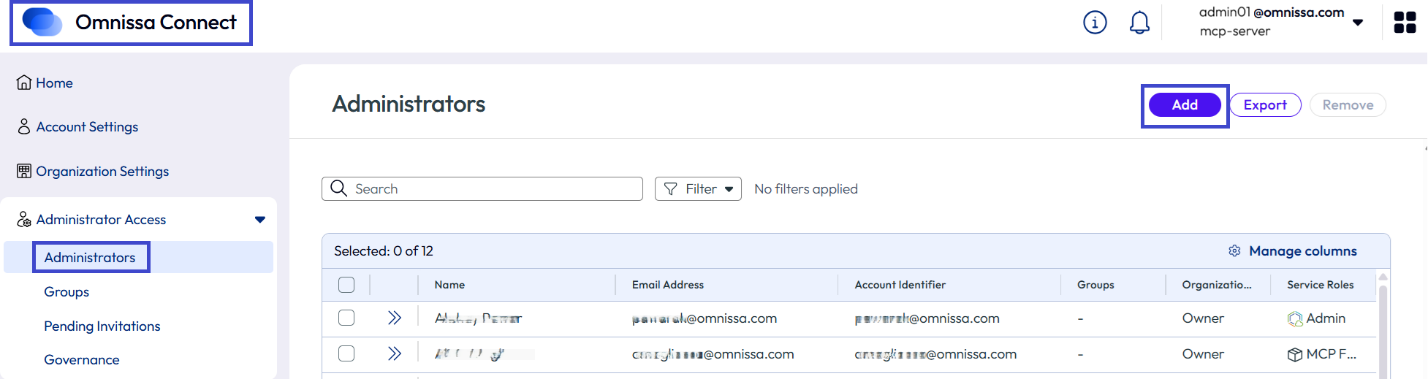
Figure 3: Adding an admin in Omnissa Connect to access MCP Server activation
In the admin’s record, scroll down to the Omnissa MCP server permissions area and activate Enable MCP server access for this admin. You’ll then need to give them Read or Full scope permissions. Before you give someone full writing capabilities, ensure that your organization has reviewed and approved these permissions.
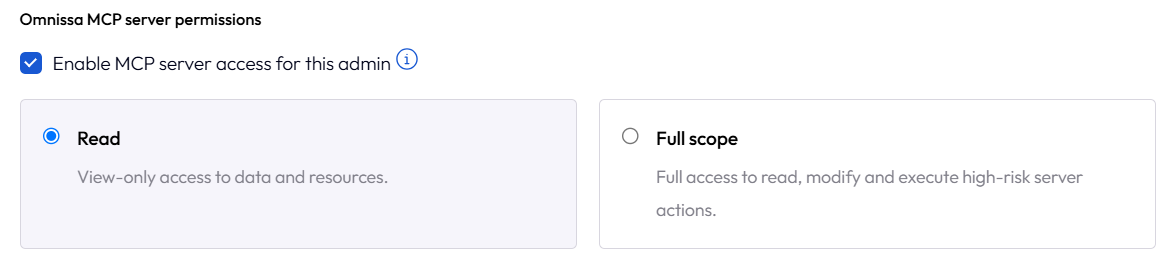
Figure 4: Permission options for MCP Server admin
Also, while in the admin record, give this admin permission to crawl the Omnissa Intelligence data lake by assigning them the Data Analysis role.
Because scope permissions are important when using AI tools, Omnissa Connect adds another protection layer by controlling the scope at the Omnissa product level, too. You’ll find these settings when you get your token in the Account Settings area. First, copy the MCP server URL, and then you can select to generate the token.
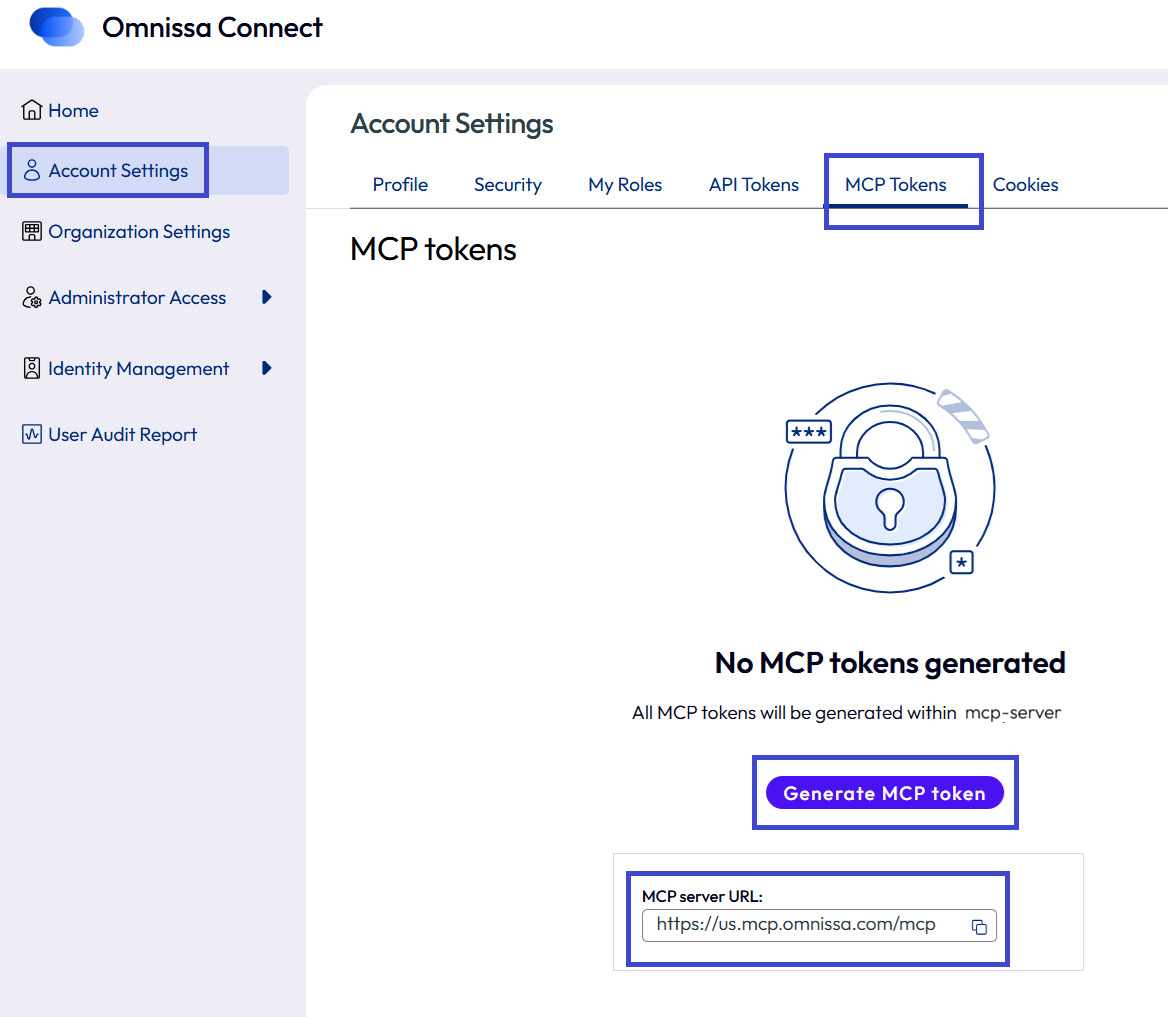
Figure 5: Location of MCP Server URL
After selecting to generate the token, find the product-level scope on the Generate MCP token page. Consider your choices and ensure that the scopes are reviewed and approved.
A user’s MCP scope cannot exceed their Omnissa product permissions. For example, Omnissa Access admins who are assigned read-only MCP scope permissions, can pass along the read-only permissions to the AI agents they use. However, these admins cannot call Omnissa Intelligence or Hub Services tools with their scope. They also cannot perform tasks that need full scope with read-only permissions. Consider RBAC permissions when setting up integration between Omnissa MCP Server and your AI tools.
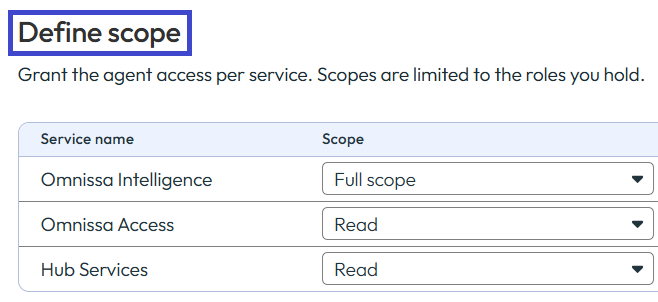
Figure 6: Permission scope settings for each Omnissa product
Next steps include passing your MCP URL and token, both from Connect, to your AI tools. Then, you can build your AI prompts to orchestrate tasks within your Omnissa services. You can also manage the lifecycle of your MCP Server token from Omnissa Connect, where you can find logs for the token and revoke tokens you don’t need.
Example use cases
MCP Server connects AI assistants directly to the systems that run your enterprise, such as device management, infrastructure-as-code, and identity stores. The AI can securely read, analyze, and act on live operational data. Teams describe what they need in natural language, and the AI retrieves the records, surfaces the root cause, and recommends or applies a fix without leaving the tool.
Because the AI works against data governed by permissions you already trust, investigation is faster, there's no jumping between consoles, and remediation stays within your guardrails.
Customers use MCP Server for tasks like these:
- Cross-tenant reporting: Compile device health, compliance, and audit-level data across multiple Workspace ONE UEM or Omnissa Intelligence tenants, a critical capability for managing a large device fleet.
- Settings and policy management across environments: Create a setting or profile, test it in one environment, then replicate it to other environments or tenants.
- Proactive device remediation: Fix issues as they arise using natural language, for example UEM device commands for Query Device, Sync Device, Lock Device, Clear Passcode, Sync Sensors, and Log Out User (iOS only) to help reduce support tickets.
- Execute commands through Intelligence workflows: Intelligence workflows can perform UEM-based operations, such as but not limited to app installation, app updates, and OS updates.
The next three sections walk through example MCP Server interactions. The first traces a support scenario from prompt to resolution, showing the data retrieved, the reasoning applied, and the action taken while troubleshooting an app reinstall loop. The second shows how to build a single report across multiple tenants. The third shows how to use intents to automate workflows, chaining queries and actions together to scale management of large and complex environments.
Troubleshooting app reinstall loops
Use the MCP Server to troubleshoot issues with devices, apps, and other managed resources. Consider a use case in which an application keeps reinstalling itself and a support representative needs to identify the root cause and resolve the issue for the end user.
The organization manages its resources with Workspace ONE UEM and uses Claude as its AI assistant. It also relies on the open-source tool Terraform, along with the corresponding Terraform configuration, to manage its hardware and software infrastructure through text files. The support rep submits the prompt, "User ABC has reported that her Mac keeps reinstalling Zoom. Can you investigate Workspace ONE to determine if this is the case? If so, what is the root cause?"
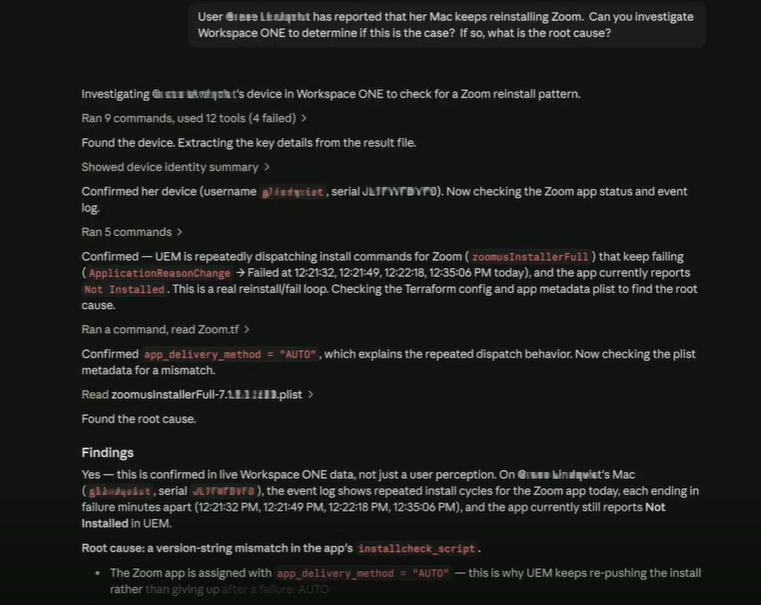
Figure 7: MCP Server, working with Claude, Workspace ONE UEM, and infrastructure management tools, finds the root cause of an app installation loop
Claude retrieves the app's metadata from UEM, along with metadata for every managed version of the app installed on the user's machine. The root cause turns out to be a version-string mismatch in the script that checks installation status. Because the expected version never matches the installed package, the script repeatedly treats Zoom as uninstalled and triggers a reinstall. Claude identifies the package file name, pinpoints the issue, and recommends a fix in plain language.
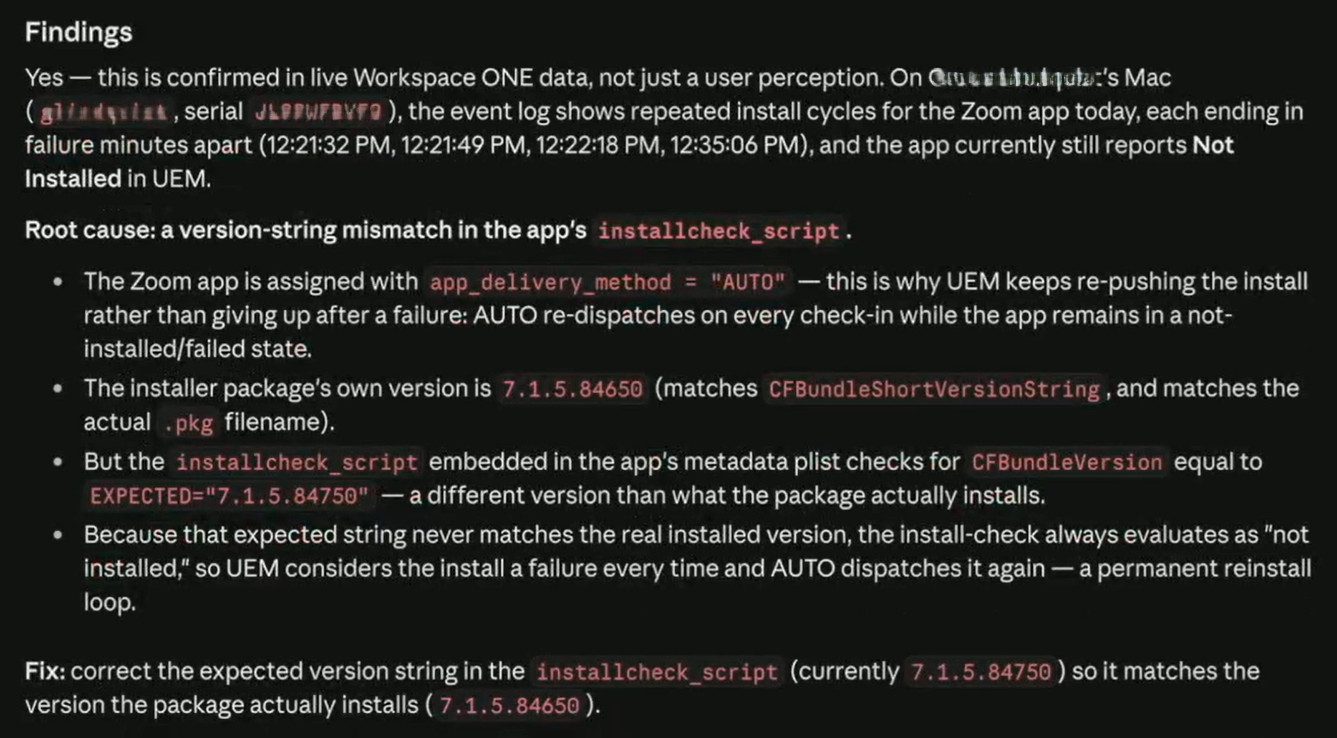
Figure 8: An MCP Server integration with your AI tool, like Claude, can recommend fixes and if approved, can push the solution with minimal prompts
Because this support rep has full-scope permissions, they can approve the fix with a follow-up prompt instructing Claude to correct the expected version value in the script so that it matches the installed package. Claude then applies the fix, pushes it to the user's computer, and updates the Terraform configuration that controls the script, all within the AI tool.
Without the MCP Server, the rep would have to open the UEM console, locate the app, find the user's device, and work through the device record to troubleshoot the cause of the repeated reinstall. With the integrated MCP Server, the AI tool quickly surfaces the user, their device, the app, the app's metadata, and the reason the app keeps reinstalling. Then it recommends the fix. After a brief review and a follow-up prompt with instructions on what to fix, the root cause of this reinstall loop was found and resolved with minimal interaction in the AI tool.
Consolidating fleet reporting across multiple tenants
Organizations often run separate UEM tenants to keep business units, regions, or regulatory boundaries apart. Consider a global financial services company with three tenants.
- uem-finance-us: Managed laptops and mobile devices for the finance team
- uem-cs-eu: Shared and dedicated devices for customer service, hosted in the EU for data residency
- uem-field-na: Rugged and mobile devices for field reps visiting customers
Each tenant is administered by a different team, and that separation is intentional. But every month the CISO asks the same question, "What is our overall device compliance and patch status, and who has been signing in from unexpected places?" Answering it means pulling deployment status and device health from each UEM tenant, adoption and trend data from Intelligence, and sign-in activity from Access, then combining everything into one view.
You can do this with an AI agent client that holds a separate MCP connection for each tenant. MCP tenant isolation means a single connection can only reach one tenant, so you create one connection per tenant, each with its own scoped token. The client (the LLM) reads from every connection and combines the results into a single report.
How it works
The AI agent client orchestrates the task across multiple independent MCP connections, each carrying its own tenant-scoped token. For each connection, the client calls the relevant tools (for example, UEM's uem-lookupDeploymentStatus or uem-investigateDevice intents, or Intelligence's reporting tools), then aggregates the results into one compiled report. All this aggregation happens client-side. There is no server-side cross-tenant query.
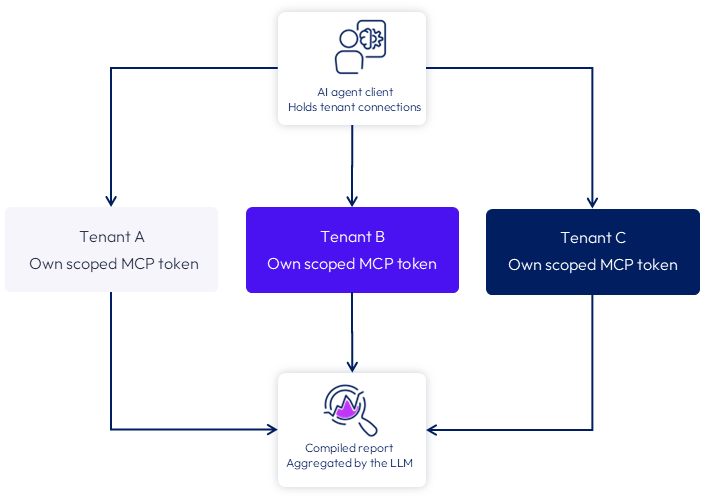
Figure 9: Separate scoped MCP tokens per tenant, with the client aggregating results into one report
Before you start
Before you start cross-tenant reporting with Omnissa MCP Server, ensure you have met the prerequisites required. Also, remember that the admin generating each token must have their own access to that tenant. MCP's capabilities are scoped to whatever the connecting admin's product role permits.
Key points
After your MCP Server connections are established, these four practices keep cross-tenant workflows secure, traceable, and reliable.
- Separate credentials per tenant: Provision a dedicated, scoped token for each connection and never reuse one across tenants. This limits the impact of a compromised credential and keeps audit trails clean, because Omnissa logs each token generation with the associated user and scope.
- Clear naming conventions: Give each connection an unambiguous name (for example, uem-prod-us or uem-prod-eu) so neither administrators nor the LLM can confuse tenants. Ambiguous naming is a common cause of querying the wrong tenant. The target URL is also tenant-specific, so verify both the name and the URL.
- Least-privilege scoping: Use read-only tokens for reporting. Retrieving data does not require write or execute scopes. It is also suggested to use read-only tokens, when designing and prototyping an integration with Omnissa MCP Server. This can help prevent any potentially destructive behavior from an errant script.
- Token expiry and quota: Tokens expire and must currently be renewed manually. Every MCP call also counts against that tenant's existing API quota, so schedule and pace recurring reports to avoid interruptions.
Automate with intents
Thus far, we’ve focused on how MCP Server can provide an interactive interface with Omnissa products. The next logical step for the use of MCP is automation. Intents are designed for dynamic orchestration, allowing for the chaining-together of queries and actions. MCP provides a powerful interface for scaling the management of large and complex environments.
Omnissa MCP Server interoperates seamlessly with your existing tooling and workflows. Intents can function with any scripting or programming language of choice, allowing for sophisticated decision trees. Your existing workflows can easily communicate with multiple Omnissa products, with a singular goal.
MCP client
When interacting with an MCP server, it’s recommended to communicate with asynchronous operations. This allows for long-running operations to be executed asynchronously without blocking the client. It’s also important to call out that Omnissa MCP server makes use of two communication streams. Please refer to the following snippet for an example of these approaches.
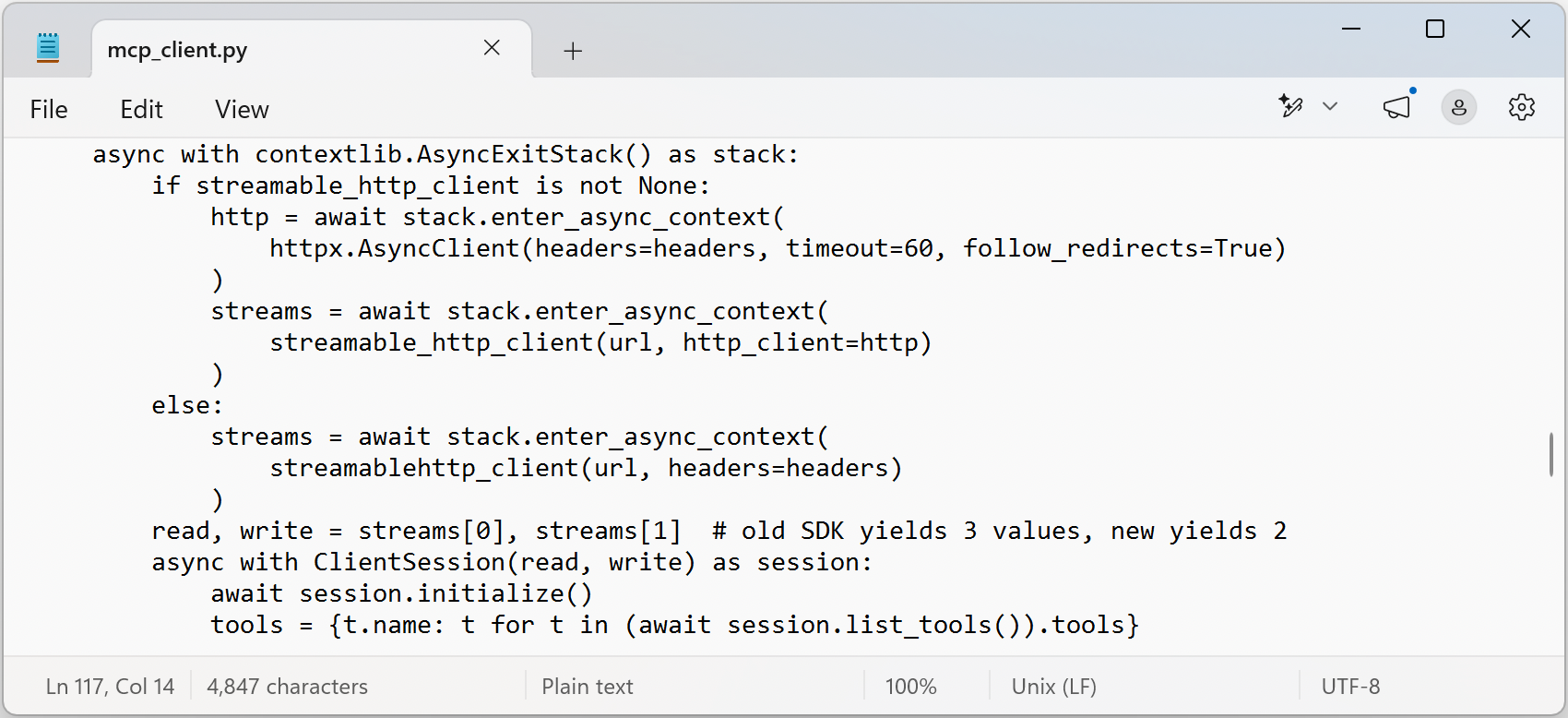
Figure 10: A snippet of the two communication streams, read and write, in an asynchronous communication
Examples
Your workflow could start with an Experience Management (DEX) query to help identify any devices with degraded performance. Based on the results of the query, the workflow could then call another intent for device remediation via Workspace ONE UEM. As an example, the problematic app with a memory leak could be updated. From there, the workflow could be configured to use another intent with Hub Services to notify the user.
To match the growing IT demands, technology stacks have grown increasingly complex. Moreover, there is a push to maximize existing IT security investments. Omnissa MCP can be used in conjunction with 3rd party technology solutions. The Omnissa solution set can provide unique telemetry to the broader security, observability, and management ecosystem.
As an example, a workflow could monitor Horizon performance on the endpoints. Signals related to Horizon client connectivity issues could be indicative of a VPN problem. A single workflow could join the use of intents between Omnissa and 3rd party MCP servers. Once the root cause has been identified, a number of resolutions could be chosen by the workflow. An intent call to UEM could be made, for deploying updated VPN client settings to the device. As another possible solution, the workflow could restart a service on the VPN server.
Agentic workflows
Intents can follow explicitly-defined logic for monitoring and resolution. However, Omnissa MCP Server can also integrate with your existing LLM solution and agentic workflows. Rather than trying to plan every possible scenario and playbook, your AI solution can determine the appropriate actions to take. People are using devices in increasingly diverse ways. Agentic workflows can serve as an effective means of responding to dynamic scenarios.
When building an MCP client, it’s encouraged to design a mechanism for querying available intents on Omnissa MCP Server. This can help with your troubleshooting process, especially for things related to RBAC and product licensing. Furthermore, agentic workflows can also benefit from the ability to query what all tools it has available in its toolbox. This allows for your LLM solution to better decide which intents are needed for a workflow.
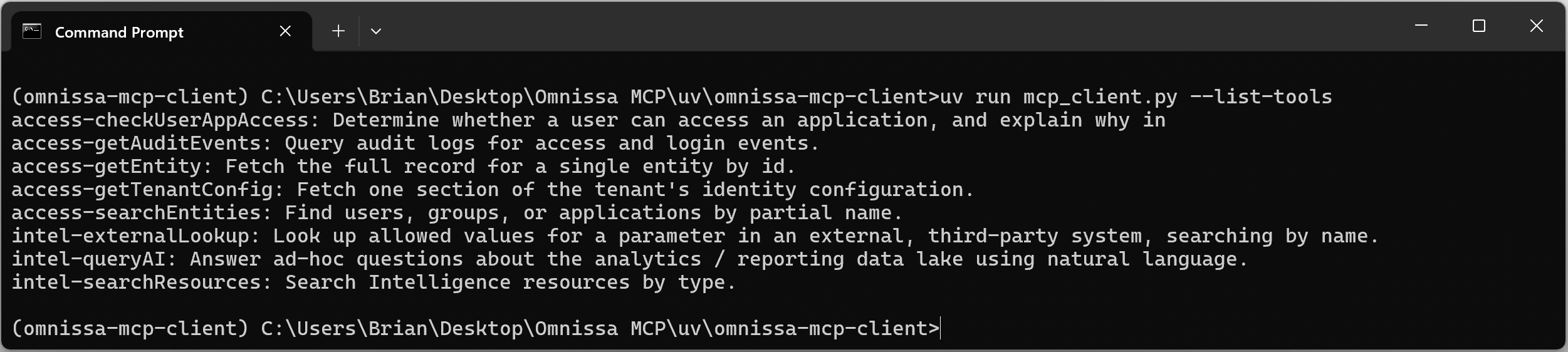
Figure 11: Query Omnissa MCP Server for available intents
Best practices
As with any agentic system, we strongly recommend extensively testing your workflows, prior to use in production. It is suggested to have some degree of logical framing defined to act as guardrails for agentic workflows. The approach of least privilege should also be applied to each workflow in the event an AI agent behaves in a manner that’s unexpected. It’s suggested to enforce token usage limits in your system prompt to better manage costs.
It is strongly recommended to explicitly define tools for each needed intent. This way, your LLM will have more guidance and structure around when to call an appropriate intent. This use of tools also allows for more of a hybrid approach to workflow logic. In this manner, the human can define logical guardrails, through the use of the scripting language. While aspects of the workflow can be agentic, through the use of AI.
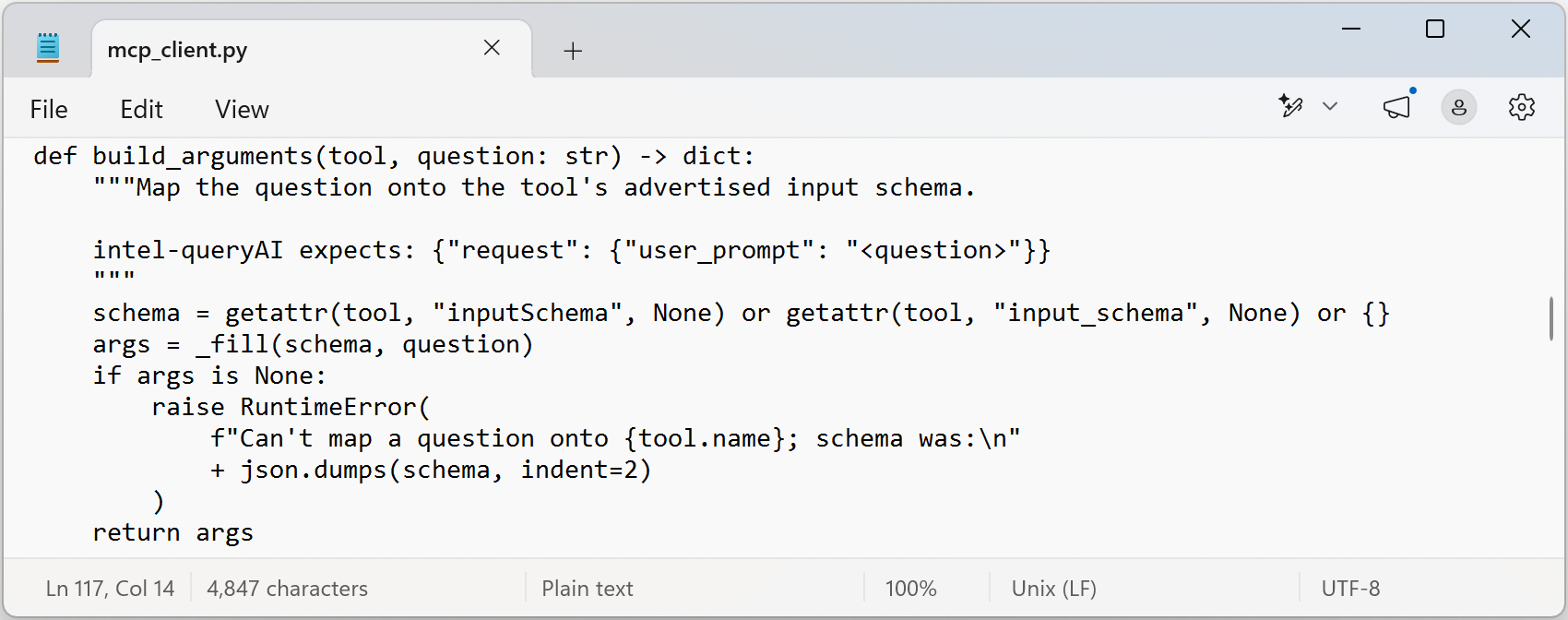
Figure 12: Explicitly define tools for each intent, like this example for ‘intel-queryAI'
Summary & additional resources
The Omnissa MCP Server brings your AI tools and your Omnissa products into a single working interface, with no new integration tooling and little or no custom code required. Because a support rep or admin can crawl, synthesize, predict, generate, and automate against live operational data from one prompt, time to resolution drops sharply, especially when paired with human review before any change goes live. There's no more toggling between consoles to find a device, an app, or a log entry. The AI tool surfaces what's needed and proposes the next steps, while the underlying consoles and their data stay fully available for verification and deeper investigation.
The architecture that makes this possible is stateless, filtered at fan out, and resilient, so the service scales without sticky sessions, enforces least privilege on every call, and keeps functioning even when a single downstream product is slow or unavailable. The result is a model where AI tools and Omnissa MCP Server orchestrate across consoles, while your teams retain control by connecting the systems, directing the analysis, and reviewing and approving actions before they are applied.
Additional resources
For more information about Omnissa MCP Server, explore the following resources:
- Omnissa Developer Portal
- Omnissa Community, Self-configuring, self-healing, self-securing: The next era of end user computing
Changelog
The following updates were made to this guide:
| Date | Description of Changes |
| 2026/10/13 |
|
About the author and contributors
This article was written by:
- Alicia Magliocca, Senior Product Specialist, Omnissa
- Christina Minihan, Senior Manager, Product Specialists, Omnissa
- Brian Buchholtz, Senior Product Specialist, Omnissa
Feedback
Your feedback is valuable.
To comment on this paper, either use the feedback button or contact us at tech_content_feedback@omnissa.com.