

Migrating Apple device management to Workspace ONE UEM
Overview
Mobile device management (MDM) migrations are among the most operationally complex undertakings an IT organization can face. Whether triggered by a corporate merger or acquisition, a contract transition, a platform consolidation initiative, or the strategic decision to adopt a more capable solution like Workspace ONE UEM, the process of moving an entire device fleet from one MDM platform to another carries significant risk across every major platform. Across all platforms, IT administrators must contend with re-enrolling devices, re-pushing configuration profiles, re-licensing and reinstalling managed applications, and restoring data — all while minimizing disruption to end users who depend on their devices for daily work.
For Apple devices, MDM migration has historically been disruptive — a device can only be enrolled in one MDM server at a time, and moving to a new MDM traditionally required unenrollment, a potential device wipe, and a clean re-enrollment. This meant end users routinely lost:
- Managed and unmanaged app installations
- App configurations, cached credentials, and locally stored documents
- Workflow-specific settings accumulated over months or years of use
The result was significant end-user resistance and a heavy burden on IT support teams to restore devices to a productive state after migration. With the introduction of iOS and iPadOS 26, Apple has fundamentally changed this experience. With a new simplified MDM migration process in Apple Business and the added ability to preserve device applications during the migration, Apple has improved MDM migrations for both administrators and end users.
App preservation now allows both managed and unmanaged applications — along with their associated data — to remain on the device throughout the migration, provided the right conditions are met. When combined with Workspace ONE UEM's Automated Device Enrollment profile configuration and Await Configuration support, what was once one of the most disruptive aspects of enterprise mobility management becomes a largely transparent experience for end users.
Purpose of this tutorial
This tutorial provides a comprehensive overview for IT administrators and solution architects who are planning or implementing MDM migrations to Workspace ONE UEM on Apple iOS and iPadOS devices. It explains how Apple's new migration capability works, how Workspace ONE UEM supports and extends it, and what you need to do to maximize app continuity for your end users.
Before doing the migration, you must ensure your environment meets the prerequisites outlined in this article, including Apple Business or Apple School Manager (ASM) setup and the required iOS/iPadOS 26 or later OS version.
Audience
This tutorial is intended for Workspace ONE administrators, and IT professionals responsible for managing Apple device enrollments and executing MDM migration projects.
Familiarity with Apple Business, Automated Device Enrollment, and Workspace ONE UEM administration is recommended.
Streamlined MDM migration for Apple devices
With recent enhancements to Apple's MDM migration framework, organizations can now migrate eligible Automated Device Enrollment (ADE) devices while preserving supported applications and their associated data. By combining Apple Business migration workflows with Workspace ONE UEM enrollment capabilities, administrators can transition devices from a third-party MDM solution to Workspace ONE UEM with minimal impact on productivity and user experience.
Prerequisites
Before configuring app preservation for MDM migrations in Workspace ONE UEM, ensure your environment meets the following requirements. Devices that do not meet these prerequisites are not eligible for app-preserving migration.
Supported Apple OS Versions
- Devices must be running iOS 26, iPadOS 26, or later
Apple Business / Apple School Manager (ASM) Requirements
- Devices must be organization-owned and enrolled via Automated Device Enrollment (ADE) through Apple Business or ASM
- The admin must have permissions to assign devices and manage MDM server assignments in Apple Business/ASM
Workspace ONE UEM Requirements
- An ADE profile must be assigned to devices before migration begin
- Workspace ONE UEM must use the await_device_configured key for managed apps, Wi-Fi, and Activation Lock configurations to properly coordinate app delivery before setup completes
Refer to Omnissa Getting Ready for Apple OS Releases 2026 for the latest validated UEM version details.
Migration Phases Overview
With Workspace ONE UEM configured and all prerequisites validated, you are ready to initiate the migration. The following steps walk through the complete end-to-end workflow — from assigning devices in Apple Business through to validating app preservation in Workspace ONE UEM — across five sequential phases.
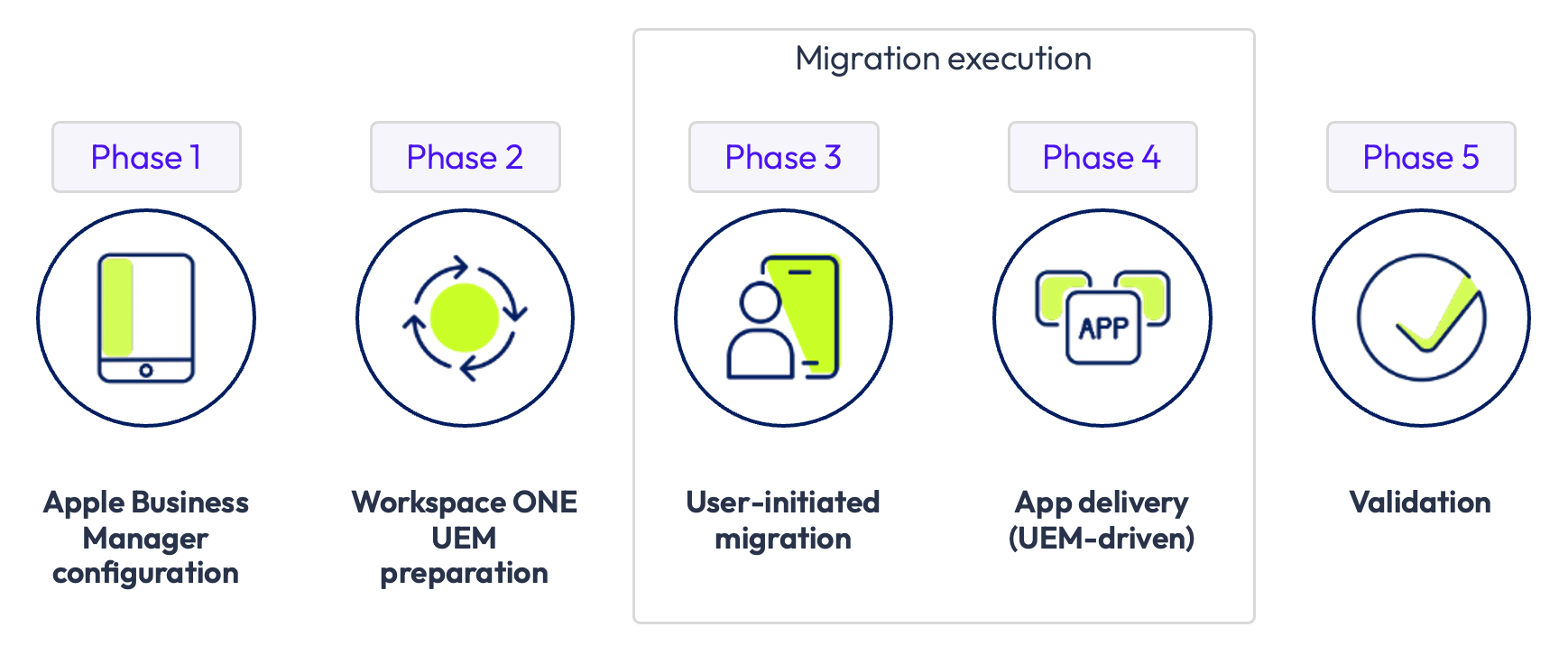
Figure 1: Phases involved in MDM migration
For a detailed walkthrough of each phase, see the MDM migration workflow section.
Why app preservation matters for MDM migrations
For many organizations, mobile devices have become critical productivity tools that provide access to business applications, corporate data, collaboration platforms, and line-of-business services. Any interruption to these applications can affect end-user productivity and increase support requirements during migration projects.
Traditional migration approaches often create challenges such as:
- Device downtime during wipe and reenrollment procedures.
- Reinstallation of potentially dozens of enterprise applications.
- Loss of locally stored application settings and data.
- Increased help desk tickets and user support requests.
- Delayed migration timelines for large-scale deployments.
App preservation helps address these challenges by enabling users to retain access to supported applications throughout the migration process. This reduces disruption, minimizes downtime, and improves the overall migration experience while still allowing IT teams to maintain governance and device management requirements.
How Apple enables app preservation
Apple has enhanced its MDM migration framework to support preservation of eligible applications and data during migration between MDM servers for supported devices and operating systems. During an MDM migration, administrators can use Apple Business to reassign a device to a new MDM server while maintaining the enrollment workflow through Automated Device Enrollment.
To support app preservation, the destination MDM must deliver the required applications and keep the device in an Await Configuration state during Setup Assistant. Once application assignment and configuration requirements have been satisfied, the destination MDM sends the DeviceConfigured command, allowing the enrollment process to complete. This mechanism ensures that applications can be successfully matched and preserved throughout the migration workflow.
Workspace ONE UEM supports this workflow through integration with Apple Business and Automated Device Enrollment, enabling organizations to manage the migration process while maintaining administrative control.
Preparing for migration
Thorough preparation is the foundation of a successful MDM migration. Before initiating any migration activity in Apple Business or Workspace ONE UEM, complete each of the following validation steps to ensure your environment is correctly configured and ready.
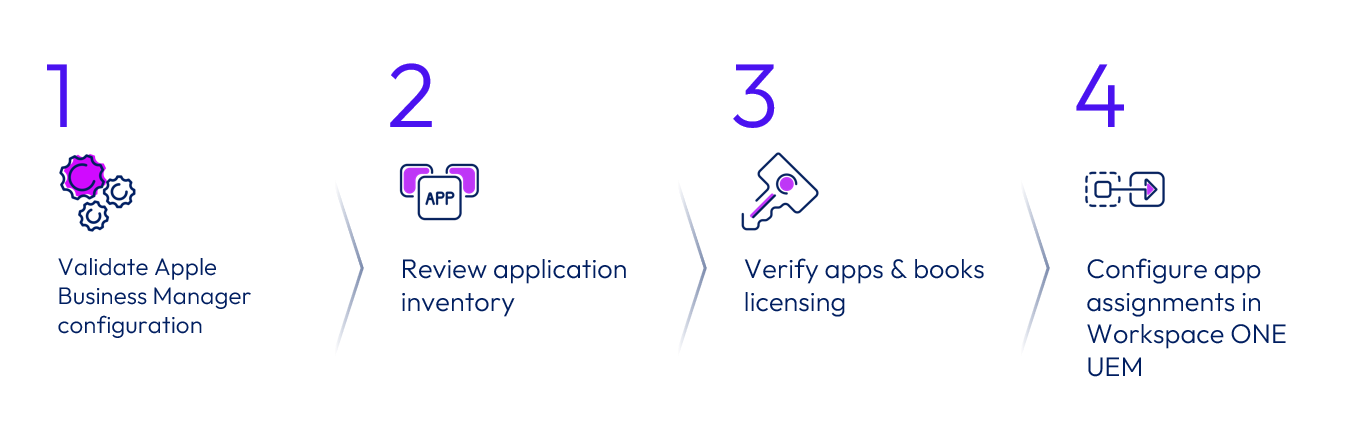
Figure 2: Validation steps for MDM migration
Validate Apple Business configuration
A correctly configured trust relationship between Apple Business and Workspace ONE UEM is a prerequisite for any ADE-driven migration. This integration is established by creating a virtual MDM server in Apple Business, exchanging a public key with the Workspace ONE UEM console, and uploading the resulting token — a process that is covered in full in Using Apple Automated Device Enrollment with Workspace ONE UEM on Omnissa TechZone.
Before proceeding with migration, confirm the following in your environment:
- The Apple Business instance is listed and shows an active, synchronized connection in the Workspace ONE UEM console under Groups & Settings > All Settings > Devices & Users > Apple > Automated Device Enrollment.
- Devices intended for migration are assigned to the correct Workspace ONE UEM MDM server in Apple Business. If multiple MDM server instances are configured, verify that the correct default MDM assignment is set for each device type.
- The admin account performing the migration has the necessary permissions to assign devices and manage default platform assignments in Apple Business.
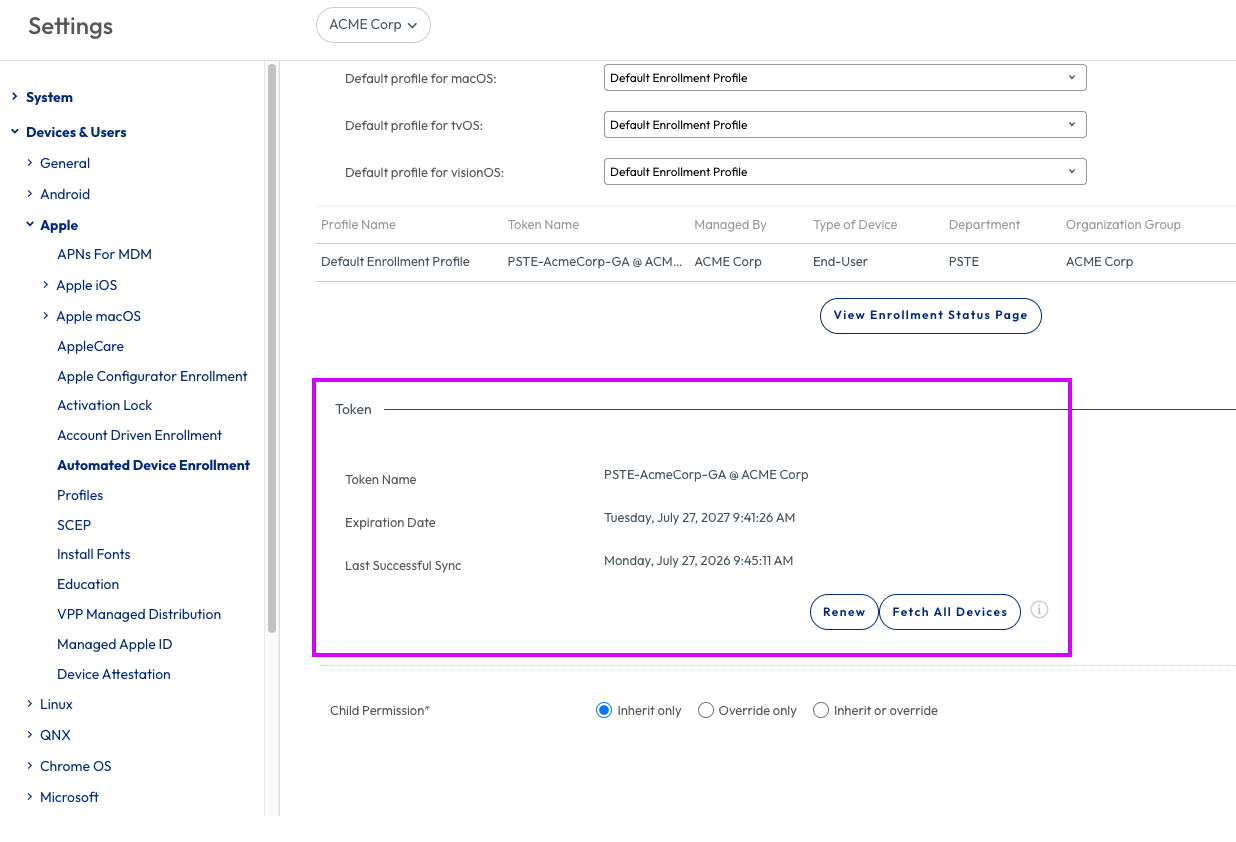
Figure 3: ADE Enrollment Settings page showing the Last Successful Sync status
For complete configuration steps, see Using Apple Automated Device Enrollment with Workspace ONE UEM on Omnissa TechZone and Automated Device Enrollment in the Omnissa documentation.
Review application inventory
Before migration, conduct a thorough review of all applications currently managed on the devices being migrated. The goal is to identify every app that needs to be preserved, re-delivered, or flagged at risk. This is critical to ensure that all managed applications are preserved during migration, lessening the impact on end users.
At a minimum, your application inventory review should identify and categorize the following app types:
- Public App Store apps — typically preserved; provided re-delivery occurs before the
DeviceConfiguredcommand is sent. - Unmanaged (user-installed) apps — generally preserved; no action required from the destination MDM.
- Internal managed / custom enterprise apps — preserved if re-delivered by Workspace ONE UEM before the
DeviceConfiguredcommand is sent. - Apps & Books (VPP) apps using Device-Based Licensing (DBL) — preserved if licenses are correctly reassigned to the destination Apps & Books token.
- Apps not scoped or licensed in the destination environment — these will not be preserved and may be automatically removed by the OS, potentially resulting in local app data loss.
Verify Apps & Books licensing
Licensing plays a critical role in app preservation. Apple requires the destination environment to have access to the appropriate Apps & Books licenses for applications that are managed through Apple Business. If the destination environment cannot obtain a valid license for an application, the operating system may remove the application during migration.
Before migrating devices:
- Synchronize the Apps & Books token with Workspace ONE UEM.
- Verify that licenses are available for all required applications.
- Review device-based licensing assignments where applicable.
- Ensure purchased applications have sufficient license capacity for all migrating devices.
- Resolve any license shortages before migration begins.
Organizations migrating between Apple Business tenants or using different Apps & Books tokens should pay particular attention to license reassignment requirements because license mismatches can prevent successful app preservation.
Configure application assignments in Workspace ONE UEM
All apps identified in your inventory must be correctly scoped and assigned in the destination Workspace ONE UEM environment before migration is initiated. Apps that are not assigned to the appropriate smart groups, or that are not delivered by Workspace ONE UEM before the DeviceConfigured command is sent, will not be preserved and may be removed by the OS.
Before initiating migration, confirm the following:
- All migration-critical apps are assigned to the correct smart groups under Resources > Apps > Native Apps > Purchased, with the App Delivery Method set to VPP with managed distribution.
- Allocated licenses do not exceed total available licenses for each app.
- Migration-critical apps are set to the highest priority in their assignment group — devices receive apps based on priority order, and apps that are not delivered in time will not be preserved.
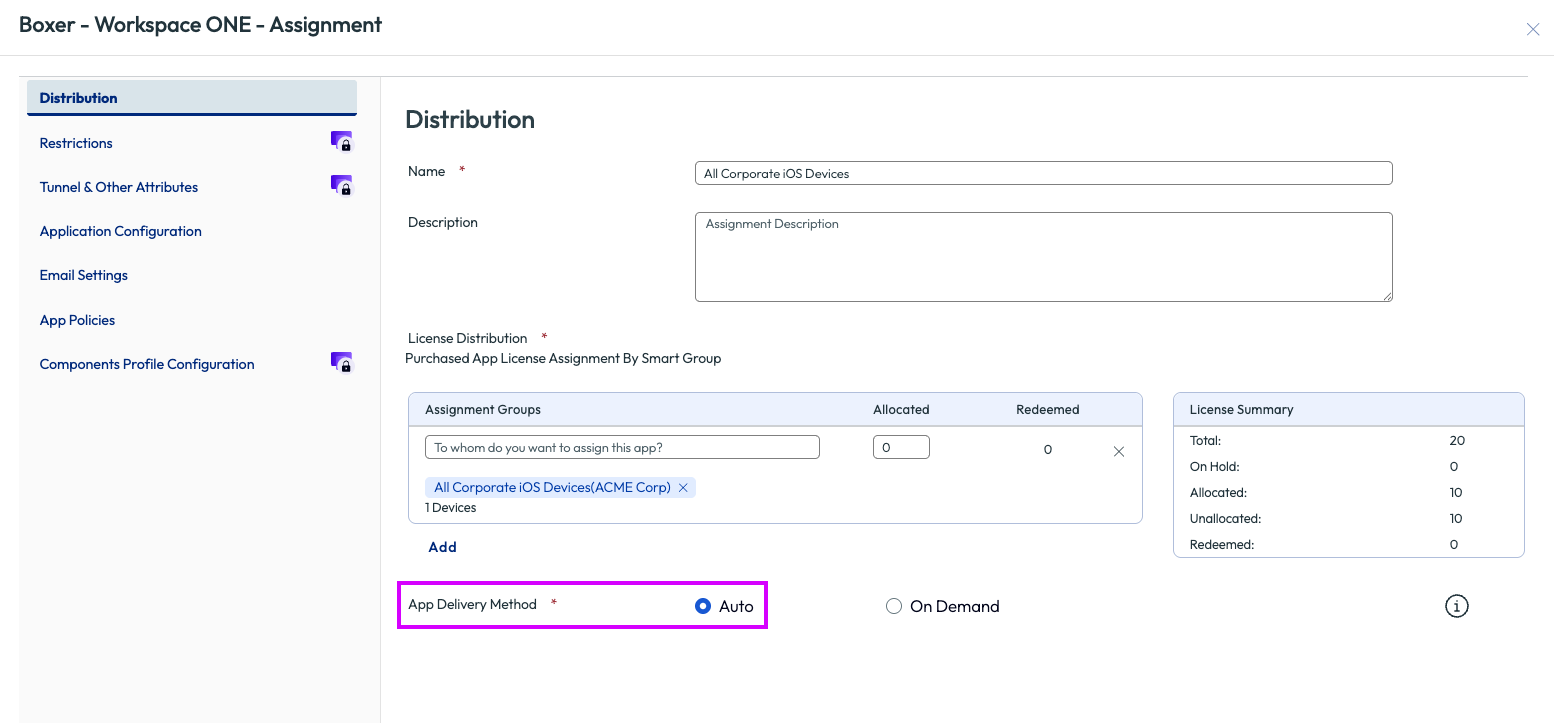
Figure 4: The Boxer Application showing the App Delivery Method set to ‘Auto’
For detailed steps on creating app assignments, configuring smart groups, and managing VPP licenses, see Managing Applications in the Omnissa documentation.
Configure Workspace ONE UEM for app preservation
With prerequisites verified and migration preparation complete, the next step is to configure Workspace ONE UEM as the destination MDM environment. The following subsections walk through each configuration step required to enable app-preserving migration.
Setting up Await Configuration for migration
The ADE enrollment profile defines how devices are enrolled, what the Setup Assistant presents to end users, and how the MDM server controls the device configuration phase — including app preservation behavior. The Await Configuration setting within this profile is the critical prerequisite for app preservation during migration: when enabled, it holds the device in the Setup Assistant and instructs it to wait for Workspace ONE UEM to deliver all required apps, profiles, and commands before the DeviceConfigured command is sent to complete setup.
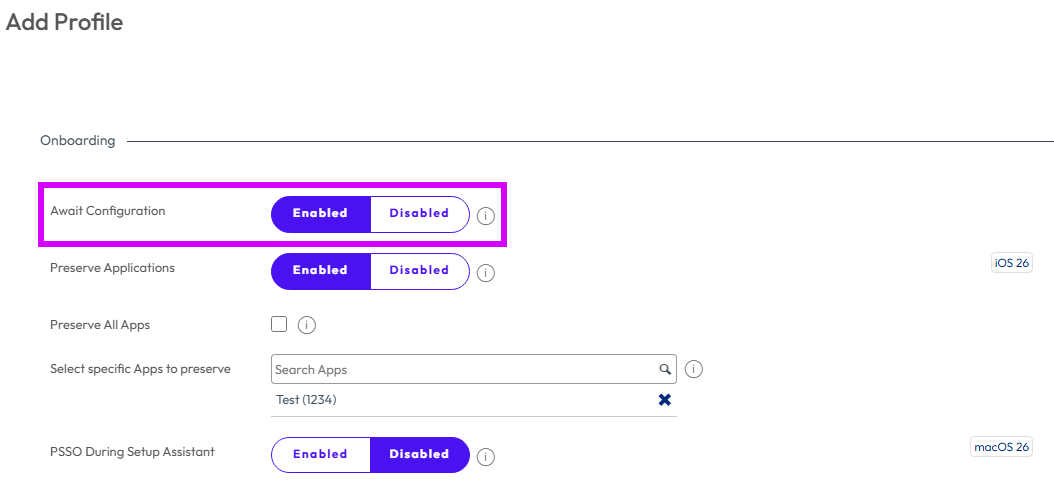
Figure 5: Await Configuration setting is set to Enabled in ADE enrollment profile
Before migration, ensure a correctly configured ADE enrollment profile is in place in Workspace ONE UEM. For full steps to create or update an ADE enrollment profile — including uploading the Apple Server Token File (.p7m), configuring authentication options, MDM features, and Setup Assistant panes — see Using Apple Automated Device Enrollment with Workspace ONE UEM on Omnissa TechZone and Automated Device Enrollment Program in the Omnissa documentation.
When configuring the ADE profile for migration, confirm the following:
- Await Configuration is enabled in the ADE enrollment profile. This setting appears in the Setup Assistant section of the profile and is required for app preservation to function correctly.
- Workspace ONE UEM is configured to deliver managed apps, Wi-Fi, and Activation Lock configurations during the await window, before the DeviceConfigured command is sent.
- The updated ADE profile is saved and published before migration begins.
Note: Declarative managed apps are always preserved by the device regardless of DeviceConfigured timing. For all other managed app types, correct use of Await Configuration is essential to prevent app removal during migration.
Note: Once you begin the ADE configuration wizard in the UEM console, keep the browser session open. Progress cannot be saved until the final configuration step is complete.
Important: To override Await Configuration on a per-device basis — for example, to allow a specific device to skip the await screen — navigate to Devices > More Actions > Device Configured and mark the device as configured.
Enabling App Preservation in the ADE profile
With Await Configuration enabled in the ADE enrollment profile, you can use the Preserve Applications setting to define precisely which apps are retained on the device during MDM migration. For steps to locate, enable, and configure the Preserve Applications setting — including choosing between Preserve all eligible apps and Preserve specific selected apps only — see ADE Device Management in the Omnissa documentation.
When configuring app preservation for migration, confirm the following:
- Each preserved app has an assignment type defined in the destination environment:
- Auto Assignment — the app installs automatically during the await window.
- On-Demand Assignment — the app is made available from the Intelligent Hub catalog after migration.
- The updated ADE profile is saved and published before migration begins.
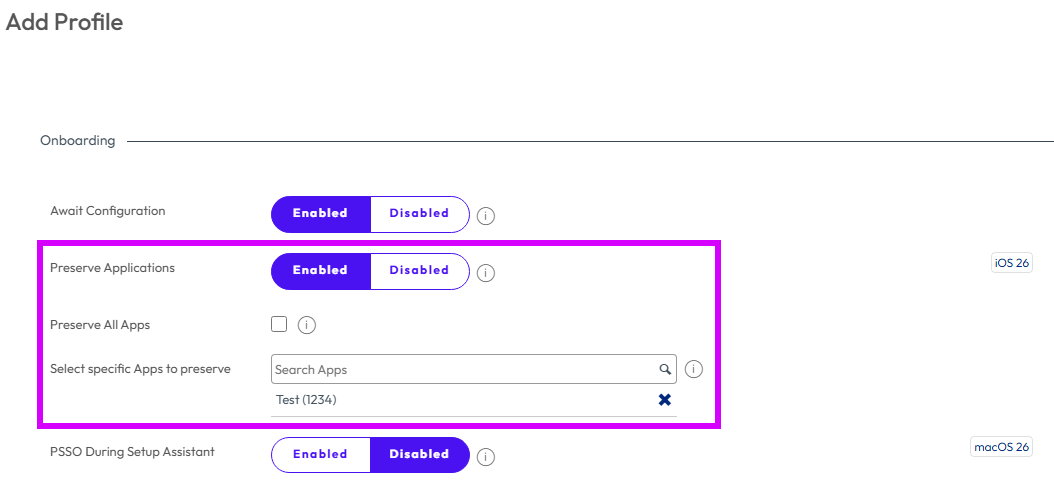
Figure 6: Preserve Application settings showing dropdown to select specific apps to preserve
Important: App Preservation applies only to VPP Device-based apps and internal apps. Public App Store apps are not eligible.
Note: An app is preserved only if it has a valid Auto or On-Demand assignment in the destination environment. Apps with no matching assignment are removed by the OS.
MDM migration workflow
With Workspace ONE UEM configured and all prerequisites validated, you are ready to initiate the migration. The following steps walk through the complete end-to-end workflow — from assigning devices in Apple Business through to validating app preservation in Workspace ONE UEM.
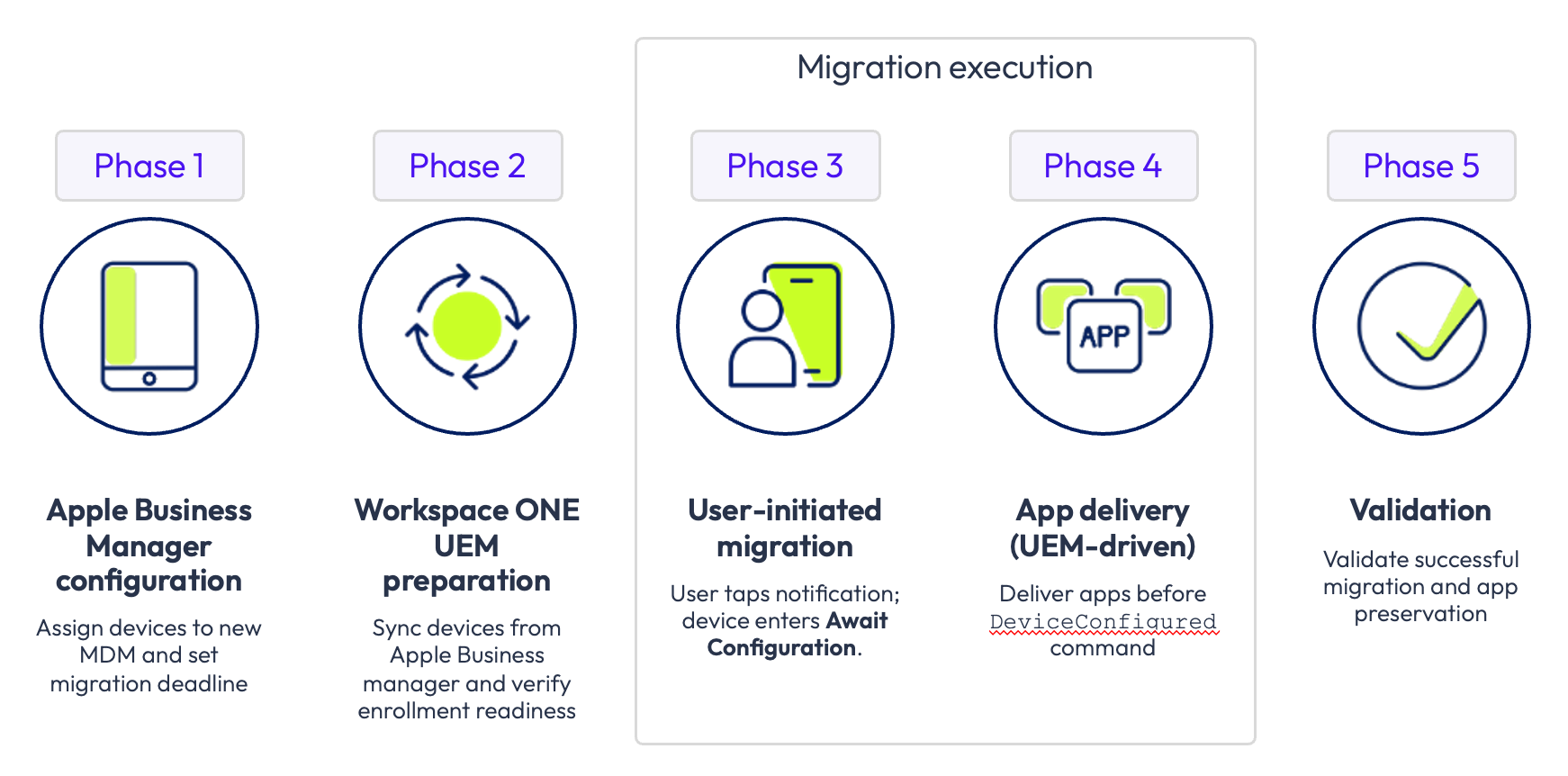
Figure 7: MDM migration workflow
Phase 1: Assign devices to the new MDM in Apple Business
The migration process is initiated in Apple Business, where you reassign devices from the source MDM server to Workspace ONE UEM as the destination.
To assign devices to Workspace ONE UEM in Apple Business:
- Log in to Apple Business with a user account that has permissions to assign devices to device management services and manage default platform assignments.
- Select the device or devices you want to migrate.
- Select Assign Device Management.
- Select the Workspace ONE UEM environment you want to migrate the devices to under Device Management Service .
- Select Continue, carefully review the confirmation dialog, then select Confirm.
Important: If the device does not meet the iOS/iPadOS 26 requirement, the Assign Device Management option will be unavailable, and any bulk actions will result in failures logged in the Apple Business activity log.
Phase 2: Synchronize devices into Workspace ONE UEM
After assigning devices in Apple Business, synchronize the device records into Workspace ONE UEM so the console is aware of the incoming migration. This step ensures that each migrating device is recognized by the destination environment and can receive the ADE enrollment profile and app assignments.
In the Workspace ONE UEM console, navigate to Devices > Lifecycle > Registration and select Sync Devices > Apple to pull in any newly assigned device records from Apple Business. Once the sync completes, confirm that the Last Successful Sync timestamp has updated and that the migrating devices appear in the console. For a full walkthrough of the sync process, see Using Apple Automated Device Enrollment with Workspace ONE UEM on Omnissa TechZone and ADE Device Management in the Omnissa documentation.
Tip: If devices do not appear after running Sync Devices, use the All Devices option to synchronize all Apple Business-enrolled devices. Use Fetch All Devices only as a final fallback to fully refresh all device records from Apple Business.
Verify enrollment status
After syncing, confirm that the migrating devices are correctly reflected in the Workspace ONE UEM console and are in the expected pre-migration state before users begin the migration process.
Verify the following in the Workspace ONE UEM console:
- Migrating devices appear under the correct organization group and are associated with the correct MDM server token from Apple Business.
- Devices show ADE enrollment status and are not flagged with errors or sync failures.
- The ADE enrollment profile with Await Configuration enabled is correctly assigned to the devices in scope.
- All required applications are assigned to the correct smart groups and show as ready for delivery.
- VPP licenses are available and sufficient to cover the number of devices being migrated.
Phase 3: User-Initiated migration experience
Once the migration window set in Apple Business becomes active, the end user experience begins on the device. The migration is designed to be non-destructive — no device wipe occurs, and user data is not lost.
user experience proceeds as follows:
- The device receives a notification prompting the user to start the migration process.
- The user taps the notification and is guided through on-device prompts to acknowledge and proceed with the migration.
- The device unenrolls from the source MDM and begins the enrollment process into Workspace ONE UEM.
- During this transition, the device enters the Setup Assistant await configuration state — controlled by the Await Configuration set to true in the ADE profile assigned by Workspace ONE UEM.
- In the await configuration state, Workspace ONE UEM begins delivering required managed apps and configurations to the device before sending the DeviceConfigured command.
Note: If the user does not act on the migration prompt, reminders continue to appear. Once the enrollment deadline passes, the migration is enforced — on iPhone and iPad, this takes effect after the next device restart.
Phase 4: App delivery and device enrollment into Workspace ONE UEM
While the device is held in the await configuration state, Workspace ONE UEM performs the following actions before sending the DeviceConfigured command:
- Installs managed and declarative device management apps — Apps already present on the device from the previous MDM are matched. The device does not need to re-download these apps, enabling faster migration.
- Downloads and installs unmanaged apps, profiles, and declarations needed for setup. These operations happen in the background, allowing the migration to continue without interrupting the user.
- Once all required apps and configurations have been delivered, Workspace ONE UEM sends the DeviceConfigured command, signaling the device to complete Setup Assistant and exit the await configuration state.
- The device transitions to being fully enrolled and managed by Workspace ONE UEM.
Important: Workspace ONE UEM must not send remove app commands for apps installed via the app installation command during unenrollment from the source MDM. Doing so will prevent those apps from being preserved. Declarative managed apps are always preserved by the device and are not affected by remove commands.
Phase 5: Validation
With enrollment complete, this step confirms that both the devices and their applications have transitioned successfully to Workspace ONE UEM. Before checking individual apps, verify that all devices in scope are showing as enrolled and managed in the console — any devices still listed as pending or unenrolled should be investigated before proceeding with app validation.
After the DeviceConfigured command is sent and the device completes enrollment into Workspace ONE UEM, the OS performs a final app preservation reconciliation:
- The device compares the new set of managed apps delivered by Workspace ONE UEM with the preserved app list from the source MDM.
- Apps that were re-delivered by Workspace ONE UEM before the DeviceConfigured command is sent — and that meet the matching and licensing criteria — are preserved on the device with their local data intact.
- Apps in the preserved list that Workspace ONE UEM did not reinstall are automatically removed by the OS. This can result in local app data loss for those apps.
- Declarative managed apps are always preserved by the device regardless of whether Workspace ONE UEM reinstalled them.
To validate successful app preservation in Workspace ONE UEM after migration:
- In the Workspace ONE UEM console, verify that migrated devices appear as enrolled and managed.
- Navigate to Resources > Apps > Native Apps > Purchased and use the Deployment Tracking Dashboard to confirm that required apps show a successful installation status on migrated devices.
- Use Assignment Previews to verify that app assignments are correctly applied post-migration.
- Contact end users or review device compliance status to confirm the expected apps are present and functional.
If apps are missing post-migration, the most common causes are: the app was not re-delivered before DeviceConfigured was sent, the app was not properly scoped in the destination environment, or VPP licenses were not correctly reassigned to the new Apps & Books token. Refer to the Validating and troubleshooting section of this article for resolution steps.
Validating and troubleshooting
This section provides a consolidated reference for verifying that migration completed successfully and resolving the most common issues that can occur. Checks are organized so you can validate first and only move to troubleshooting steps if a check fails.
Licensing Issues
License mismatches between the source and destination Apps & Books token are a leading cause of app removal during migration. When a managed app cannot be matched to a valid VPP license in the destination environment, the OS removes it regardless of the ADE profile configuration — making license validation a critical pre-migration check.
Start by confirming that each VPP app required for migration has a valid Apps & Books license assigned in the destination environment under Resources > Apps > Native Apps > Purchased. Then verify that the Apps & Books token itself is active and synchronized in the Workspace ONE UEM console under Groups & Settings > All Settings > Devices & Users > Apple > VPP Managed Distribution. An expired or out-of-sync token will prevent license delivery even when sufficient licenses are available. For guidance on configuring and managing Apps & Books tokens, see Configure Licenses and Assign with Flexible Deployment in the Omnissa documentation.
If devices are migrating across Apple Business tokens or tenants, note that licenses from the previous token do not transfer automatically — they must be explicitly reassigned to the new token before migration begins. Additionally, confirm that the total number of available licenses covers all migrating devices; over-allocation will prevent app delivery during the await configuration window and result in app removal.
Tip: Review license consumption in Apple Business under Apps and Books > Activity to identify any shortfalls before initiating migration at scale.
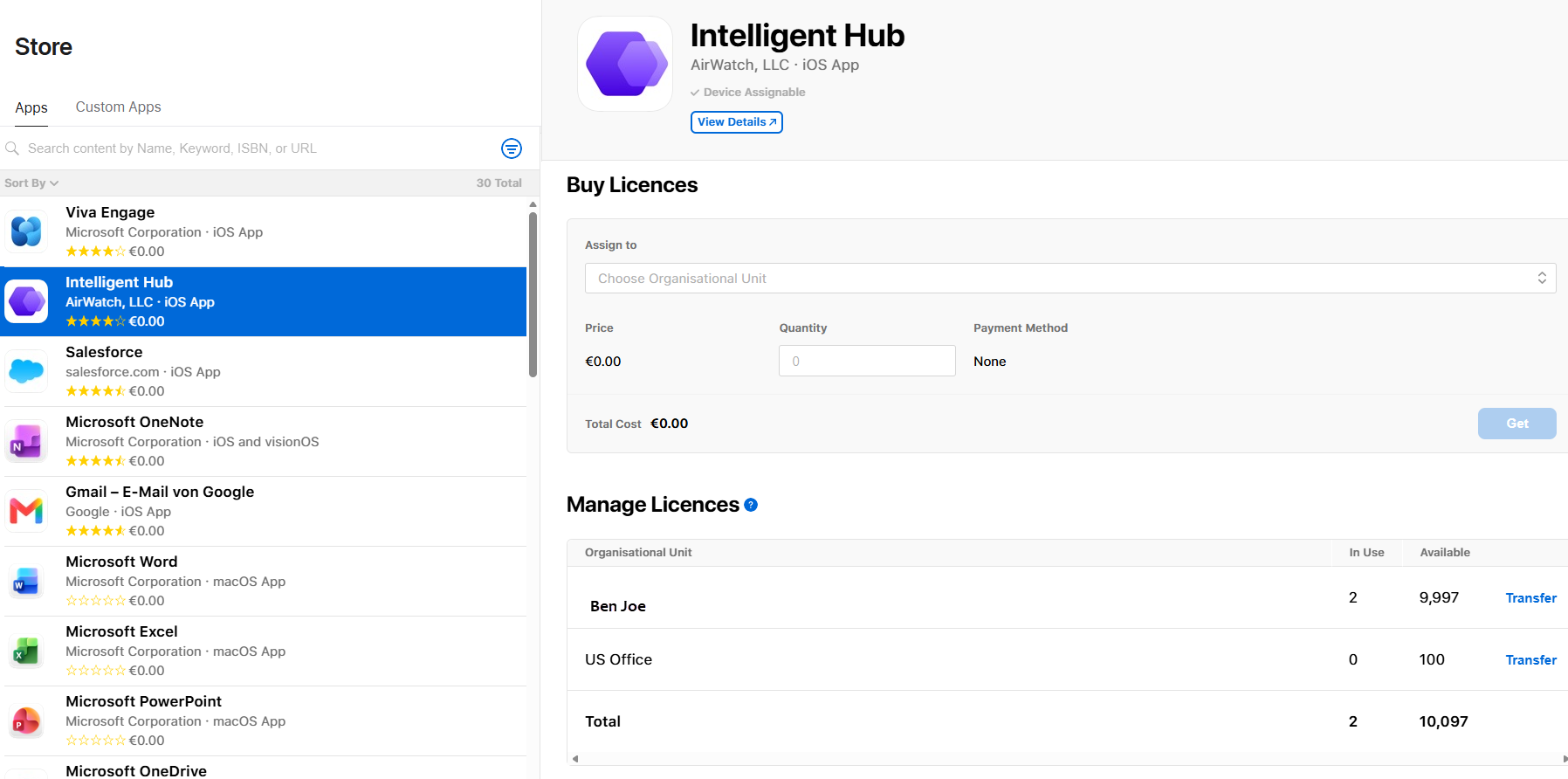
Figure 8: Activity in Apple Business showing License information.
Device stuck in Await Configuration
If a device remains stuck in the Setup Assistant Await Configuration state and does not proceed after enrollment :
- Confirm Workspace ONE UEM has received the device enrollment and that required apps and profiles are correctly assigned to the device's smart group.
- Verify network connectivity on the device — the device requires reliable Wi-Fi or cellular connectivity to receive app deliveries during the await configuration window.
- To override Await Configuration on a specific device, navigate to Device > Details View, select the device, choose More Actions > Device Configured, and mark the device as configured to allow it to exit Setup Assistant manually.
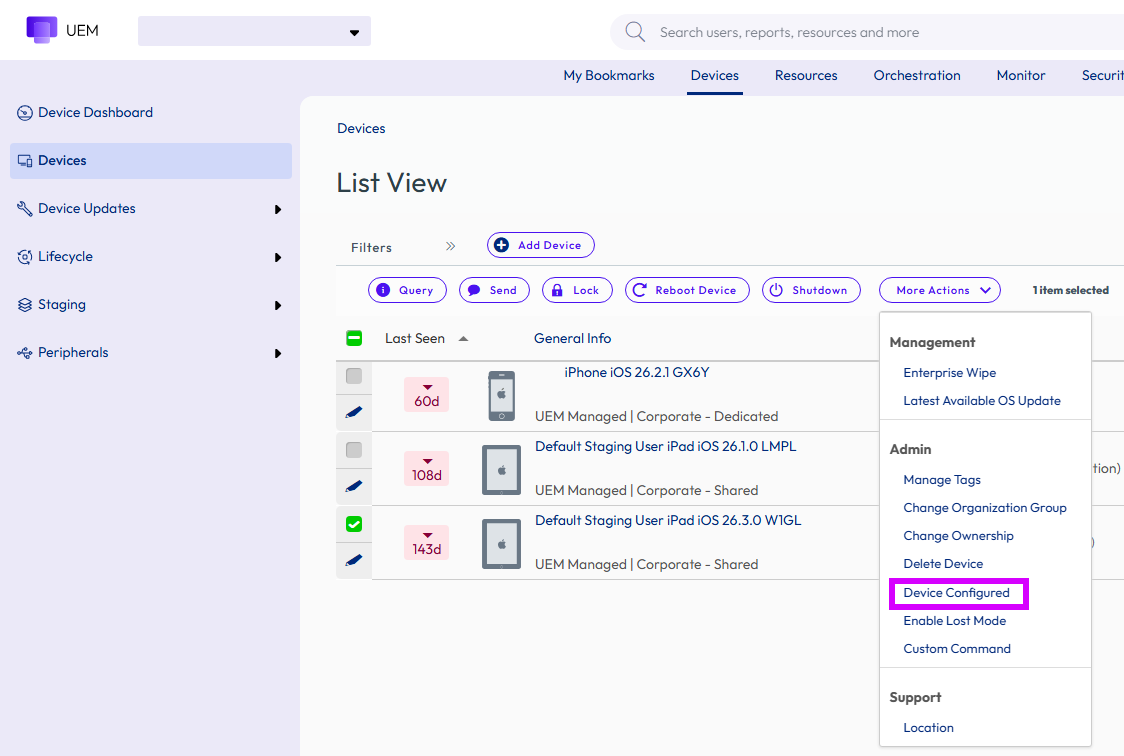
Figure 9: Workspace ONE UEM console showing “Device Configured” option.
Enrollment failures
If devices fail to enroll into Workspace ONE UEM after Apple Business reassignment:
- Confirm the device is running iOS/iPadOS 26 or later. Devices on earlier OS versions are not eligible for this migration flow and will show failures in the Apple Business activity log.
- Verify the device is organization-owned and enrolled via ADE in Apple Business. Non-ADE devices cannot use this migration workflow.
- Check the Apple Business activity log for failure details — bulk-action failures are recorded there when device requirements are not met.
- Confirm the APNs certificate in Workspace ONE UEM is valid and not expired under Groups & Settings > All Settings > Devices & Users > Apple > APNs for MDM.
- Verify the ADE profile is correctly assigned to the device in the Workspace ONE UEM console.
Summary and additional resources
This operational tutorial discussed the step-by-step guide on how to configure Workspace ONE UEM and Apple Business Manager to migrate managed Apple devices, while using the app preservation capabilities introduced in iOS and iPadOS 26 to minimize disruption to end users and their data throughout the transition.
Content in this tutorial included:
- Overview of MDM migration challenges and how Apple's app preservation framework reduces end-user impact
- Requirements for successful migration and configuring Workspace ONE UEM to support migration
- End-to-end migration workflow
- Validating successful device enrollment and application preservation post-migration
- Troubleshooting common migration issues
Additional resources
To continue building your Workspace ONE expertise, head to the Omnissa Workspace ONE UEM page on Tech Zone — a curated collection of articles and videos covering everything from core concepts to advanced configuration scenarios.
You may also wish to explore the following resources:
- For information on Automated Device Enrollment, see the Tech Zone article Using Apple Automated Device Enrollment with Workspace ONE UEM.
- For information about Workspace ONE’s integration with Apple Business Manager, refer to our product documentation at Introduction to Apple Business.
- Omnissa Knowledge Base
Changelog
The following updates were made to this guide:
| Date | Description of Changes |
| 2026/08/03 |
|
About the author and contributors
This tutorial was written by:
- Sandhya US, Product Specialist, Omnissa.
Additional contributions were provided by:
- Michael Bradley, Principal Product Specialist, Omnissa.
- Pratul Mathur, Product Manager, Omnissa.
- Chris Morelock, Product Manager, Omnissa.
Feedback
Your feedback is valuable.To comment on this paper, contact End-User-Computing Technical Marketing at tech_content_feedback@omnissa.com.