

Android eSIM management: Workspace ONE UEM operational tutorial
Overview
This guide introduces you to Android eSIM management and walks through the key concepts, prerequisites, provisioning workflows, lifecycle behaviors, and recommended adoption steps for managing eSIMs at scale using Workspace ONE® UEM 2602.
An eSIM (embedded SIM) is a digital SIM that is downloaded to a device instead of inserted physically. A single device can store multiple eSIMs, although only a limited number can be active at the same time depending on the OEM.
Before Workspace ONE UEM 2602, Android eSIM lifecycle management was entirely manual and user-driven.
Workspace ONE UEM now provides:
- Over-the-air eSIM provisioning (no QR codes or user setup flows)
- Remote eSIM removal (managed eSIMs only)
- Visibility into all SIMs on a device (physical + eSIM)
- Reporting on device Embedded Identity Document (EID)
- Bulk and automated deployment via REST APIs and Freestyle Orchestrator
- Support across ownership models (COBO, COPE, BYOD)
This tutorial takes you through the steps to deploy and manage Android eSIMs using Workspace ONE® UEM 2602. Before you begin, ensure your environment meets the prerequisites described in the Prerequisites section. For more information, see Omnissa Tech Zone resources for Workspace ONE UEM.
Audience
This tutorial is intended for IT administrators and product evaluators who need to manage Android eSIMs in their new or existing Workspace ONE UEM tenants. Familiarity with Workspace ONE UEM, Android device management, and your organization’s mobile carrier environment is assumed. Knowledge of additional technologies such as REST APIs, Freestyle Orchestrator, and Workspace ONE Intelligence is also beneficial.
Prerequisites
Ensure that your environment meets the following requirements before deploying Android eSIM management.
Platform and software requirements
- Android OS:
- eSIM addition and removal: Android 15 or higher
- eSIM removal on COPE devices: To be supported on Android 17
- EID reporting: Android 15 and higher
- Multi-SIM reporting: All OS versions
- Management Source: Custom DPC
- Management Mode: All modes supported (Work Managed, COPE, Work Profile)
- Intelligent Hub:
- Hub 26.02: Add/remove eSIMs and multi-SIM reporting
- Hub 26.03: Device EID collection
Licensing
- Included in Workspace ONE Mobile Essentials — no special telephony or frontline SKU required
- Automation using Freestyle Orchestrator with Workspace ONE Intelligence requires the Workspace ONE Intelligence add-on or Enterprise licensing
Deployment planning
Before deploying Android eSIM management at scale, organizations should address several planning questions that affect the end-to-end workflow design. Answering these questions early helps avoid operational gaps and ensures the provisioning process is smooth for both administrators and end users.
When should eSIMs be provisioned?
A key decision is whether eSIMs should be added to devices at the time of enrollment into Workspace ONE UEM or at a later point in the device lifecycle:
- At enrollment: eSIMs are provisioned as part of the device onboarding flow. This works well when carrier eSIMs are pre-prepared in bulk and activation codes or SM-DP+ profiles are ready before devices are distributed. It simplifies the onboarding experience but requires tighter coordination with carriers upfront.
- After enrollment: eSIMs are provisioned on demand — for example, when a device is assigned to a role that requires cellular connectivity, or when a user moves to a new region. This approach is more flexible but requires a reliable trigger mechanism (such as a Freestyle Orchestrator workflow or ITSM event) to initiate provisioning at the right time.
How will device EIDs be collected?
If your carrier requires EID-based (SM-DP+) provisioning, organizations must have a plan for collecting device EIDs before eSIMs can be prepared:
- Corporate-owned devices: Organizations may be able to obtain EID values at the time of device purchase from the OEM or distributor. Alternatively, EIDs can be collected after enrollment using Workspace ONE UEM (Hub 26.03 or later required) via the UEM Console, REST API, or Workspace ONE Intelligence (ETLv2 required).
- Employee-owned devices (Work Profile): EIDs cannot be collected silently. Organizations must communicate to users why their EID is needed and provide the Intelligent Hub deep link (wsonehub://eid) to initiate the consent flow. Plan for this user communication step in advance — it is a prerequisite for SM-DP+ provisioning on BYOD devices.
How many eSIMs will be added per device?
If multiple eSIMs may be pushed to a single device, plan for the device’s concurrent active eSIM limit. Attempting to enable more eSIMs than the device supports simultaneously can result in unexpected user interaction prompts. Consider using the Enable eSIM toggle selectively to control which eSIMs are activated automatically versus left inactive.
eSIM provisioning methods
Workspace ONE UEM supports both industry-standard eSIM provisioning flows. The method you use will largely depend on the flows supported by your carrier. See Carrier Integration Considerations for more information.
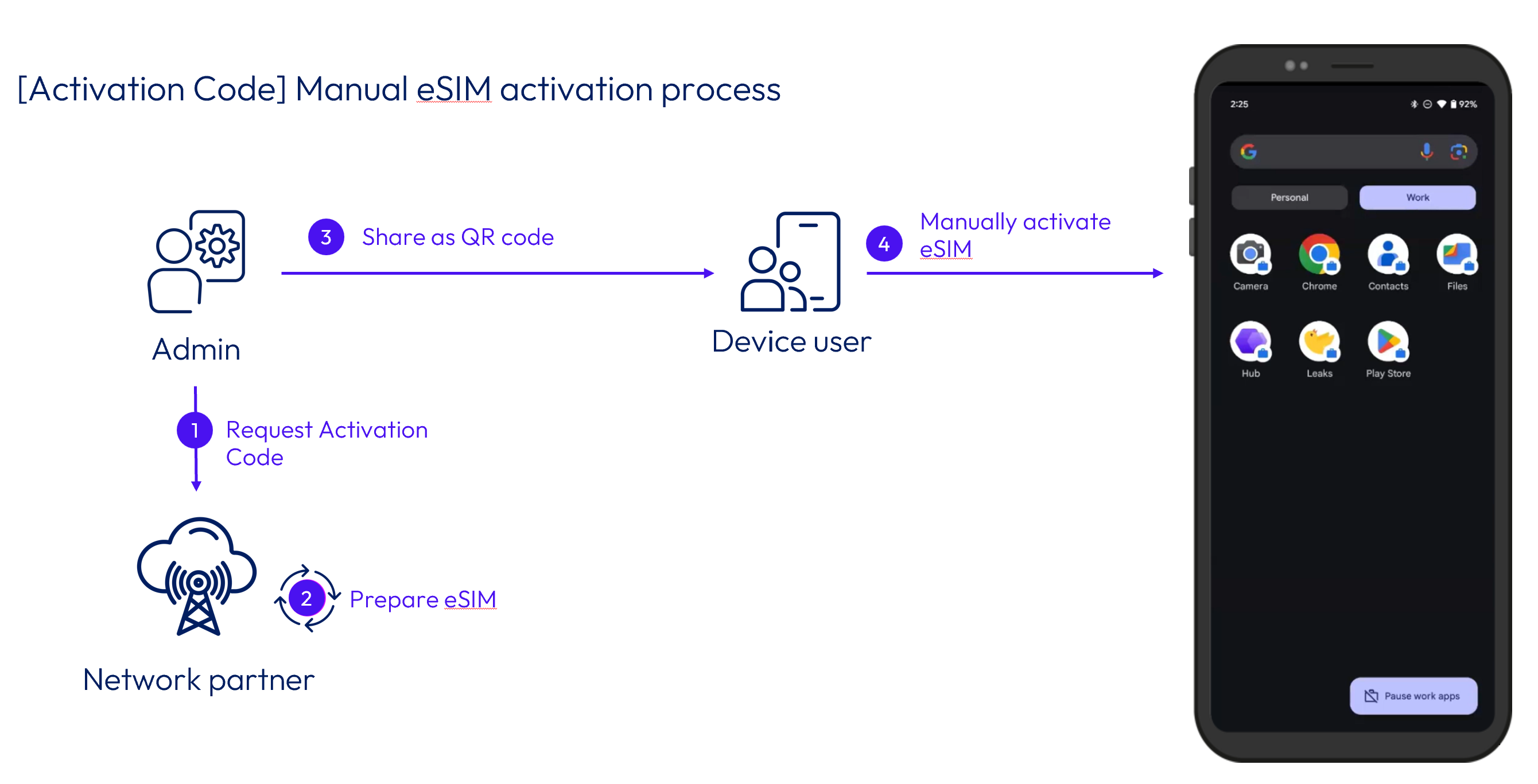
Method 1: Activation code (QR Code equivalent)
This is the traditional flow where the carrier generates an activation code (equivalent to a QR code) that is used to provision the eSIM. When the carrier generates the activation code, the carrier reserves an eSIM and associates it to this code. Any device that uses the activation code will obtain the associated eSIM.
Traditional (manual) flow:
- Carrier generates an activation code (QR).
- User scans the QR code in device settings.

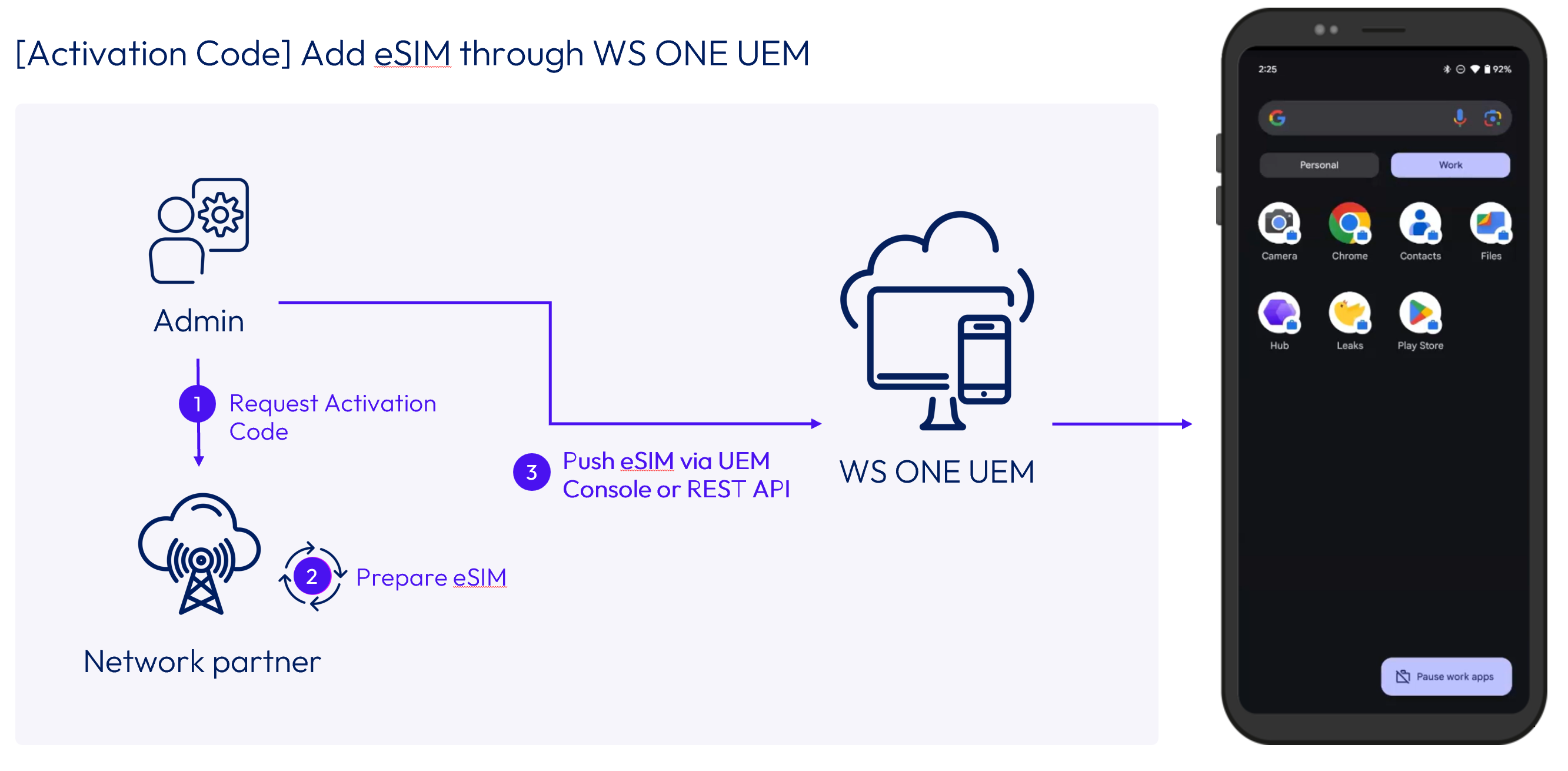
With Workspace ONE UEM:
- Carrier prepares the eSIM and provides an activation code.
- Admin issues an Install eSIM action using the activation code via the UEM Console (single device) or REST API / Freestyle Orchestrator (bulk automation).
- Workspace ONE UEM installs the eSIM remotely — no user action required.
Method 2: SM-DP+ Server (EID-Based provisioning)
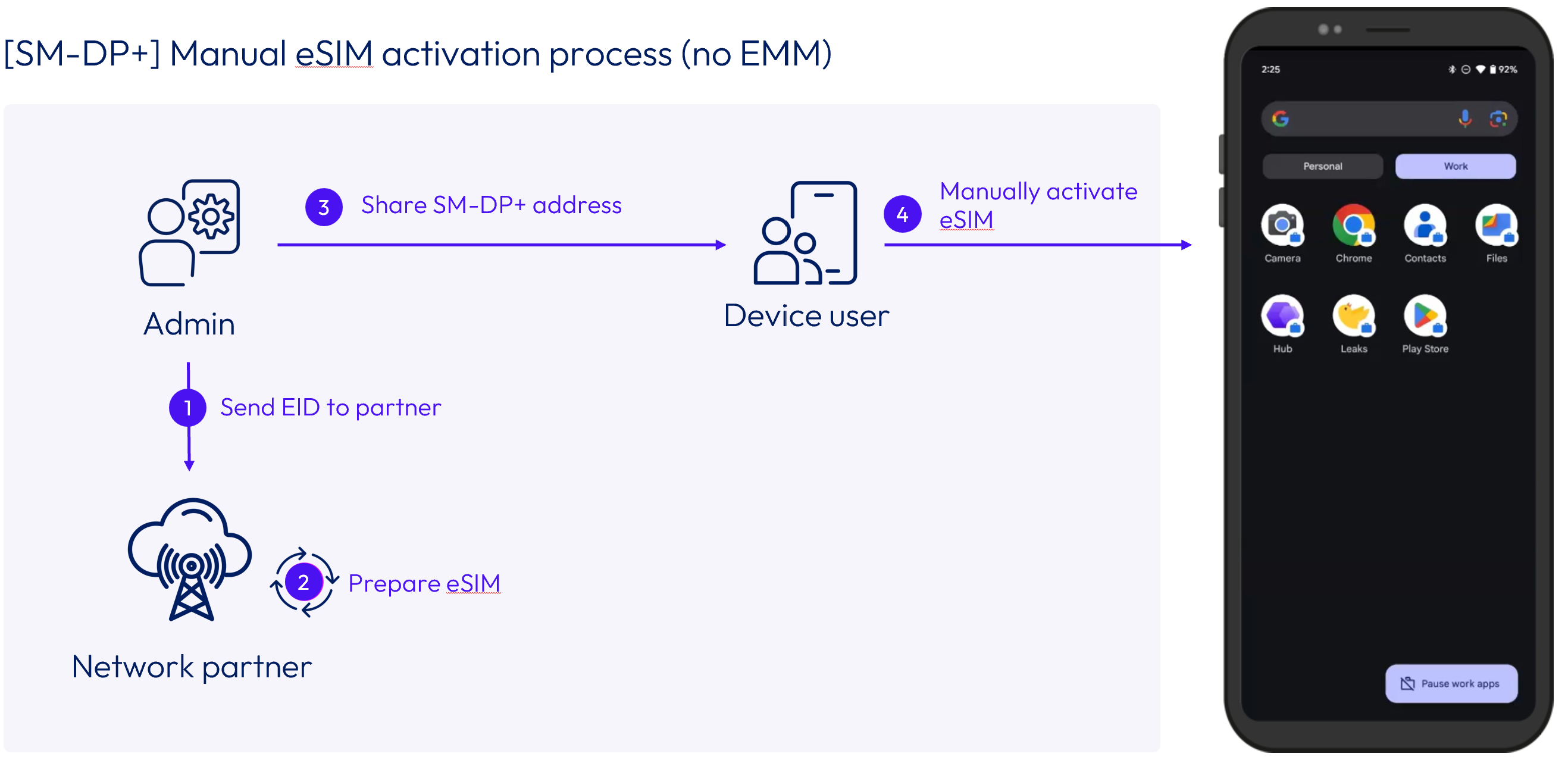
This method leverages the device’s Embedded Identity Document (EID) for direct carrier-to-device provisioning using the carrier’s SM-DP+ server. The carrier reserves an eSIM that only the device with the associated EID can retrieve.
Traditional (manual) flow:
- Organization provides the EID of the device to the carrier.
- Carrier prepares an eSIM for that specific device.
- User enters the carrier SM-DP+ server URL on the device.
- Carrier matches the device EID and installs the eSIM.
With Workspace ONE UEM:
- Admin collects the device EID (Embedded Identity Document).
- EID is provided to the carrier.
- Carrier prepares the eSIM.
- Admin issues an Install eSIM action using the SM-DP+ server URL via the UEM Console (single device) or REST API / Freestyle Orchestrator (bulk automation).
- Workspace ONE UEM installs the eSIM remotely.
Adding an eSIM using Workspace ONE UEM
When managing eSIM deployments, it is important to understand the distinction between manual, single-device actions and automated, large-scale operations:
- Single-Device Deployment (UEM Console): The Workspace ONE UEM Console path is designed for targeted, individual device administration. Administrators can manually trigger an eSIM push to a single device from the Device Details page.
- Bulk and Automated Deployment (Omnissa Intelligence & APIs): For large-scale rollouts, automated provisioning, or bulk pushes across multiple devices, bulk and automated eSIM deployments are driven programmatically via the Workspace ONE UEM APIs and orchestrated using Freestyle Orchestrator within Omnissa Intelligence.
Prerequisites
- Device must be running Android 15 or higher.
- Device must be enrolled in Workspace ONE UEM with the Custom DPC management source.
- An activation code or SM-DP+ server URL must be obtained from your carrier in advance.
Add an eSIM from the UEM console
To add an eSIM to a single device from the console, perform the following steps:
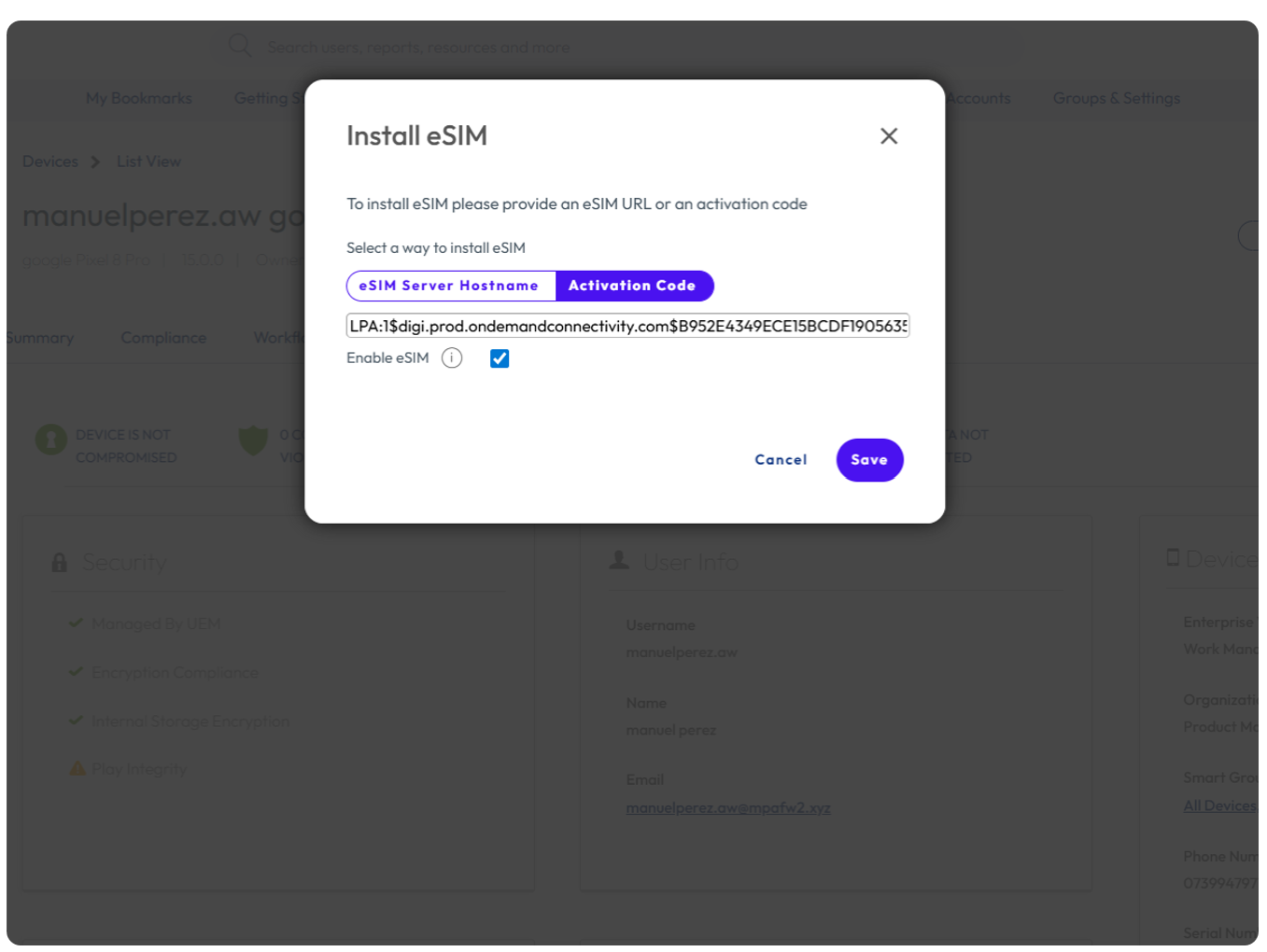
- In the Workspace ONE UEM Console, navigate to Devices > List View and select the target device.
- On the Device Details page, select More Actions > Install eSIM.
- In the Install eSIM dialog, choose one of the following: Activation Code — Enter the activation code provided by your carrier, or SM-DP+ Server URL — Enter the address of the carrier’s SM-DP+ provisioning server.
- Optionally, enable the Enable eSIM toggle. This option is supported on corporate-owned devices only.
- Select Save to issue the command. Workspace ONE UEM will install the eSIM remotely on the target device.
Enable eSIM behavior
When you turn on Enable eSIM, Workspace ONE UEM will attempt to enable the eSIM silently as soon as it is first added to the device. However, there are cases where eSIMs cannot be enabled silently:
- There are already too many active eSIMs on the device. The maximum number of concurrent active eSIMs varies by device.
- On some devices, a one-time user consent prompt must be accepted before Workspace ONE UEM can enable an eSIM.
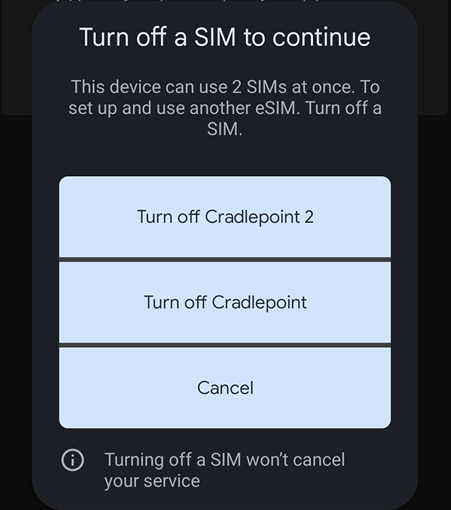
Figure 1: Android device showing a dialog prompting the user to deactivate one of two active Cradlepoint SIM profiles before adding a new eSIM
Note: In cases where silent enablement is not possible, Workspace ONE UEM will not add the eSIM until the user takes the required action. Workspace ONE Intelligent Hub will post a notification informing the user that action is required. Once they launch the notification, a system dialog is displayed for the user to resolve the required action — for example, disabling one of the currently active eSIMs so the new eSIM can be added and enabled. If users cancel the system dialog, the eSIM addition will fail and will not be retried.
Removing an eSIM using Workspace ONE UEM
Workspace ONE UEM can silently remove managed eSIMs from Android 15+ devices directly from the Console.
Prerequisites
- Device must be running Android 15 or higher.
- Only managed eSIMs (provisioned through Workspace ONE UEM) can be removed remotely.
Remove an eSIM from the UEM console
To remove an eSIM from a device, perform the following steps:
- In the Workspace ONE UEM Console, navigate to Devices > List View and select the target device.
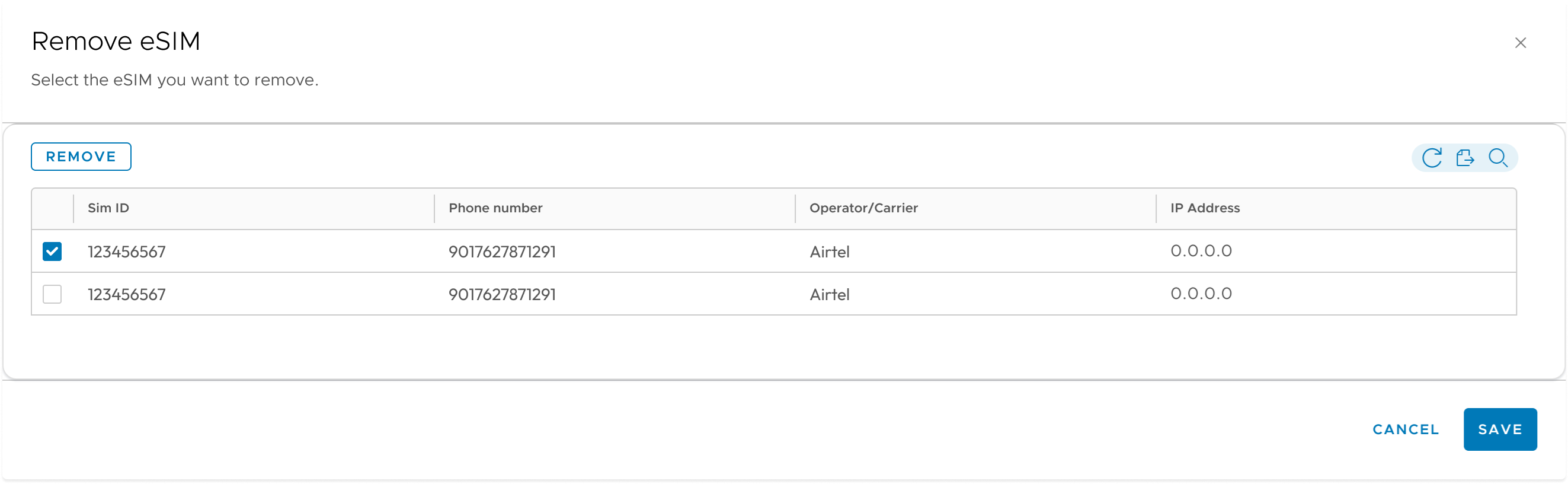
- On the Device Details page, select More Actions > Remove eSIM.
- Choose the managed eSIM to remove from the provided list.
- Confirm the action. Workspace ONE UEM will silently remove the selected eSIM from the device.
Known issues with eSIM removal
The following table outlines known issues with eSIM removal across managed Android device enrollments. Where applicable, workarounds and linked knowledge base articles are provided for reference.
| Issue | Status |
| Remove eSIM fails on Work Profile (BYOD) devices | Will be resolved in future releases of Workspace ONE UEM and Workspace ONE Intelligent Hub for Android. See Cannot remove managed eSIMs from Android BYO Devices (6001421). |
| Remove eSIM fails on COPE devices | Google OS defect fixed in Android 17. The Remove eSIM action will be hidden for Android 16 and lower in a future patch. See Cannot remove managed eSIMs from Android COPE devices (6001378). |
Reporting the Embedded Identity Document (EID)
The EID is a unique hardware identifier of the eSIM chip on an Android device. Carriers that support SM-DP+ (server-based) provisioning require the EID in advance to prepare and bind an eSIM profile to a specific device.
Once collected, the EID is exposed across the following Workspace ONE surfaces:
- UEM Console — Visible in Device Details for individual devices
- UEM REST API — Available via the V3 Get Device API, alongside other cellular and SIM attributes
- Workspace ONE Intelligence — Available when ETLv2 is enabled, allowing the EID to be used in reporting and automations
EID collection by management mode
Corporate-Owned Devices (Work Managed / COPE):
- EID collection is fully silent. No user interaction or consent is required.
- Behavior matches other hardware identifiers such as serial number.
Employee-Owned Devices (Work Profile):
Workspace ONE UEM typically cannot collect hardware identifiers from employee-owned Android devices enrolled in Work Profile mode. Because the EID is considered a hardware identifier, Android requires explicit user consent:
- The EID is collected on demand, not automatically at enrollment.
- Workspace ONE provides a deep link into Intelligent Hub that users can launch to initiate the consent flow.
- The user is guided through an Android-managed consent experience to approve sharing the EID.
Using the Hub Deep Link to gain user consent (Work Profile)
Users must launch the following deep link to initiate the user consent flow to share their EID with their organization:
wsonehub://eid
Customers can embed this deep link in:
- A self-service portal
- Email or SMS communications
- Intelligent Hub For You notifications
Roles in the consent process:
- Administrators provide the Intelligent Hub deep link to users along with context and explanation for why the EID is required.
- Intelligent Hub guides the user to accept the Android system prompts needed to consent to share their EID.
Intelligent Hub will prompt users to:
- Launch a system notification from Android Device Policy
- Accept the system dialog prompt to share the EID with their organization
| | | |
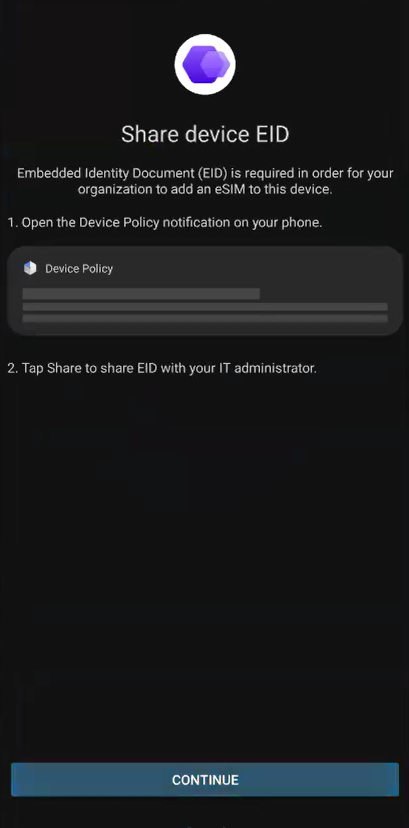
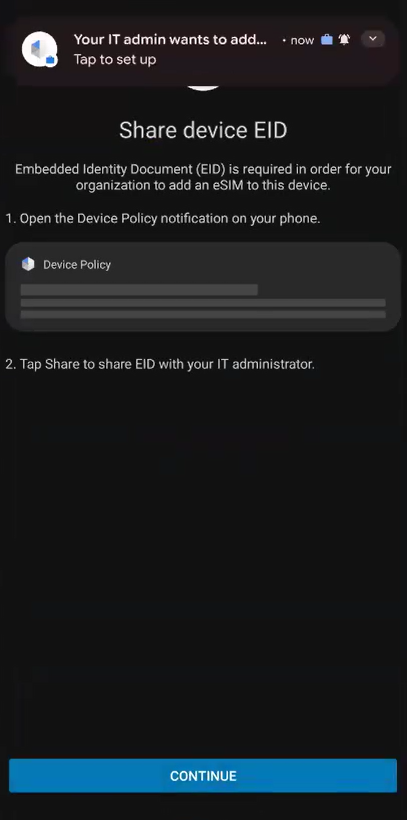
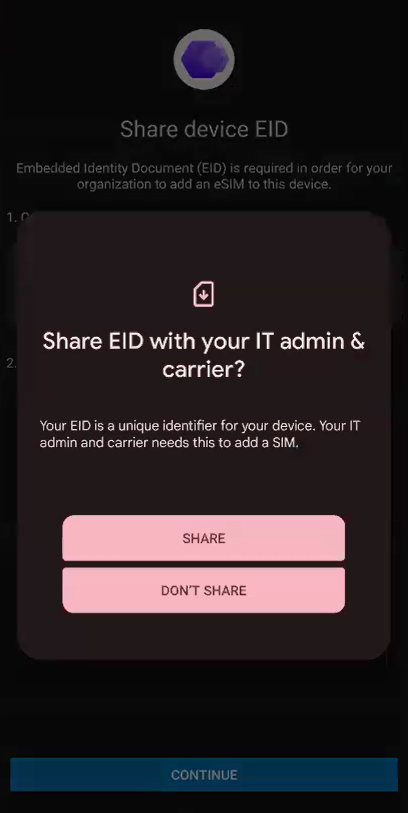
Figure 2: Prompts displayed in Workspace ONE Intelligent Hub as users try to launch the deep link
Multi-SIM visibility and reporting
Workspace ONE UEM 2602 now reports all SIMs on a device, whether they are physical SIMs or eSIMs, and whether they are managed or unmanaged.
Note: As of Workspace ONE UEM 2602, new multi-SIM attributes and information on multiple SIMs are not yet reported in Workspace ONE Intelligence.
New reported attributes
In addition to existing SIM attributes, the following new attributes are now reported for each SIM:
- SIM type (physical or eSIM)
- Managed vs. unmanaged
- Provisioning date (managed eSIMs only)
Other attributes such as Carrier and Phone Number continue to be reported for all SIMs.
Limitations on SIM reporting
Due to limitations in Android platform APIs, visibility into SIMs on the device depends on the SIM state and whether it is managed or unmanaged:
- Managed eSIMs: Reported once they are enabled for the first time.
- Unmanaged SIMs (all types): Reported only while they are active on the device.
eSIM lifecycle and wipe behavior
Whether eSIMs are removed varies based on how the device is unenrolled from Workspace ONE UEM.
Device Wipe (Factory Reset)
- As of Workspace ONE UEM 2602, Device Wipe will not remove eSIMs from devices.
- Applies to Work Managed and COPE management modes.
Enterprise Wipe (Work Profile Removal)
- Because Enterprise Wipe is designed to remove all managed sources from a device, all managed eSIMs are removed.
- Applies to Work Profile and COPE management modes.
Note: Plan your wipe behavior in alignment with your device asset reuse strategy to avoid unintended eSIM retention or loss.
Scaling eSIM management with APIs
Workspace ONE UEM 2602 introduces REST APIs that enable customers and partners to fully automate eSIM provisioning, removal, and reporting workflows at scale.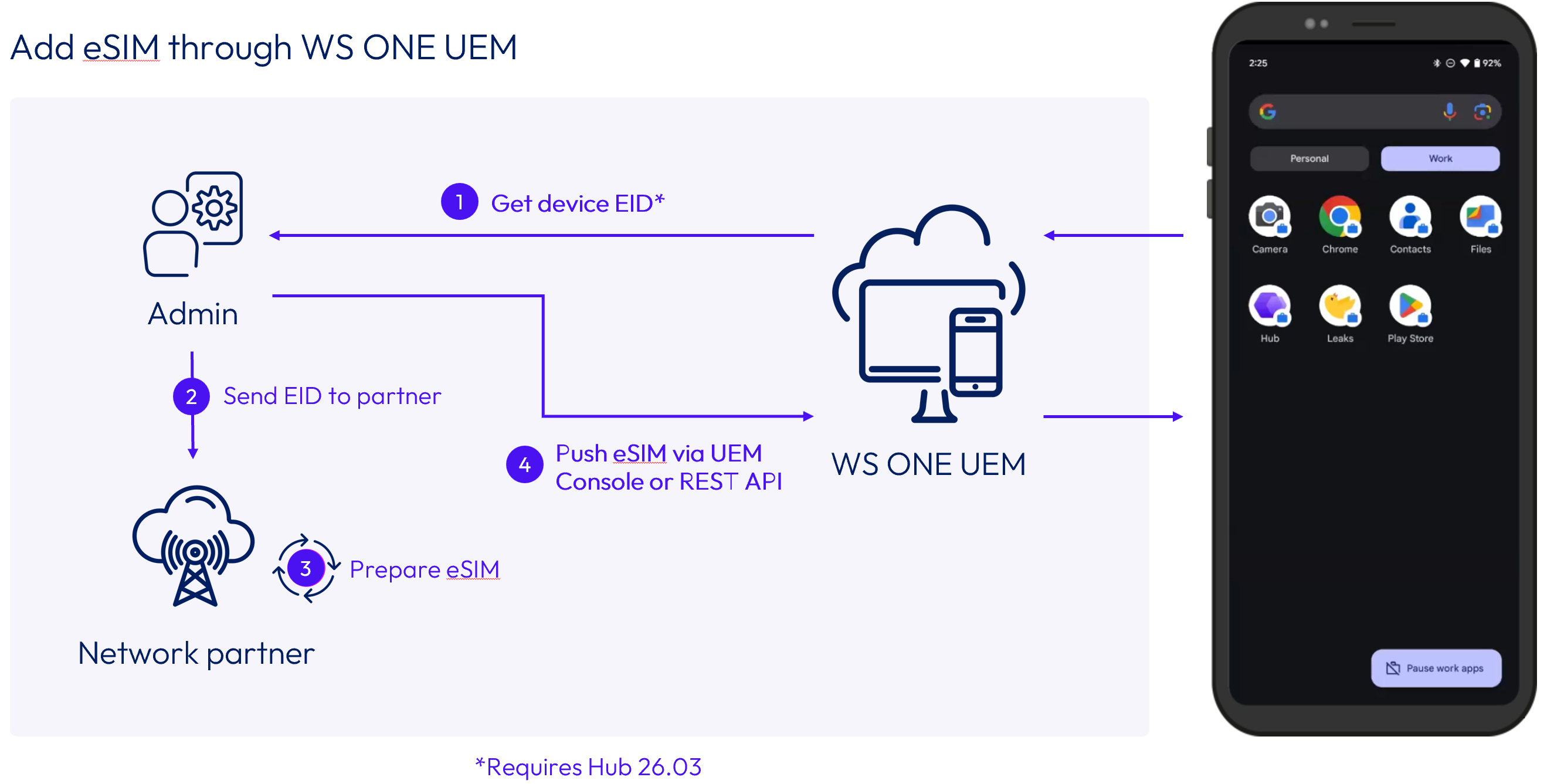
Figure 3: Four-step workflow for adding an eSIM through Workspace ONE UEM
V4 Device Actions API (Recommended)
The V4 Actions API is the primary and recommended interface for adding and removing eSIMs on Android devices. This is the only API that supports removing eSIMs from Android devices.
- Endpoint: POST /devices/{deviceUuid}/action
- Version Header: accept: application/json;version=4
- Supported Actions: PROVISION_ESIM, REMOVE_ESIM
Provision eSIM — Request Body:
{ "action_name": "PROVISION_ESIM", "additional_input": { "provision_esim": { "hostname": "https://esim.carrier.com", "activation_code": "string", "activate": true } }}
Note: Either hostname (SM-DP+ server) or activation_code must be provided, but not both. The activate parameter is optional and defaults to true for corporate-owned devices, which corresponds to the Enable eSIM option in the UEM Console.
Remove eSIM — Request Body:
{ "action_name": "REMOVE_ESIM", "additional_input": { "remove_esim": { "card_id": "89049032006008882600102802021509" } }}
Note: Removal is supported for managed eSIMs only. The card_id (ICCID) uniquely identifies the eSIM to be removed.
V2 Commands API (Cross-platform: iOS and Android)
The V2 Commands API is supported primarily for parity with iOS eSIM provisioning and for customers with existing automation built on v2. For Android, only adding eSIMs is supported with this API.
- Endpoint: POST /commands/{commandName}/device/{searchBy}/{id}
- Version Header: accept: application/json;version=2
Provision eSIM — Request Body:
{ "refresh_esim": { "esim_url": "https://esim.carrier.com", "activation_code": "string", "activate": true }}
Note: Either esim_url or activation_code must be supplied (not both). Only esim_url is supported for iOS devices. If activate is not specified, it defaults to true for Android devices.
V3 Get Device API (Reporting and EID Retrieval)
The V3 Get Device API is used to retrieve device and SIM inventory information and supports eSIM automation flows that require carrier coordination. The EID can be used to pre-register devices with carriers that require EID-based (SM-DP+) provisioning.
- Endpoint: GET /devices/search?{searchBy}
- Version Header: accept: application/json;version=3
Key Enhancements:
- Returns device EID
- Returns multiple SIM records (physical and eSIM) with associated metadata
- Managed vs. unmanaged status
- Physical SIM vs. eSIM type
- Provisioning time (managed eSIMs only)
- SIM metadata (phone number, carrier, roaming status, and more)
Carrier integration considerations
Successful eSIM deployments depend heavily on carrier capabilities and integration models. Before designing an automation strategy, validate the following details with your mobile network operators (MNOs).
Carrier discovery checklist
Use the following questions to help plan scalable eSIM management through Workspace ONE:
- Which provisioning methods are supported? (Activation code, SM-DP+ server, or both)
- Can eSIMs be prepared in bulk? Can activation codes be exported in bulk?
- Is there a documented REST API for eSIM reservation or lifecycle management?
- Are the APIs synchronous or asynchronous?
- Does the carrier notify the API caller when an eSIM is ready for download?
- What are the rate limits or batching requirements?
- What identifiers are required by the carrier? (EID for SM-DP+, IMEI)
- Are enterprise or managed eSIM labels supported?
Choosing between activation code and SM-DP+ when both are supported
Activation Code is preferable when:
- Less dependence on carrier APIs is desired.
- Activation codes are not user-specific (e.g., you can obtain a CSV file with a batch of codes and push a code per device).
- CSV-based or lightweight automation is sufficient.
SM-DP+ is preferable when:
- The carrier has APIs or bulk methods for reserving eSIMs.
- Tighter device-to-eSIM binding is required.
- You can accommodate more complex automation using carrier APIs.
Multi-carrier environments
Organizations that work with more than one mobile carrier face additional planning questions that should be resolved before designing eSIM automation workflows:
- How many carriers does the organization work with? Each carrier has its own APIs, provisioning methods, rate limits, and eSIM lifecycle behaviors.
- What determines which carrier’s eSIM a device should receive? Common factors: geographic region, device role, coverage, cost optimization.
- Are different carriers used for different ownership models? Corporate-owned vs. BYOD may require separate provisioning workflows.
Note: Because carrier APIs are not standardized, each carrier integration should be validated individually. Avoid building a single automation that assumes all carriers behave identically.
Architectural recommendation
Because carrier systems, APIs, and readiness signals vary widely, most customers should expect a three-system integration model:
- Workspace ONE UEM — Device management and eSIM installation/removal
- Carrier Systems — eSIM preparation, reservation, and subscription management
- Customer Orchestration Layer — Glue logic (ITSM, scripts, iPaaS, or custom service) that sequences carrier and UEM actions
Explicitly planning for this orchestration layer helps avoid brittle, one-off implementations and enables future carrier or platform expansion.
Example end-to-end automation flow
The following is a recommended end-to-end automation sequence for scalable eSIM provisioning:
- Retrieve device inventory using the V3 Get Device API.
- Extract the EID and share it with the carrier system.
- Carrier prepares the eSIM (activation code or SM-DP+ profile).
- Provision the eSIM using the V4 Actions API.
- Optionally remove or rotate eSIMs using the Remove eSIM action.
This model allows customers to integrate Workspace ONE with carrier portals and APIs, ITSM tools, identity or onboarding workflows, and frontline or zero-touch enrollment pipelines.
Controlling mobile network settings with Android profiles
By default, users on corporate-owned devices may be able to manually modify mobile network settings. Organizations can restrict this behavior using Android profiles in Workspace ONE UEM to ensure that eSIM configuration remains under IT control.
Restricting SIM and network management
The Allow Mobile Network Changes restriction profile enables administrators to:
- Prevent manual eSIM modifications – Ensures that only IT-provisioned eSIMs can be installed or removed.
- Block mobile network modifications – Locks carrier selection, data roaming settings, and APN configurations.
- Prevent users from disabling mobile data – Guarantees continuous cellular connectivity for management and tracking.
To configure these restrictions:
- In the Workspace ONE UEM Console, navigate to Resources > Profiles & Baselines > Profiles > Add > Android > Custom DPC.
- Select the appropriate management mode (Work Managed or COPE).
- In the Restrictions payload, configure the Allow Mobile Network Changes setting.
- Assign the profile to the appropriate device groups and select Save & Publish.
Note: Restriction capabilities vary by Android OS version and OEM. Review the Workspace ONE UEM documentation for the full list of supported restriction keys for your target devices.
Private APNs
Organizations that use private Access Point Names (APNs) for secure corporate data routing can deploy APN configurations alongside eSIM provisioning through Workspace ONE UEM.
To deploy a private APN profile:
- In the Workspace ONE UEM Console, navigate to Resources > Profiles & Baselines > Profiles > Add > Android.
- Add the APN payload and configure the carrier-provided APN settings.
- Assign the profile to the same device groups receiving eSIM provisioning.
Network slicing
Some carriers offer network slicing capabilities that allow enterprise traffic to be prioritized or isolated on a dedicated network segment. If your carrier supports network slicing, coordinate with your carrier to ensure that eSIMs provisioned through Workspace ONE UEM are associated with the correct network slice.
Note: Network slicing availability depends entirely on carrier support and device hardware. Confirm capabilities with your mobile network operator before designing a network slicing strategy.
Workspace ONE Freestyle Orchestrator
Freestyle Orchestrator (the global orchestrator available with Workspace ONE Intelligence) can be used to automate end-to-end eSIM management flows, including triggering eSIM provisioning based on device enrollment events, compliance state changes, or custom workflow logic. Freestyle Orchestrator supports outbound API calls, enabling it to coordinate with carrier systems as part of a multi-step automation.
Note: Freestyle Orchestrator integration with Android eSIM management workflows may require Workspace ONE Intelligence Enterprise licensing. Confirm availability with your Workspace ONE representative.
Troubleshooting
This section covers diagnostic tools and common issues when deploying Android eSIM management with Workspace ONE UEM.
Primary diagnostic tools
When troubleshooting eSIM add or remove failures, use the following diagnostic tools:
- UEM Event Log — Primary source for eSIM action results and error codes
- Hub Logs (Verbose) — Detailed device-side logging for add/remove operations
- ADB Logs — For add/remove failures that require deeper device-level investigation
Interpreting event logs
eSIM addition/removal success:
- Event includes the activation code or server URL used.
- Event shows the ICCID of the installed or removed eSIM.
eSIM addition — user action required:
- Event indicates installation is pending user resolution.
eSIM addition failure:
Event includes a combination of codes:
- Operation Code — Which operation failed (e.g., download eSIM)
- Error Code — How or why the operation failed (e.g., network error)
Typical causes of eSIM addition failure:
- Invalid activation code
- Incorrect server URL
- No eSIM support on device
- Carrier provisioning error
Note: Error and operation codes originate from Android EuiccManager. You can view a table with typical combinations of error and operation codes in Omnissa Docs. In many cases, you will need to provide these codes to your carrier to identify and resolve eSIM addition issues.
Adoption best practices
Follow these best practices to ensure a smooth rollout of Android eSIM management:
- Engage carriers early — Confirm provisioning method and API support before designing your automation strategy.
- Plan user communication — Especially with BYOD (Work Profile) devices where user interaction is required for EID collection and eSIM enablement.
- Pilot with a small device set before broad rollout to validate end-to-end workflows.
- Use APIs for scale — Especially for frontline or global deployments where manual console operations are impractical.
- Plan for device limits on active eSIMs — The maximum number of concurrent active eSIMs varies by OEM.
- Align wipe behavior with your asset reuse strategy — Understand the difference between Device Wipe and Enterprise Wipe eSIM retention behavior.
Summary and additional resources
This operational tutorial introduced Android eSIM management in Workspace ONE UEM and covered the key steps required to deploy and manage eSIMs at scale.
Procedures included:
- Understanding eSIM concepts and the key enterprise benefits of Workspace ONE UEM 2602.
- Reviewing platform, software, and licensing prerequisites.
- Provisioning eSIMs using Activation Code and SM-DP+ Server methods.
- Adding and removing eSIMs using the Workspace ONE UEM Console.
- Reporting and collecting the Embedded Identity Document (EID) across ownership models.
- Understanding multi-SIM visibility, reporting attributes, and lifecycle/wipe behavior.
- Automating eSIM workflows at scale using the V4, V2, and V3 REST APIs.
- Planning carrier integration using the Carrier Discovery Checklist and architectural recommendations.
- Troubleshooting eSIM add/remove failures using UEM Event Logs and Hub diagnostic tools.
For customer-specific deployment guidance, engage your Workspace ONE representative or carrier partner early in the planning process.
Additional resources
For more information about Android eSIM management and Workspace ONE UEM, explore the following resources:
- Workspace ONE UEM Documentation
- Omnissa Tech Zone
- Workspace ONE REST API Reference
- Android EuiccManager Error Codes (Android Developer Documentation)
Changelog
The following updates were made to this guide:
| Date | Description of Changes |
| 2026/06/23 | · Initial publication of Android eSIM Management operational tutorial for Workspace ONE UEM 2602 |
About the author and contributors
Author:
Manuel Perez, Senior Product Manager, Omnissa
Contributors:
Terasha Burrell, Senior Product Specialist, Omnissa
Feedback
Your feedback is valuable.
To comment on this paper, contact the Omnissa Product Specialist Team at tech_content_feedback@omnissa.com.