

Omnissa Secure Access Suite
Overview
Omnissa Secure Access Suite gives your business the ability to integrate Google Chrome Enterprise Premium with Omnissa’s proven remote and hybrid work capabilities such as secure tunneling and unified access from the Hub catalog. This provides a zero-trust capable solution to deliver web content to users on both managed and unmanaged devices, improving browser security and allowing for granular DLP controls. From the user perspective, it is as simple as opening Chrome and logging in to create a Chrome managed profile. End users benefit from having a unified access experience from the Omnissa digital work platform for whatever application delivery mechanism is appropriate.
Introduction
Omnissa Secure Access Suite allows administrators to get users up and running from any device with Google Chrome installed with four simple steps:
- The user opens Google Chrome or installs if not present
- The user creates a new Chrome Profile using their enterprise login credentials
- Chrome redirects the user to the Omnissa Hub web catalog for authentication
- The user is then able to launch their apps from the Omnissa Hub Catalog
- The administrator has observability of the managed profile within the browser and can enable both policies and real-time security capabilities
* In addition, customers can implement this solution using their own identity provider with or without federation if they chose.
The process of onboarding for an end user is less than a minute and all within the Chrome browser. Supporting internal apps may require additional installation of our application-layer Tunnel solution. The administrator is able to enforce a number of policies, Data Loss Prevention (DLP) actions, and present external and internal apps to the end user in a secure manner. The Chrome managed profile provides a container for management in the browser with appropriate notification and explanation to the user.
For devices that are managed by MDM or alternative management capabilities the entire Chrome Enterprise browser can be enrolled using a registry key or plist entry. The scope of management with this method is broader and aligned with fully managed devices. Google Chrome on mobile devices are also supported and can leverage both browser and managed profile onboarding scenarios.
Purpose
In this guide, we lay out the steps to configure Secure Access Suite for an initial set of applications and users
- Identify Apps to enable with DLP and access policies
- Identify policies and configuration for browser management and security
- Configure the Google Admin Console with policies and configuration for Apps and Browser
- Integrate Omnissa Access with the Google Admin Console to enable Device Trust Signals
- Provide access to internal web apps and content with Unified Access Gateway (UAG) and Tunnel
- Onboard users with multiple deployment options
Audience
This Guide is intended for IT Administrators interested in setting up Omnissa Secure Access Suite for the first time. While prior experience with Google Admin Console, Omnissa Access, and Workspace ONE Tunnel/UAG is helpful, this document aims to provide the necessary information for those with no prior experience.
Solution Components
The following list identifies the primary components of the solution and purpose of each. Not all components are required for each use case.
| Sl No | Component | Description |
| 1 | Google Cloud Console | Highest level console used to enable Google organization, billing, and IAM and all Google provided services across the entirety of a customer’s tenant |
| 2 | Google Admin Console | Primary administrative console used to configure and manage the Google Chrome Enterprise Premium solution |
| 3 | Google Chrome Enterprise Browser | Required browser on the endpoint for desktop and mobile |
| 4 | Chrome Managed Profile & Browser | Required mechanism to manage either the entire browser or the managed profile of the browser |
| 5 | Omnissa Hub Catalog & Services | Unified catalog and portal for browser or Intelligent Hub provided by Workspace ONE tenant. Also provides unified communication and notifications, self-service and support, device enrollment & security |
| 6 | Omnissa Access | Identity service for providing identity or federation to customer provided IDP |
| 7 | Omnissa Unified Access Gateway | Hardened virtual appliance providing multi-purpose security services |
| 8 | Omnissa Workspace One Tunnel | A lightweight app for desktop or mobile providing modern per-app VPN working with the Omnissa Unified Access Gateway |
| 9 | Omnissa Intelligent Hub | Is a single application for desktop, mobile, and web portal providing a central interface bringing together your apps, company communications, and device management in one place |
Identifying Requirements
Organizations typically want to address management and security of three main categories: internal web apps & content, external web apps (SaaS), and browser configuration and security settings. Each category should have its own set of documented requirements. For administrators, recognizing these applications and applying the appropriate security controls is essential to maintaining both productivity and protection.
Google organizational units (OU) provide a simple way to segment users who share similar security needs, allowing administrators to apply Chrome browser settings and policies at the Google OU level. See How the organization structure works for more information.
Common use cases and security features
The following sections describe the three core use case categories and their associated security considerations.
Internal web applications
Applications which are typically built in-house and are not directly accessible from an external network come under this category. Typically, these applications require access via a managed browser with DLP settings to enforce restriction to copy, paste, print, download and transfer.
Because this web application is hosted internally, it requires a higher level of security compared to other use cases. Administrators can leverage Workspace ONE Tunnel to create a per‑app tunnel between the Chrome browser and the internal site, ensuring traffic is fully monitored and encrypted end‑to‑end.
External web applications (SaaS)
Applications accessible from the internet fall into this category, and they demand stronger security measures because they face a higher volume of threats such as malware, phishing attempts, and unsafe browsing activities. Chrome Enterprise mitigates these risks through capabilities like DLP policies, Context‑Aware Access, trusted extension controls, and zero‑trust protection.
Some of the most common external web applications used by organizations are slack, workday, salesforce etc.
Browser configuration and security
Browsers are the most productive app on most users’ devices, either desktop or mobile. It is imperative that organizations begin to proactively manage and mandate protections for the browser as it is the most vulnerable surface on the endpoint. Browser configuration includes specifying the appropriate update lifecycle, managing extensions, scanning uploads/downloads/URLs, and specifying appropriate browser use for business productivity. Centralized policy management and real-time protections provided with this solution allow for scalable and observable browser protections and guidance.
Example App Inventory and Browser Security Requirements
Before you get into the software configuration, it is helpful to build out a matrix of the apps your user’s access and the controls you require for each. A practical format for this information is shown in the following table.
Application/Browser | Auth Method | DLP Required | Restrictions | Notes |
| Slack | SAML via Access | Yes | No download, print, copy/paste | |
| Internal Wiki | Kerberos via UAG identity bridge | Yes | No screen capture & Watermarking | Requires UAG reverse proxy |
| Google Drive | Google native | Yes | Conditional | |
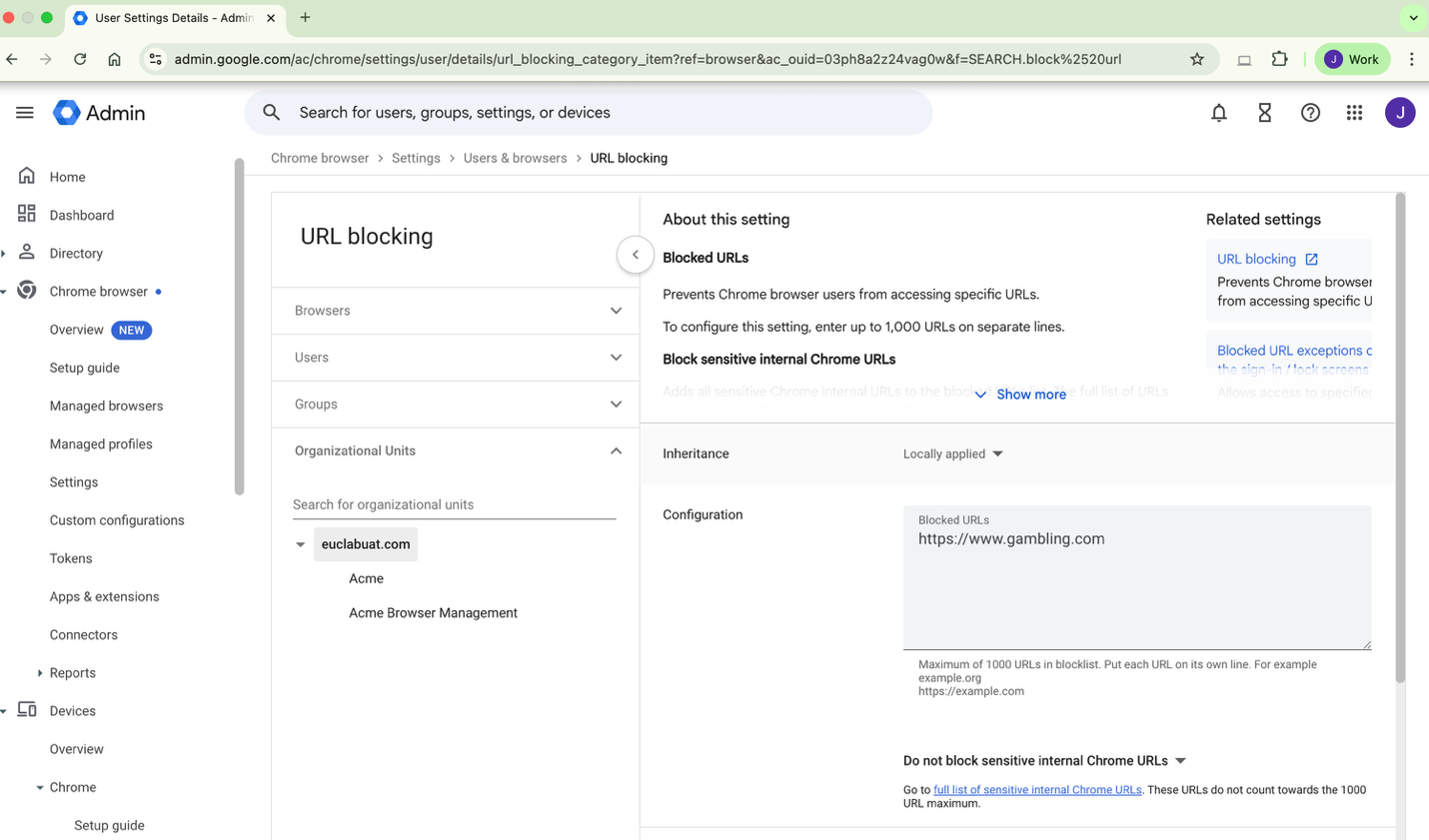
| Restricted web content, ie. Gambling | Blocked | Content Filtered by category | ||
| Internal Order System | SAML | Yes | Data masking of SSN | Apply to all except commerce employees |
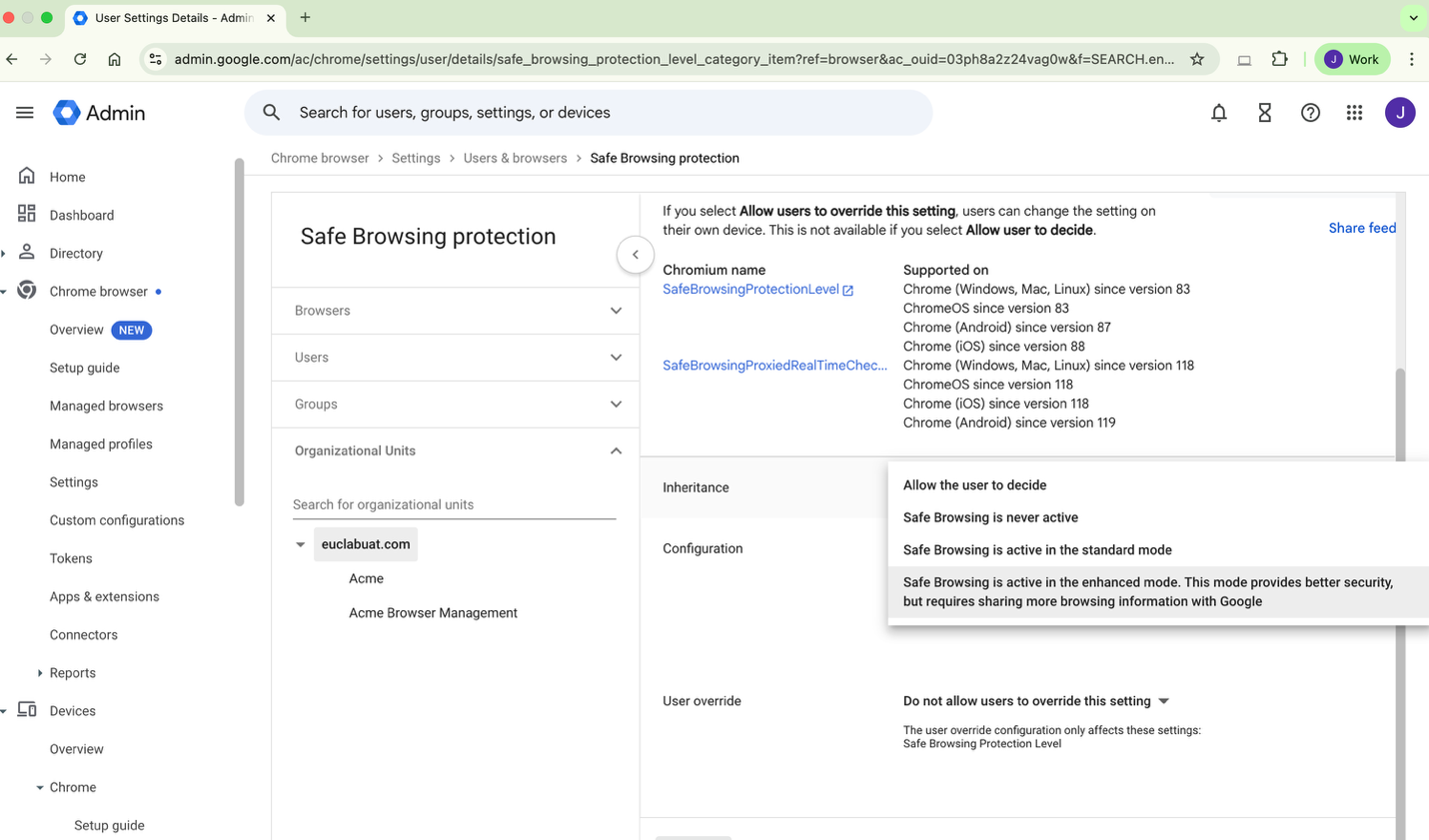
| Browser – Call Center | Safe browsing required | Enhanced Mode with Deep Scanning for malware | ||
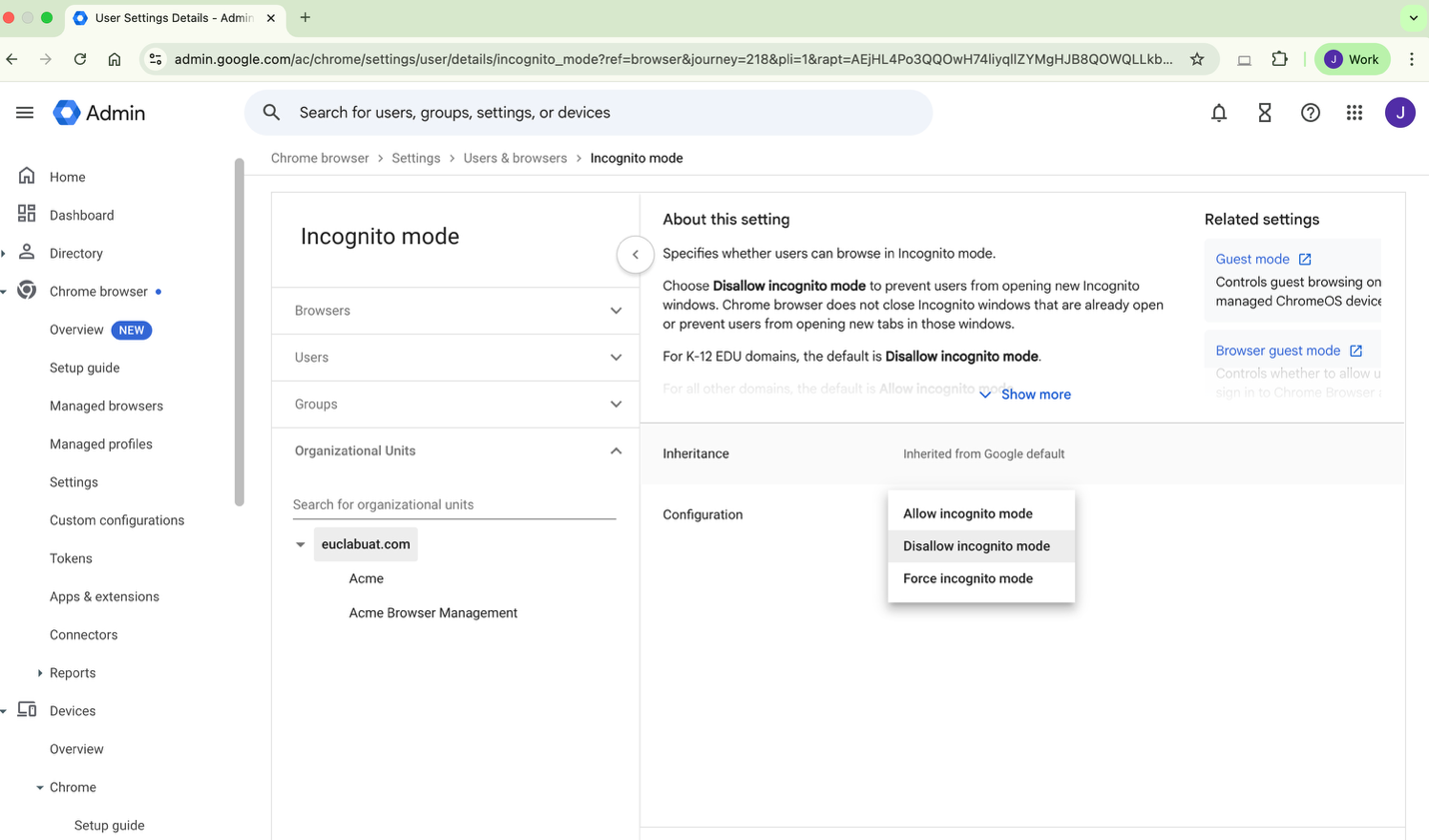
| Browser – Sales | Disable In Cognito mode | |||
| Browser - All | Enable content analysis & real-time URL check | Real-time phishing & malware protections |
The configuration for the above examples can be carried out by navigating to Chrome Browser >Settings.
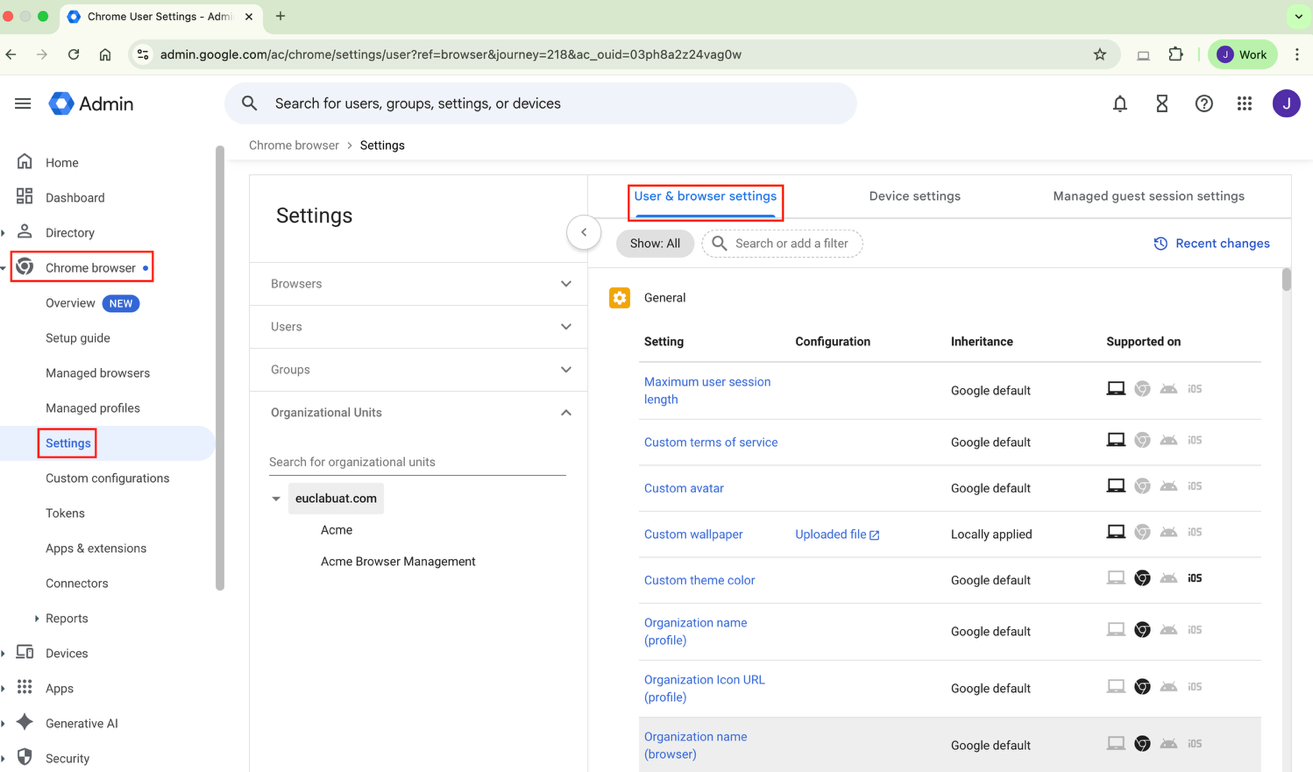
Eg 1, Restricted web content, i.e. Gambling
Eg 2, Restricting incognito mode
Eg 3, Enabling Safe Browsing protection - Enhanced mode
This inventory directly maps to the DLP rules, Access Policies, and UAG app publishing sections provided later in this document. Customer are encouraged to identify applications requiring controls and browser configuration and security requirements appropriate to their use cases and cyber policies.
Google Prerequisites
Detailed instructions for these pre-requisites are provided in the trial guide and in numerous public documentation sources maintained by Google. Inquire within your organization to identify if your company domain is already associated with a Google organization. If so, you can enable a 60-day trial subscription to Chrome Enterprise Premium. If not, you can specify a new domain and validate using the Google Cloud Console to enable a new Google organization and Google Admin Console for that domain.
Reference the Trial Guide for more detailed guidance: https://support.google.com/chrome/a/answer/14804659
Reference the Google Docs for Chrome Enterprise Premium:
https://docs.cloud.google.com/chrome-enterprise-premium/docs
Access to a Google Cloud Console
The Google Cloud Console provides top-level visibility to products and services for your organization with full operational and RBAC controls to enable the required functionality to support the activities covered in this guide. It is recommended to create a new Project for testing purposes.
Access to a Google Admin Console
The Google Admin Console is the central management plane for all Chrome Enterprise Premium configuration. All guidance provided in this document will reference configuration and tooling provided in the Google Admin Console.
Configuration
Security Policies
Chrome Enterprise policies provide organisations with a detailed browser level security framework which protects users, devices and data that is accessed using a managed browser or profile. With a cloud-first approach in today’s workplaces, the policies empower IT teams to manage behaviors across managed browsers, managed profiles by enforcing DLP, safe browsing protection, applying context aware access based on user and device posture.
Let’s go through some of the key security policies and how to configure them.
Configure Browser Settings
- Sign in to Google Admin Console.
- Go to admin.google.com and sign in with your administrator account (with required permissions to configure).
- Navigate to Chrome Browser > Settings > User & browser settings.
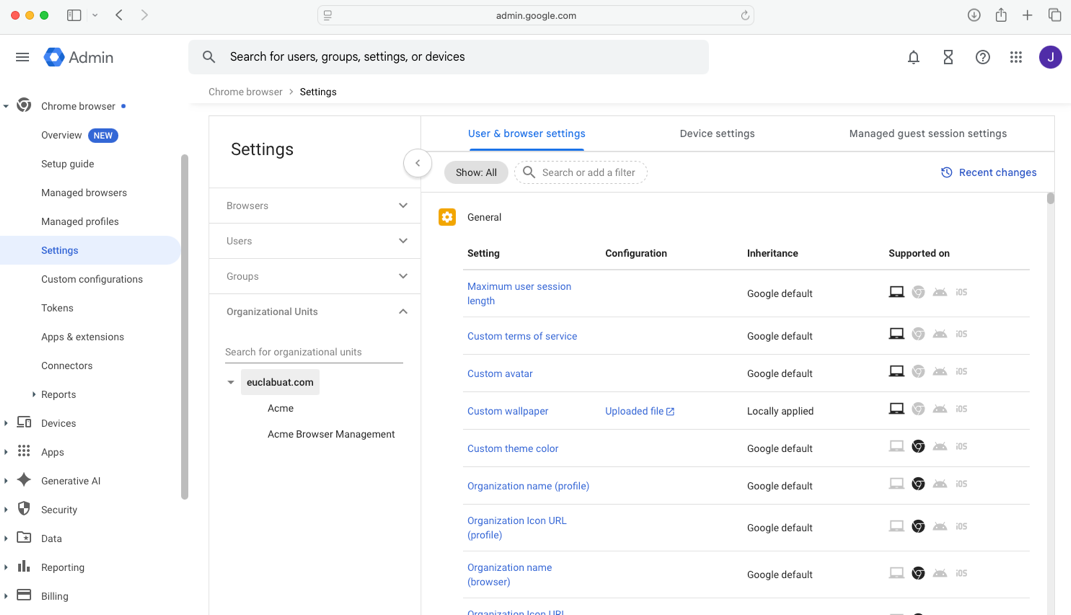
4. On the left select the OU to which the policies need to be applied.
5. Enable Browser Reporting.
Search for the following reporting policies (using the Search or add a filter) and configure accordingly
- Manage browser cloud reporting: Set to Enable managed browser cloud reporting
- Event reporting: Set to Enable events reporting
- Managed profile reporting: Set to Enable managed profile reporting for managed user
- Managed browser reporting upload frequency: Set to 3 hours
- Device token management: Set to Delete token (this is recommended as it will allow browsers to re-enroll once the device is deleted from admin console)
6. Configure Content analysis .
Search Connector (using Search or add filter) and configure accordingly:
- Upload Content analysis
- Download Content analysis
- Bulk text content analysis (copy/paste)
- Print content analysis
- Real-time URL check
Under Additional settings for each, configure:
- Delay until analysis complete: Check the button
- Block on failure: (Recommended) to enabling this
- Check for sensitive data & malware: Set to On
- Block password protected files and files larger than 50 MB: Configure as needed
- User justification to bypass warning: Configure as needed. Recommended to leave disabled for malware
- Minimum character count (for Bulk text): Set to 1
7. Configure Safe Browsing Settings.
Search safe browsing (using Search or add filter) and configure accordingly:
- Safe Browsing protection level: Enhanced mode
- Bypass Safe Browsing warnings: Do not allow users to bypass
- Download deep scanning: Enabled
- Download restrictions: Block malicious downloads
Advanced Data Protection Features
- On the Admin Console, navigate to Security > Access and data control > Data protection.
- Edit the Optical character recognition to turn On the following features:
- Optical character Recognition (OCR): This will enable scanning sensitive content within images.
- Sensitive content storage: This will store sensitive content in log files (in the Evidence locker if configured) that trigger DLP rules for investigation.
Deploy Browser Extensions
Collecting device data is crucial to enable advanced security policies like Context-Aware Access, this will require administrator to enable Endpoint Verification Service and deploy required Browser Extensions.
Turn on Endpoint Verification Service
To collect device information, the endpoint verification service needs to be enabled. (This is enabled by default, it’s a good practice to confirm).
- On the Admin console navigate to Devices > Mobile & endpoints > Settings > Universal.
- Under Data Access card, verify if device signals is enabled for endpoint verification.
Deploy Required Browser Extensions
Adding Endpoint Verification Extension by ID:
- On the Admin Console navigate to Chrome browser > Apps & Extensions > Users & browsers (Ensure you are on the parent OU).
- Click the yellow + icon and select Add by Chrome app or extension ID.
- Enter the ID for Endpoint Verification: callobklhcbilhphinckomhgkigmfocg.
- Click Save.
- When the pane opens up, select Installation policy to Force install + pin to browser toolbar.
- Click Save.
Adding Secure Enterprise Browser Extension by ID:
- Click the yellow + icon again, select Add by chrome app or extension ID.
- Enter the ID for Secure Enterprise Browser: ekajlcmdfcigmdbphhifahdfjbkciflj.
- Click Save.
- When the pane opens up, select the installation policy to Force install.
- Click Save.
Setting up Device Trust Connector – Omnissa Access
The integration between Chrome Enterprise and Omnissa Access allows device signals to be sent to the IDP which then verifies if the user is coming from a managed browser or a managed profile and if not then blocks the access to an unmanaged browser which bring out the context aware security feature.
Reference click-thru demos of this configuration on our Omnissa Secure Access Suite microsite here.
Follow the steps below to integrate Chrome Enterprise with Omnissa Access:
1. log in to your Omnissa Access Tenant.
2. Navigate to Integrations then select Google Chrome Enterprise Device Signals.
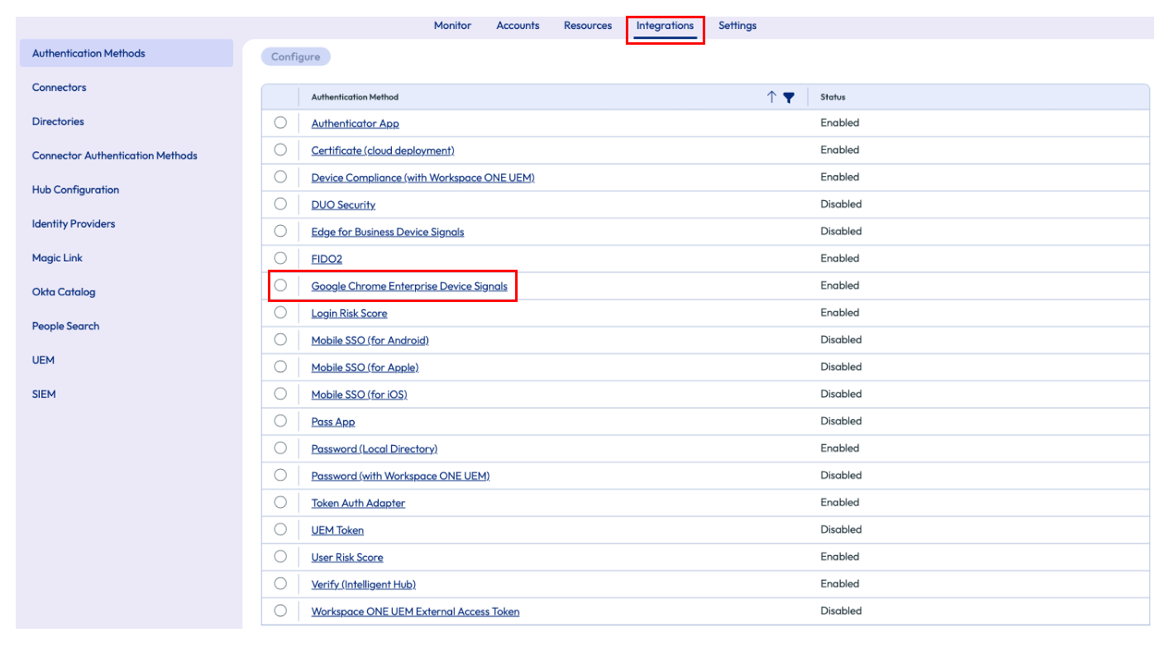
3. Click Configure.
4. Enable Google Chrome Enterprise Device Signal Adapter by clicking on the toggle to Yes.
5. Copy the URLs matcher and IDP Service Account email to notepad as this will be used while configuring Google Admin console.
6. Enable Verify devices disk encryption status by clicking on the toggle to Yes.
7. Enable Verify devices firewall status by clicking on the toggle to Yes.
8. Enable Verify device screen lock status by clicking on the toggle to Yes.
9. Save the Settings by clicking on Save.
Configure Authentication methods
Enable Google Chrome Enterprise Device Signals as the authentication method on your build in IDP.
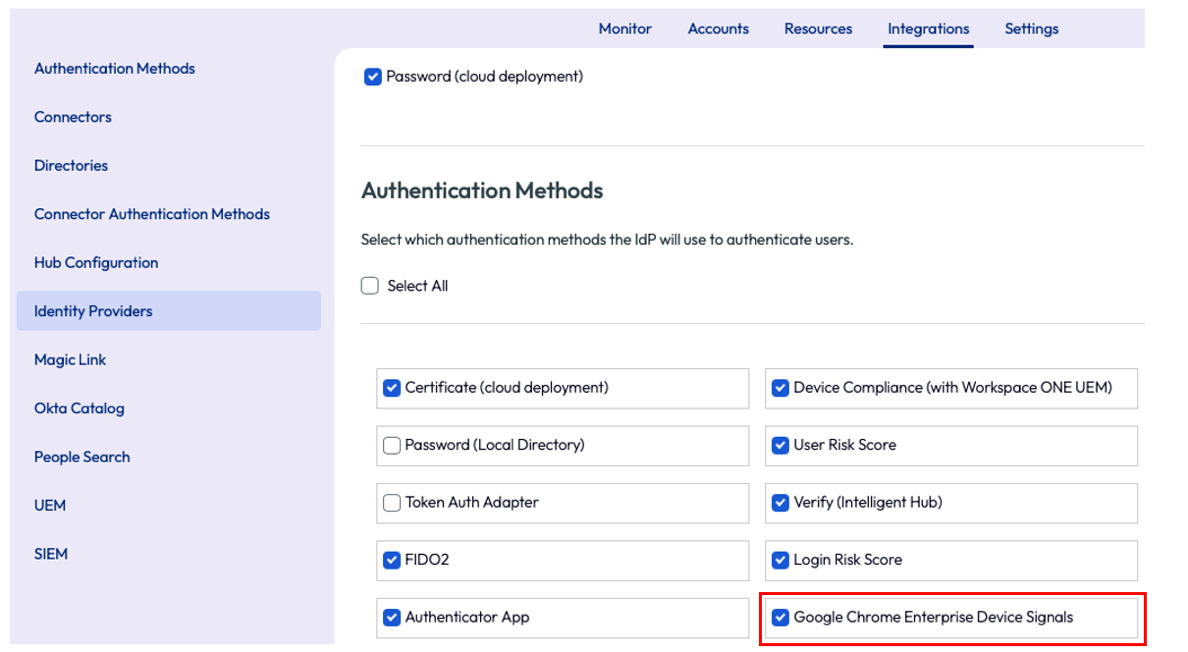
- Navigate to Integrations > Identity providers > Select IDP.
- Enable Google Chrome Enterprise Device Signals.
- Save the settings.
Configure Application Policy
Create an authentication policy application to validate if the user is accessing the application from a managed compliant browser.
Configure authentication policy using the steps below.
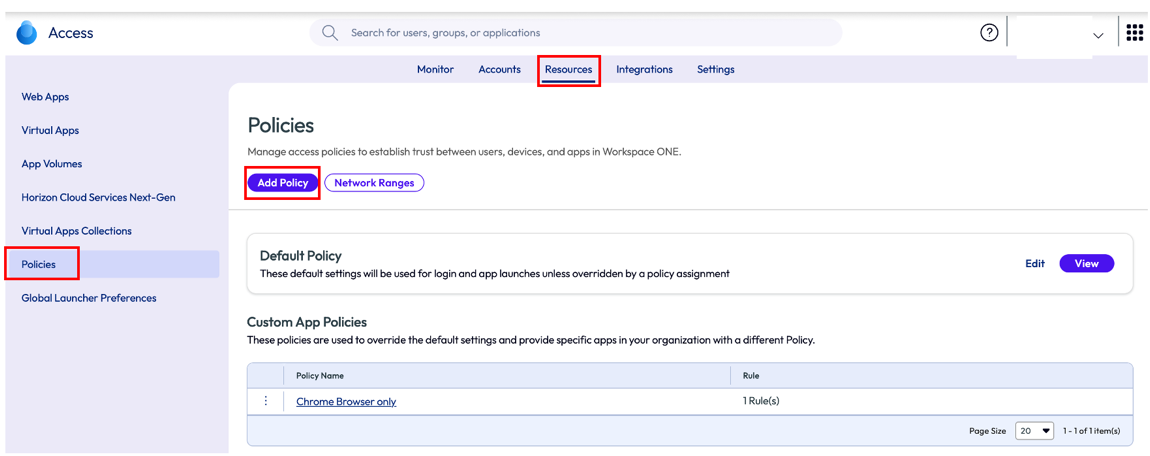
1.Navigate to Resources > Policies > Add Policy.
2.Enter Policy Name and provide a Description (optional).
3.Click on Add Policy Rule.
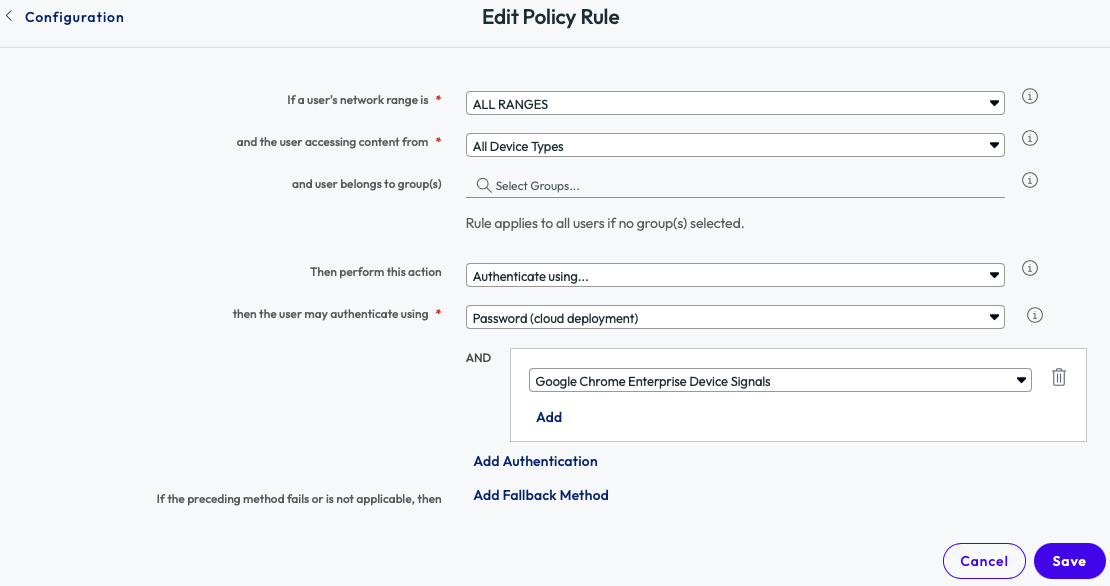
4.Select All device Types for “and the user accessing content from”.
5.Select Password (Cloud deployment) as “then the user may authenticate using”.
6.Select Add Authentication to select Google Chrome Enterprise Device Signals as secondary authentication.
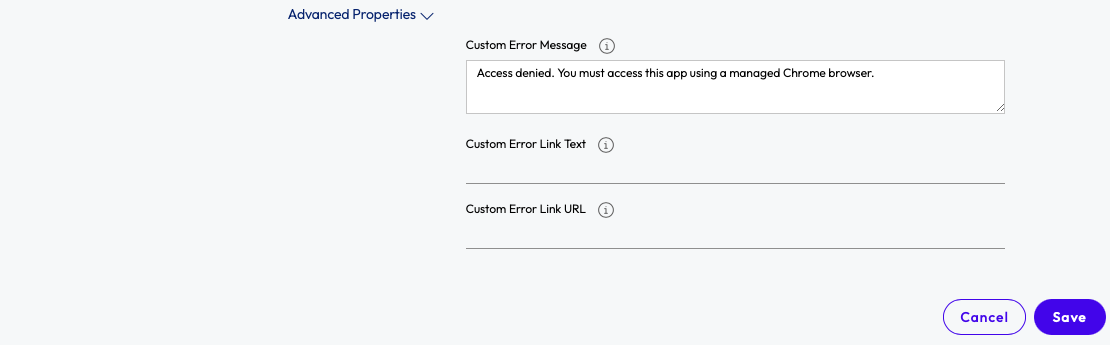
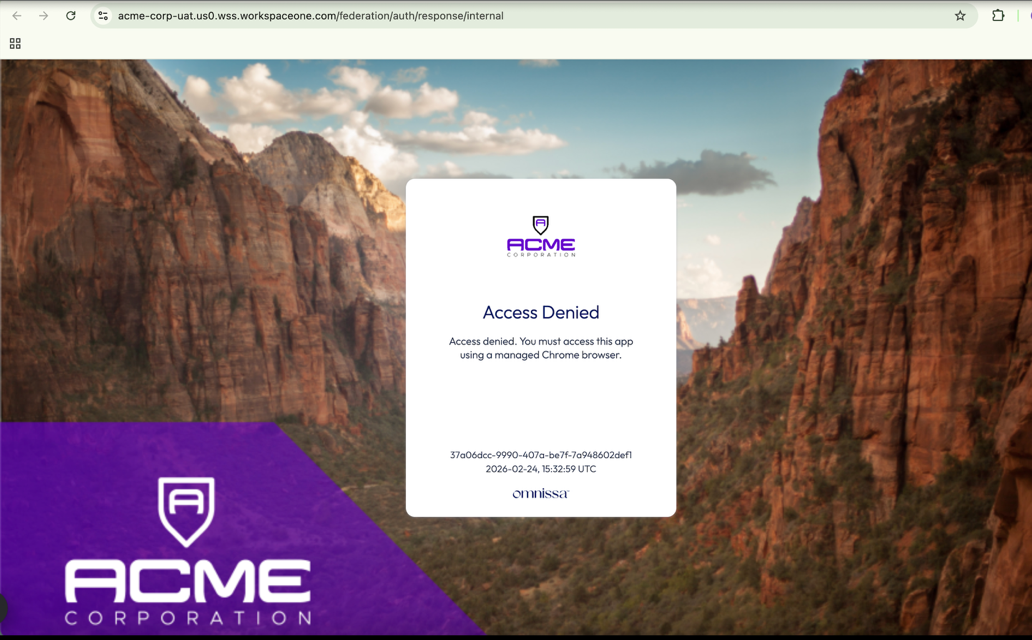
7.Under Advanced Properties, add a custom message like “Access denied. You must access this app using a managed Chrome browser.”
8.Save the configuration.
Configure Web application
To configure a web application, follow the steps below.
1.Navigate to Resources > Web Apps.
2.Click on New.
3.Browse for application available in catalog, else enter Name and Description manually.
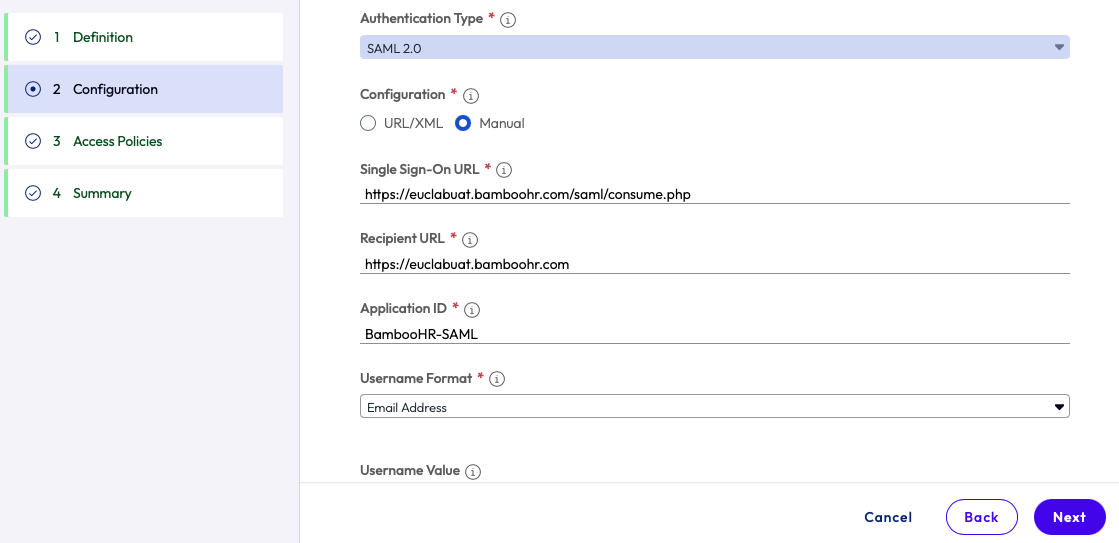
4.Fill in the mandatory fields like Sigle Sign-On URL, Recipient URL, Application ID, Username Format and application parameters.
E.g. Bamboo HR application configuration.
5.Select the Access Policy created in the previous step.
6.Save & Assign the application to the users.
Configure the Connector in Google Admin Console
The final step to integrate Omnissa Access with Chrome Enterprise is to configure the Connector.
1.Log into https://admin.google.com.
2.Navigate to Chrome browser > Connectors > NEW PROVIDER CONFIGURATION >Setup Omnissa.
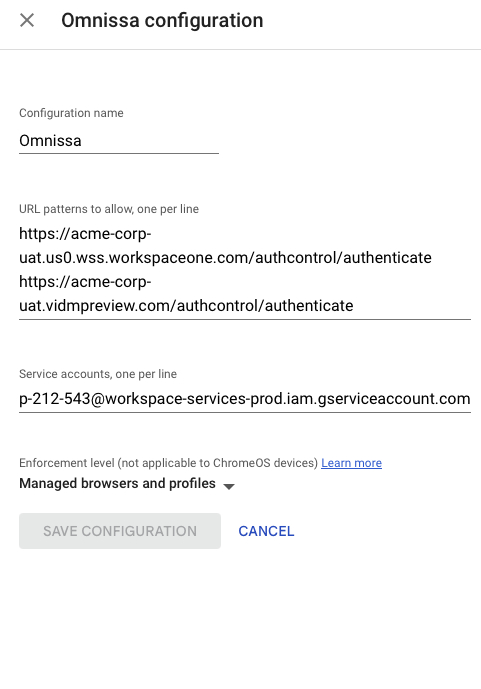
3.Enter Configuration name like, Omnissa.
4.Enter the URL patterns to allow one per line by copying the details from Omnissa Access console.
5.Enter the Service account, one per line by copying the details from Omnissa Access console.
6.Save Configuration.
Testing Conditional Access
When a user tries accessing Bamboo HR application from an un-managed browser the user will see the error message configured in the Access policy.
When it is accessed via managed browser /managed profile the user will be able to successfully access the page.
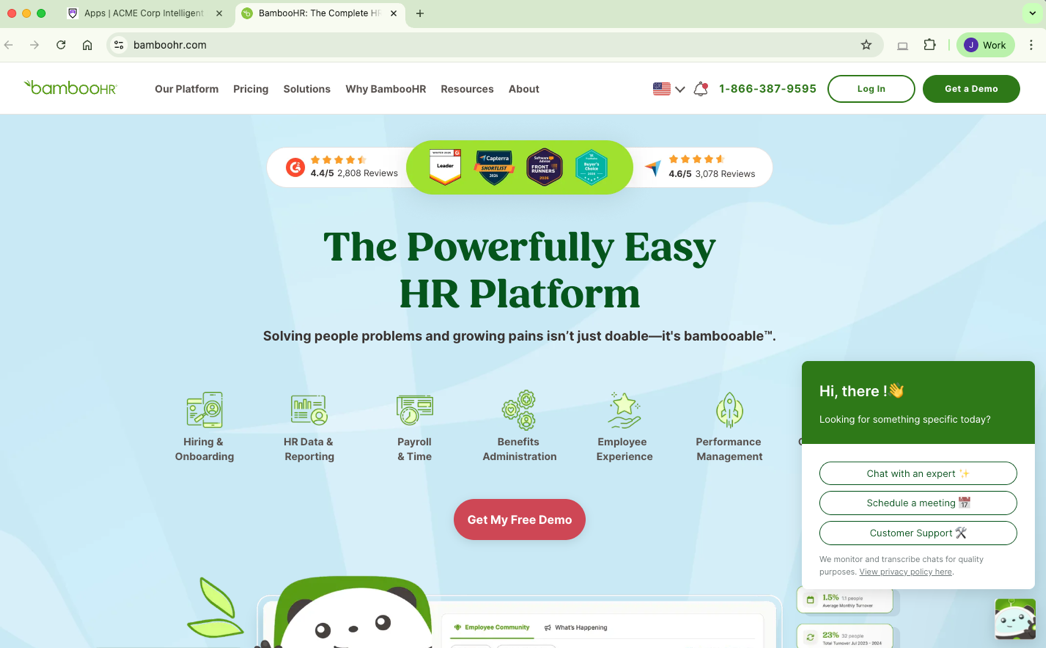
The above is an example of how conditional access works when Chrome Enterprise is integrated with Omnissa Access. The power of this configuration is that it allows administrators to gatekeep important web apps and data using the requirement of a managed browser or profile. This is an excellent first step toward a broader implementation strategy in an organization.
Deploying Unified Access Gateway
To enable users to access internally hosted sites and applications, Workspace ONE Tunnel services must be configured on the Unified Access Gateway (UAG). The Tunnel’s per-app VPN feature is supported on managed and un-managed devices.
Instructions to deploy:
1. Complete all the required pre-requisites as explained here.
2. Download latest version of Unified Access Gateway here.
3. Deploy UAG using a supported method in your environment, follow instructions detailed here.
4. Configure Workspace ONE Console with Tunnel configurations and carry out test connection to ensure configuration is successful.
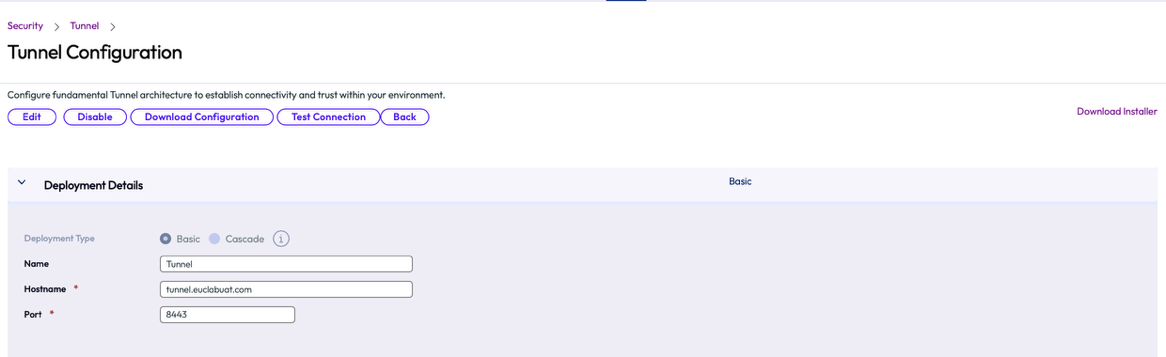
1.Enter Name for Tunnel configuration like, Tunnel.
2.Enter Hostname like, tunnel.euclabuat.com.
3.Enter Port ,8443.
5. Configure Device Traffic rules to enforce per-app VPN feature for chrome browser
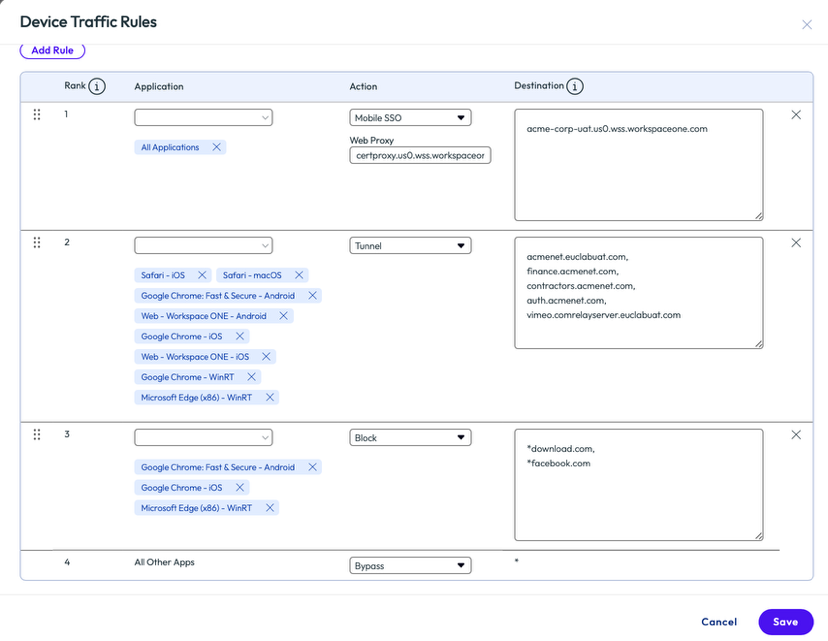
1.Add Google Chrome application using the drop down in the Applications selection.
2.Select Tunnel in the Action drop down.
3.Enter the destination sites you would like the end users to access via the tunnel using Chrome application.
Testing Internal Site access using Tunnel application on an un-managed device
With the tunnel deployed, users can enroll unmanaged devices via the Tunnel app and configure a Chrome profile to establish access to internal sites and application.
Steps to enroll and test Tunnel
1.Download and Install Tunnel application on the un-managed device.
2.Enter DS Server details, Group ID or Email address to initiate enrollment.
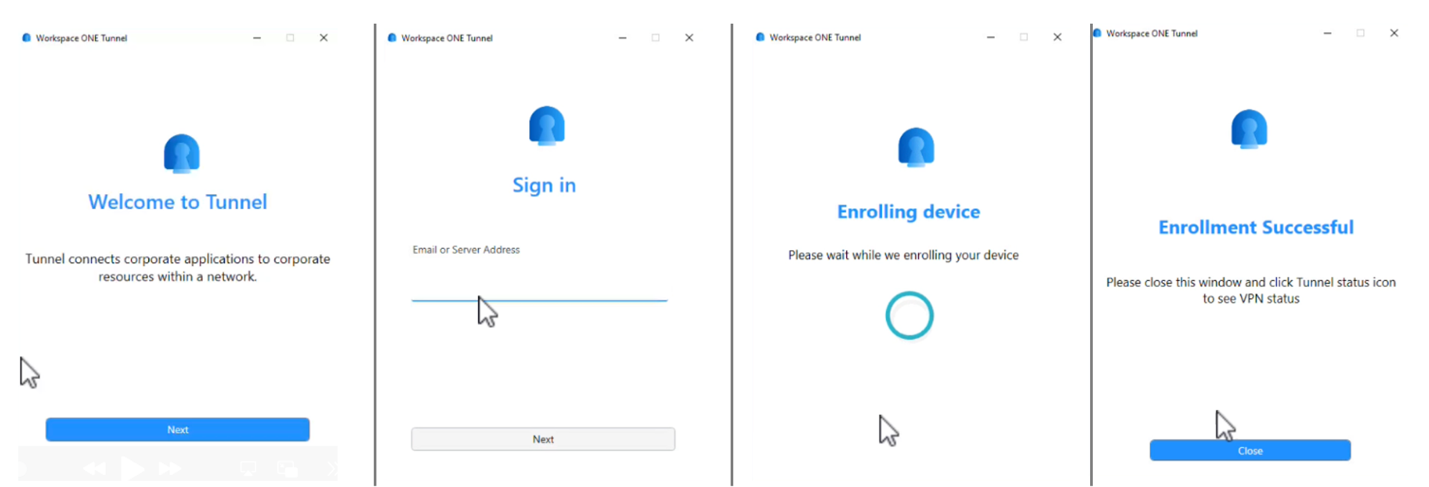
3.Enter Username and Password, complete enrollment and close the application.
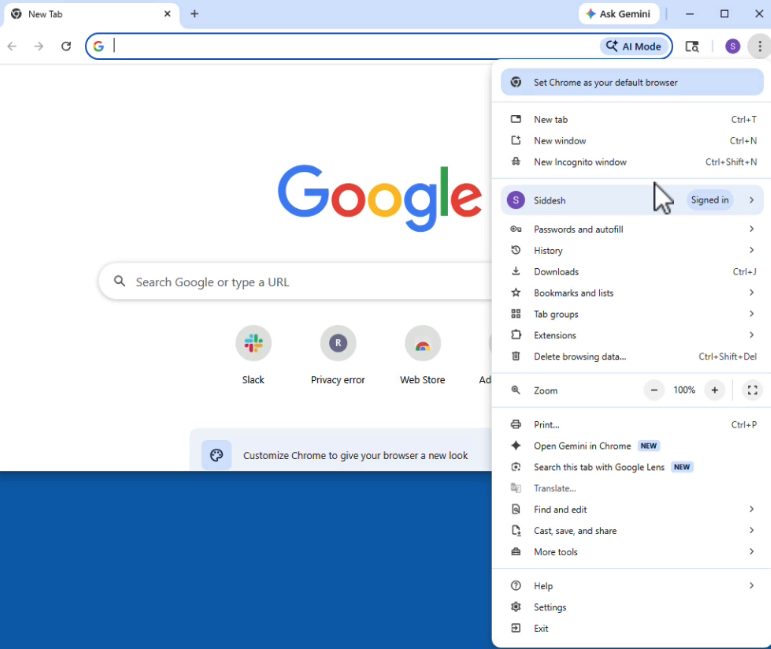
4.Add a Chrome profile by logging into Chrome or by creating a new profile that prompts user authentication.
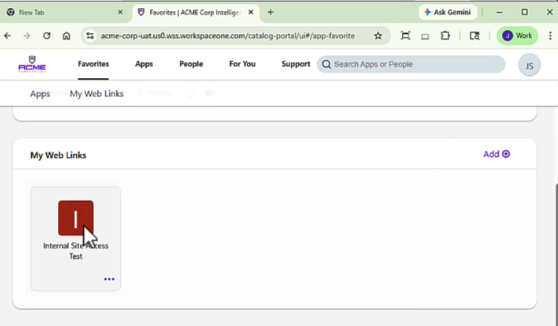
5.Log into Hub catalog.
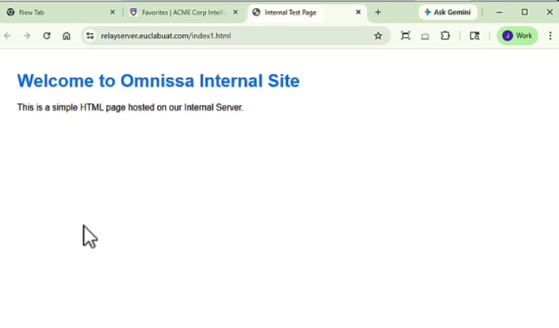
6.Click to launch Internal website.
Onboarding Options
Omnissa Secure Access Suite provides flexible deployment options that cater to a number of use cases. Select the appropriate onboarding options based on the following considerations.
- Is it appropriate to enroll the entire browser or utilize the managed profile model for the appropriate level of management and observability?
Enrolling the browser is likely only appropriate for managed devices. The managed profile provides a boundary between personal and work activity allowing for easy switching between profiles to accommodate hybrid work for employees or users outside the organization. - Does the user require access to internal apps, content, or native apps from the endpoint?
Internal apps will require a connectivity component, the Secure Access Suite provides Omnissa Tunnel for this purpose. Alternatively, customers can utilize their own VPN solution or Google’s Secure Gateway functionality. - Do you want to provide a native app catalog and experience or a browser-based portal for the user?
The Omnissa platform provides Intelligent Hub which is a native application which can be installed without requiring management. This allows the user to interact with a native application for launching apps and utilizing a number of workspace-like capabilities. Alternatively, the browser-based portal can be used if installation of an application on the endpoint is not preferred.
Let’s take look at each on-boarding option available
Managed devices
When a device is managed using an MDM solution it’s quite simple to onboard a chrome browser, the administrator is tasked to create a token on Google admin console and publish to the devices. The token is created by following the steps below.
1.Log into https://admin.google.com.
2.Navigate to Chrome browser > managed browser > enroll.
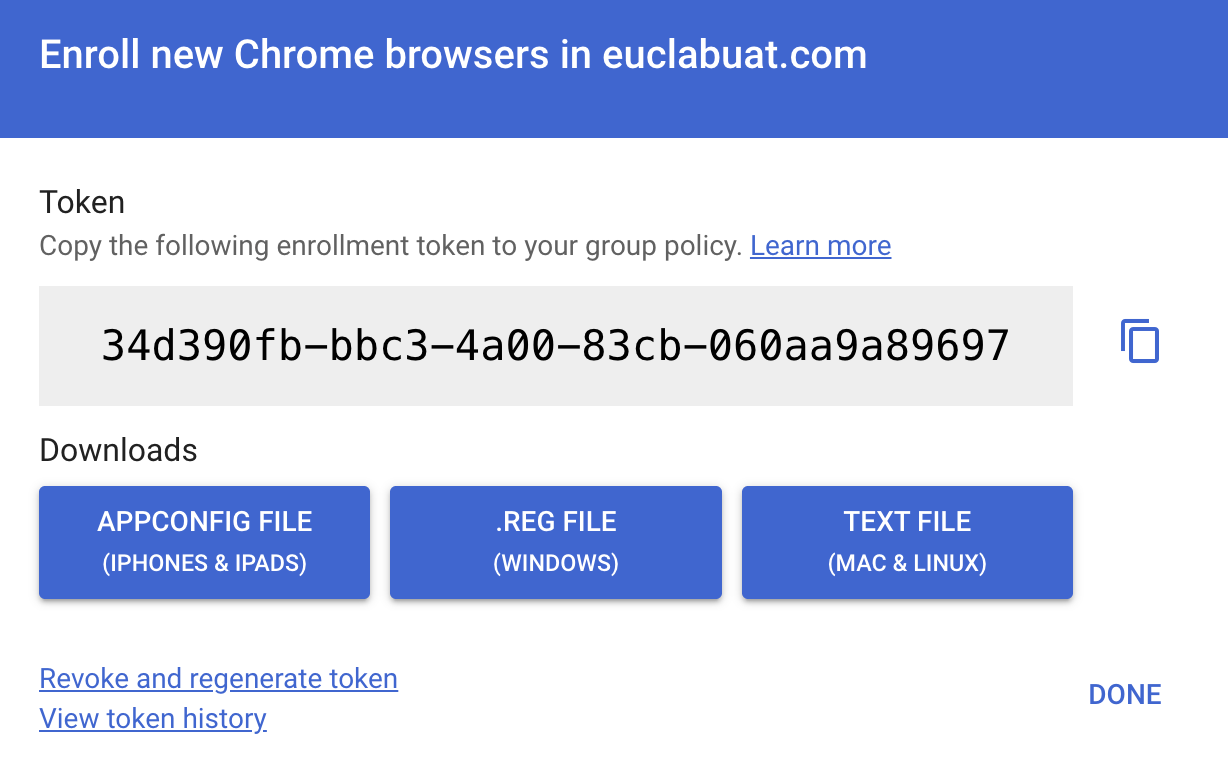
3.Click to Download token (appconfig for iPhone and iPad, reg for windows, text file for Mac and Linux).
(We shall use a windows device as an example)
4.Build a script to add token details to registry path HKLM:\SOFTWARE\Policies\Google.
$token = '34d390fb-bbc3-4a00-83cb-060aa9a89697' # Ensure policy key exists $policyRoot = 'HKLM:\SOFTWARE\Policies\Google' $chromePolicy = Join-Path $policyRoot 'Chrome' if (-not (Test-Path $policyRoot)) { New-Item -Path $policyRoot -Force | Out-Null } if (-not (Test-Path $chromePolicy)) { New-Item -Path $chromePolicy -Force | Out-Null } # Set token (REG_SZ) New-ItemProperty -Path $chromePolicy -Name 'CloudManagementEnrollmentToken' -Value $token -PropertyType String -Force | Out-Null # Optional: block Chrome launch if enrollment fails (REG_DWORD=1) New-ItemProperty -Path $chromePolicy -Name 'CloudManagementEnrollmentMandatory' -Value 1 -PropertyType DWord -Force | Out-Null Write-Host "Chrome enrollment token set under HKLM:\SOFTWARE\Policies\Google\Chrome" exit 0 |
5.Log into Workspace ONE Console and navigate to Resources > Scripts > Add Script > Windows.
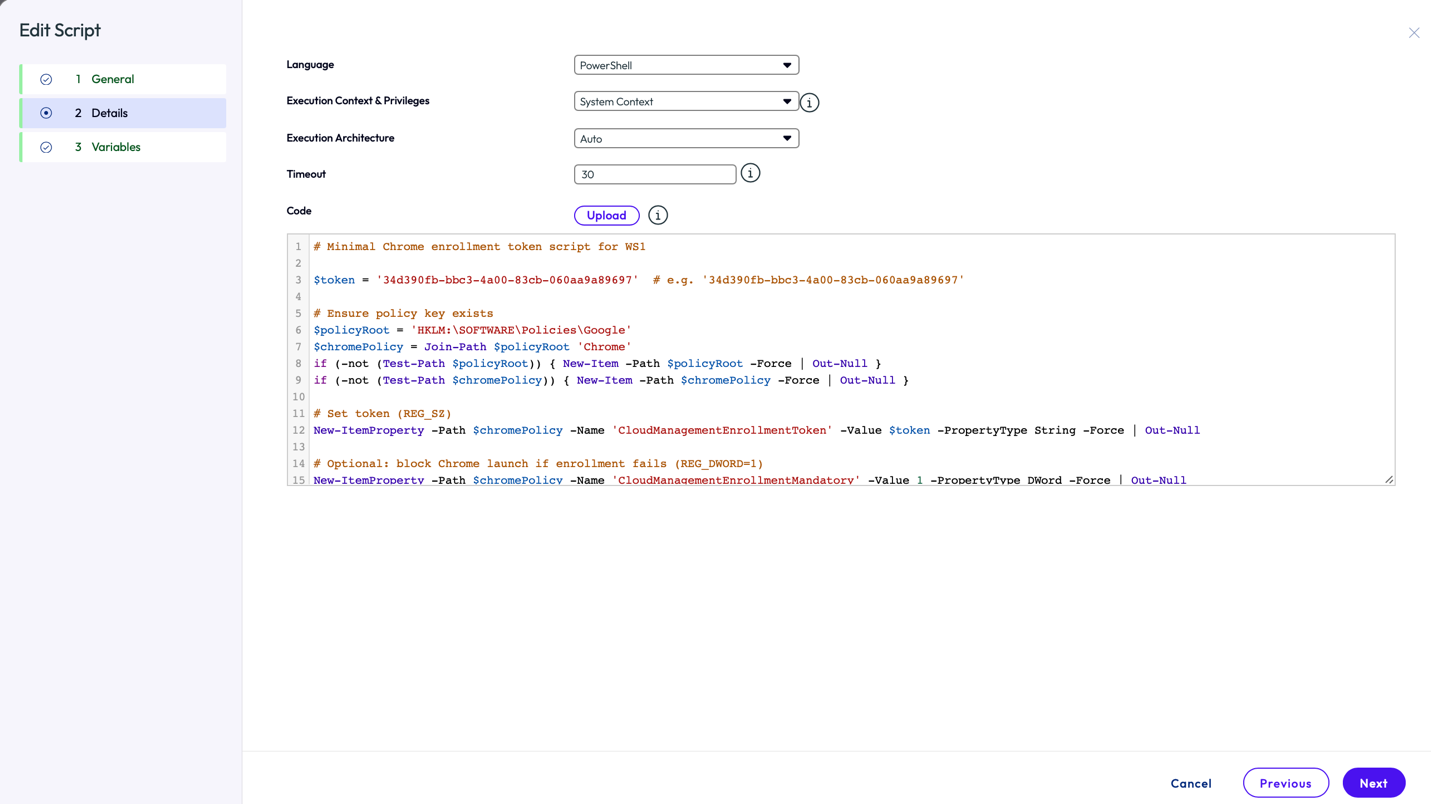
6.Configure,
- Language: PowerShell
- Execution Context & Privileges: System Context
- Execution Architecture: Auto
- Time out: 30
- Copy the script, Click on Next
- Save
- Assign the script to the required smart group
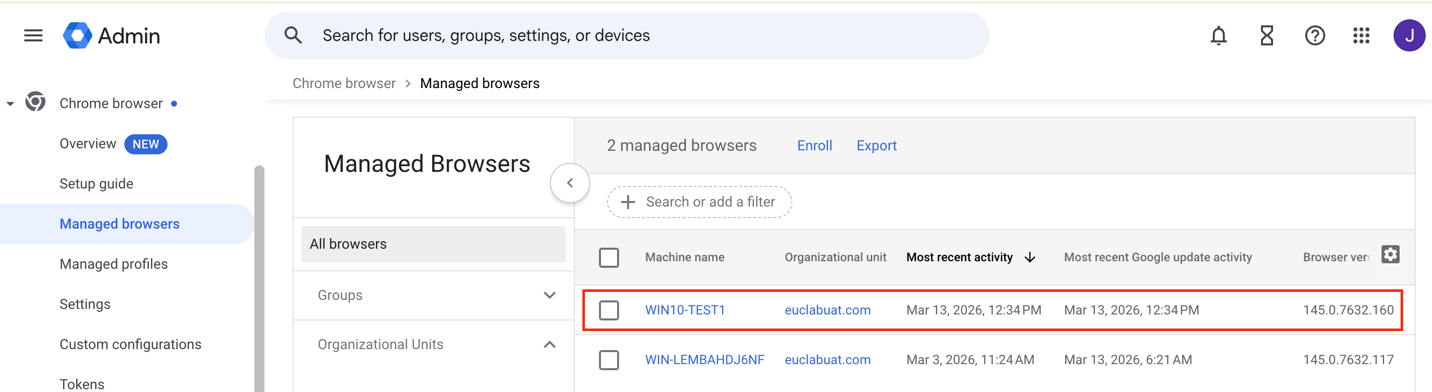
7.Validate if the chrome browser enrollment status is visible on Google admin console under Managed browsers.
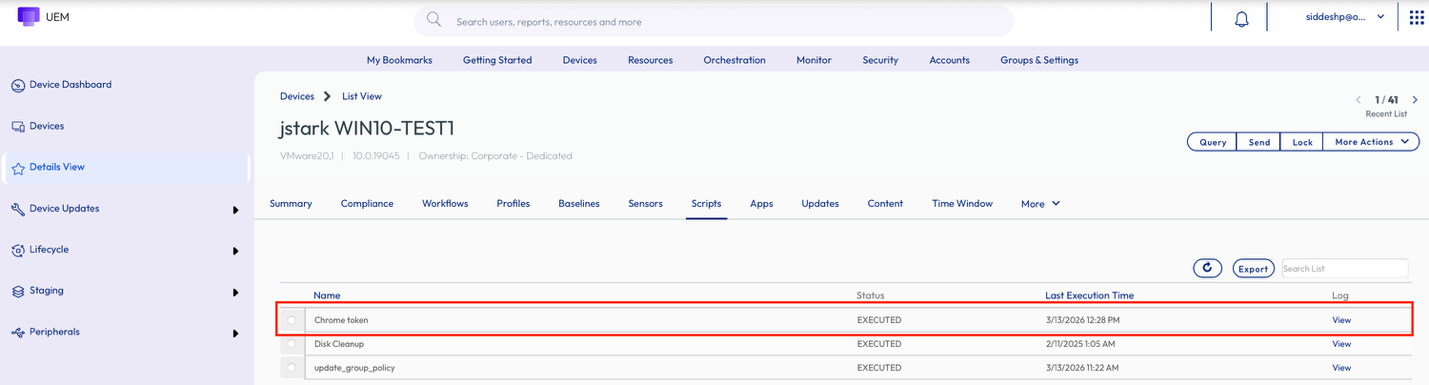
8.UEM administrator can validate if the script has been executed successfully by logging into Workspace ONE UEM Console and
navigating to Devices > Device Friendly name > Scripts > View Status.
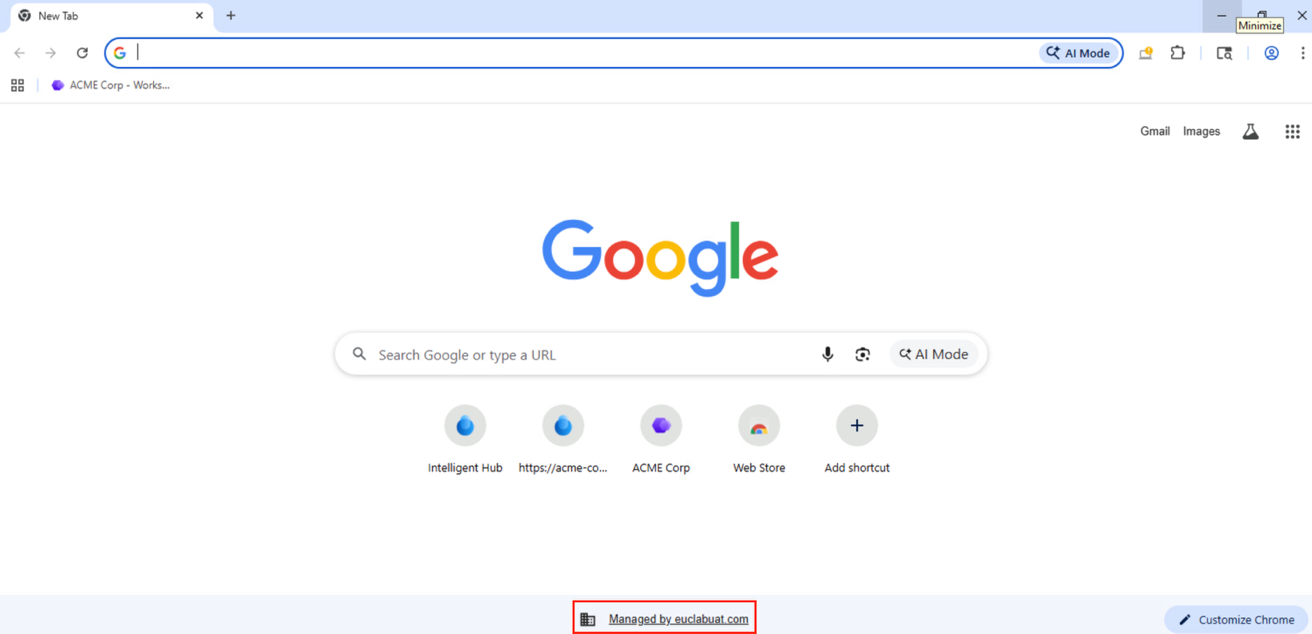
9.The end user can see managed by “organization name” when chrome browser is launched .
Unmanaged devices
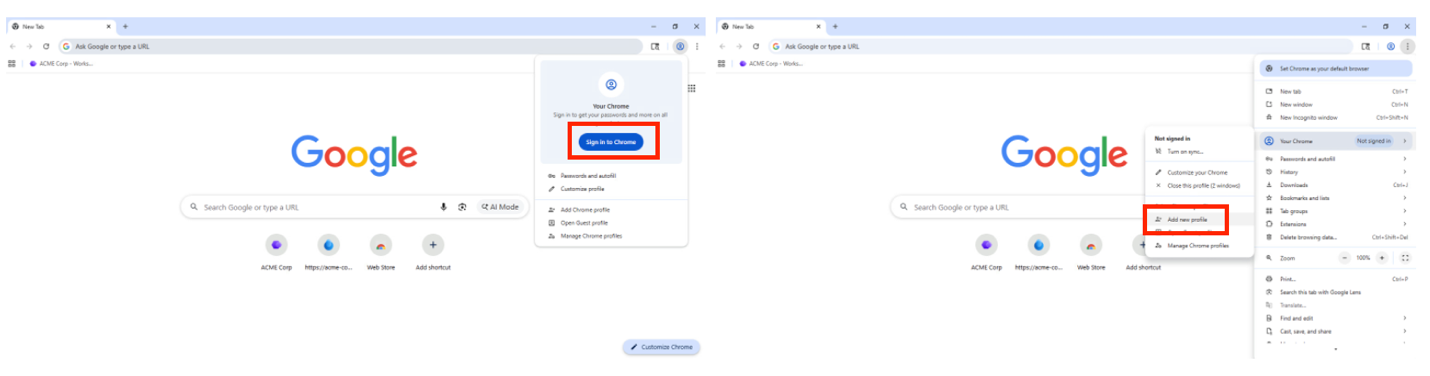
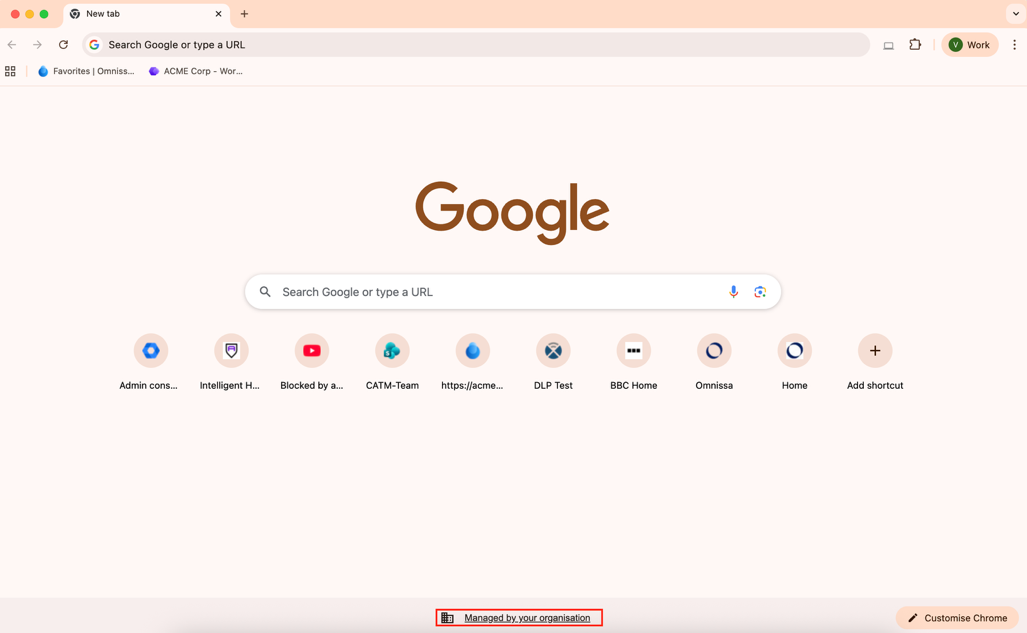
An unmanaged device allows for the user to sign-in to the chrome browser using corporate credentials. This leverages the Chrome managed profile model. Once signed in, the chrome profile is applied immediately, and the user can get productive by working on required web applications or sites.
User can sign in to the chrome browser by following the steps below.
1. Launch Chrome Browser, click on sign in or add new profile.
2. Once signed in, the chrome browser is in a managed state.
Supporting internal web and native apps
Regardless of the managed state of devices, support for internal sites or corporate applications that aren’t publicly accessible will require VPN solutions to ensure secure connectivity. Managed devices can easily push the Tunnel application and configuration.
Unmanaged devices can manually install the Tunnel application to provide this connectivity capability. The following procedure provides the details on implementation of Tunnel for unmanaged devices.
Omnissa offers a seamless way to fulfill this requirement by allowing users to register the un-managed device using the Tunnel application which will allow users to access such restricted sites without any third-party VPN solution client or configuration required.
To register and use a tunnel application for accessing internally hosted application follow the steps mentioned earlier.
With the pre-requisites in place, the user needs to launch the Tunnel application and enter the Enrollment URL (DS server URL), Group ID, Username and Password or user Email address to initiate enrollment
Once Tunnel application has registered the device, the user can access internally hosted sites seamlessly.
Conclusion
Omnissa Secure Access Suite stands out as a comprehensive security solution in today’s threat‑heavy digital landscape, where malware, phishing, and advanced attacks are increasingly common and costly for organizations. By enforcing robust data protection policies, enabling safe browsing, and seamlessly integrating with third‑party DLP, IDP, and SIEM platforms, it equips enterprises with the tools needed to effectively counter modern security risks. Despite its stringent protection measures, the suite maintains an excellent user experience from onboarding to daily browser-based computing making it both secure and user‑friendly with its unified access and experience. This balance of strong security and smooth usability positions Omnissa Secure Access Suite as a reliable, future‑ready choice for enterprise security.
Additional resources
For more information about Omnissa Secure Access Suite explore the following resources:
- Omnissa Product Documentation
- Omnissa Knowledge Base
- Omnissa Website
- Google Chrome Enterprise Trial Guide
- Introducing Omnissa Secure Access Suite
Changelog
The following updates were made to this guide:
| Date | Description of Changes |
| 2026/03/8 | Guide published |
About the author and contributors
- Siddesh Patil, Principal Product Specialist, Omnissa
- Mike Erb, Adoption Product Manager, Omnissa
- Aaron Black, Director of Product, Security & Solutions, Omnissa
Feedback
Your feedback is valuable.
To comment on this paper, contact End-User-Computing Technical Marketing at tech_content_feedback@omnissa.com.