

Management Mode Options for Workspace ONE Windows Devices
Overview
Windows modernization rarely happens all at once. IT teams are navigating a complex mix of legacy tools, co-management scenarios, compliance requirements, and a desire to improve the employee experience all at the same time. Omnissa Workspace ONE is designed for exactly this reality.
Up until now, administrators have been presented with a binary decision about the Windows device management mode: basic monitoring or full management. A third option, Intelligent Hub Managed Mode, now provides increased flexibility.
This document provides deep insights into the three Workspace ONE Windows Management Modes:
- Registered
- Intelligent Hub Managed without OMA-DM management: New!
- Full MDM with OMA-DM management
Learn how these three modes compare at a feature level, as well as actionable guidance for IT teams evaluating the suitability of each mode or mix of modes.
Intelligent Hub with or without OMA-DM?
OMA-DM, the protocol at the core of Workspace ONE's Full MDM Windows enrollment, is a proven choice for deep operating system and security control. But it carries constraints that do not suit every scenario:
- It requires a user login to complete enrollment
- Only one vendor can actively use the OMA-DM stack on a device at a time
- It doesn't support co-management with SCCM
These limitations create friction precisely where modernization demands flexibility.
Before delving into the Management Modes, a brief explanation of Intelligent Hub and OMA-DM is helpful because the key difference between Intelligent Hub Managed Mode and Full Managed Mode is the exclusion or inclusion of OMA-DM.
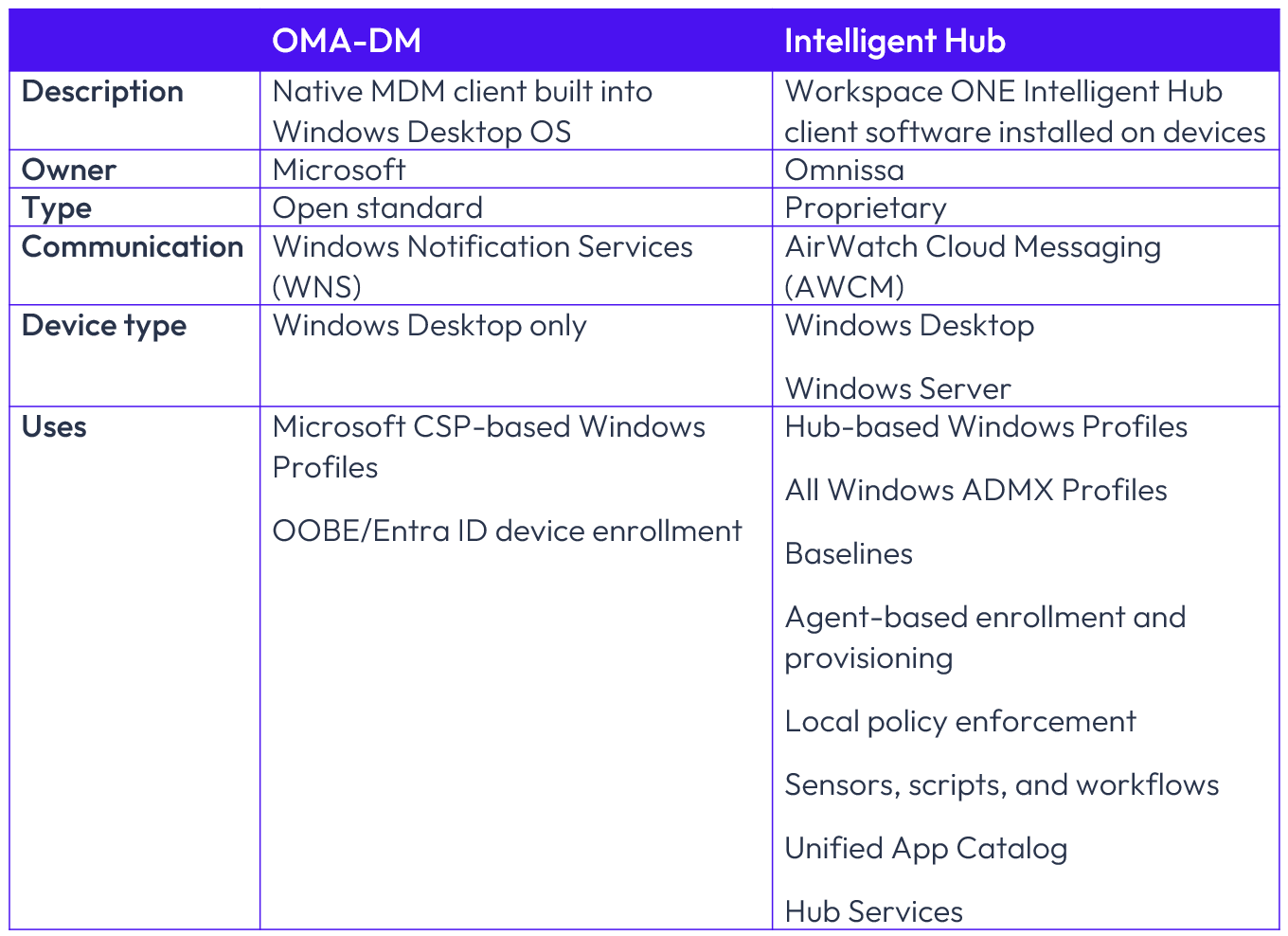
Figure 1: What's the difference between OMA-DM and Intelligent Hub?
As you can see, Omnissa’s proprietary Intelligent Hub is fully capable of managing Windows devices, and this is the basis for the new Intelligent Hub Managed Mode. Read on to gain a deeper understanding of the applicability of each mode.
Understanding the three Management Modes
The chart below presents a high-level overview of the three Management Modes:
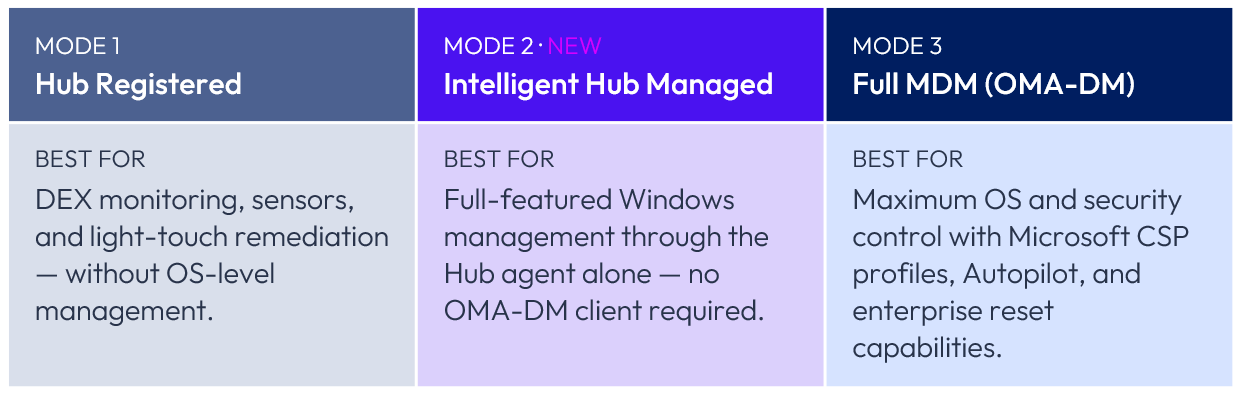
Figure 2: Management Modes
Hub Registered mode
Hub Registered is the lightest-weight enrollment option. Devices in this mode have the Intelligent Hub installed and are visible in UEM, but the platform does not attempt to exert deep configuration control over them.
Key capabilities:
- Digital Employee Experience (DEX) monitoring and remediation via sensors and scripts
- Lightweight presence for devices already managed by a third-party MDM
- Gateway to more capable modes — Registered devices can be stepped up to Intelligent Hub Managed without re-enrollment
License note: Hub Registered is available through the Employee Essentials license. For the full DEX capability set (Experience Management), an additional Experience Management license is required.
Intelligent Hub Managed Mode – New!
Intelligent Hub Managed is the flagship new offering. It delivers comprehensive, enterprise-grade Windows device management using only the Intelligent Hub — no OMA-DM client enrollment, no dependency on Microsoft's MDM stack. This unlocks scenarios that were previously impossible or operationally challenging.
If your organization is migrating between MDM platforms or simply wants modern management without committing to the Microsoft MDM stack, this mode was built for you.
Key deployment scenarios:
- Teams migrating from another MDM solution, running workloads side-by-side without conflicting MDM enrollments
- Environments where OMADM enrollment is technically unavailable or operationally undesirable
- Device-based enrollment scenarios with no dependency on interactive user login (which OMA-DM mandates)
- Windows Server devices
This new mode will be detailed further in the Deep Dive section.
Intelligent Hub Managed is available to customers licensed under Workspace ONE Standard, Advanced, Enterprise, Desktop Essentials, or UEM Essentials.
Full MDM (OMA-DM + Hub)
Full MDM is Workspace ONE's established, full-stack Windows management mode. It combines native OMA-DM enrollment with the Intelligent Hub, giving IT access to the complete set of Microsoft CSP-based profiles, Autopilot/OOBE provisioning, enterprise reset, and more. For organizations that require deep OS-level controls delivered via the Microsoft MDM stack, such as Microsoft conditional access, Full MDM remains the appropriate choice.
Which Management Mode is optimal for my environment?
The best Management Mode for your Windows devices depends upon your requirements:
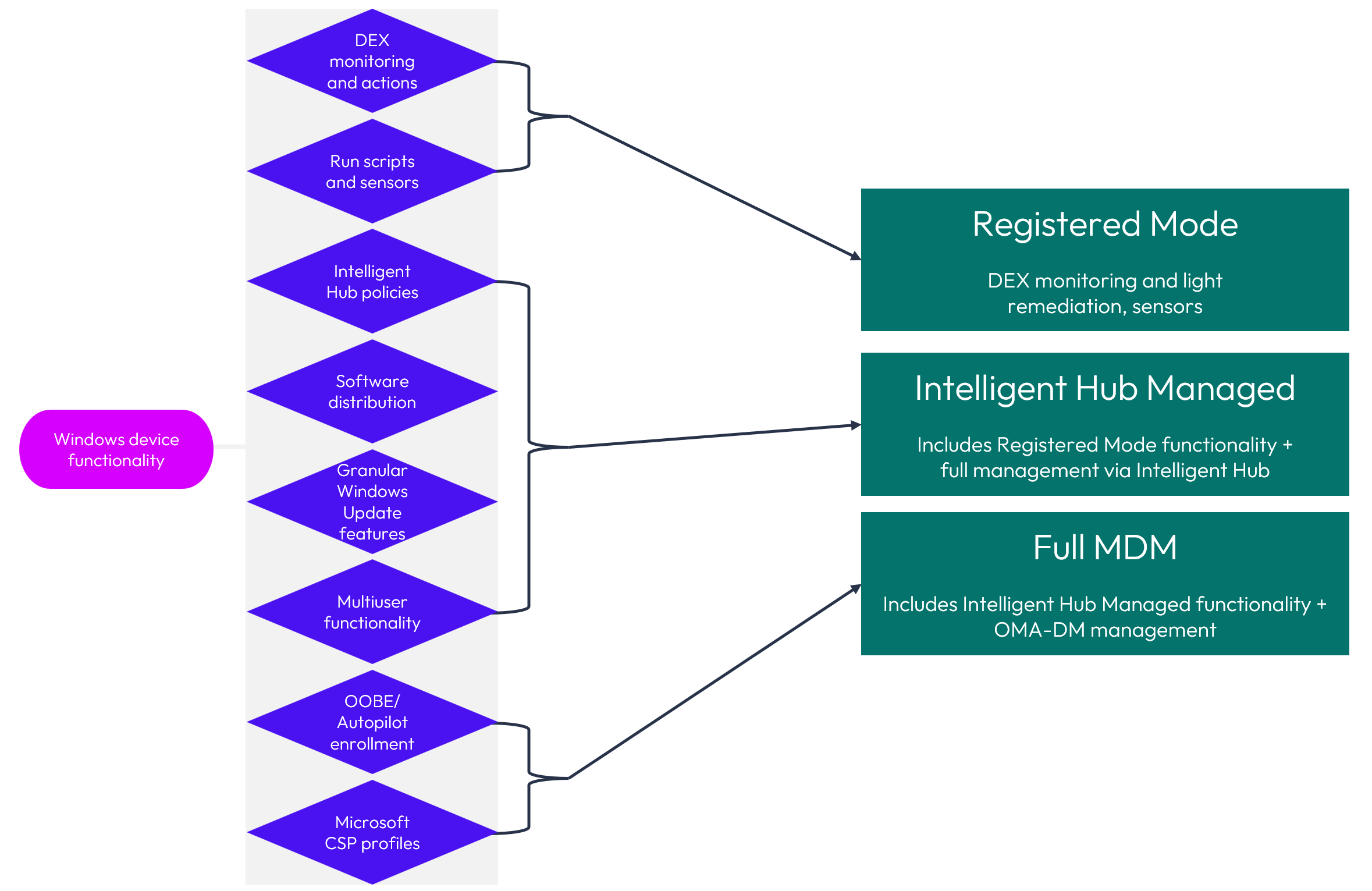
Figure 3: Functionality alignment to Management Modes
Deep Dive: What Intelligent Hub Managed Mode Delivers
The engineering investment behind Intelligent Hub Managed goes well beyond wrapping existing Hub capabilities. The following capabilities are either new, or newly unlocked for Hub-only deployments:
Enrollment & Provisioning
Intelligent Hub Managed supports the full range of scalable, enterprise-grade provisioning methods:
- Command-line and silent enrollment, with or without Active Directory
- Agent-based self-service enrollment
- Both Online and Offline Dropship Provisioning enabling zero-touch imaging workflows without any OMA-DM client
- Multiuser device management, allowing shared-use scenarios previously associated with Full MDM
Important: OOBE-based provisioning methods such as Windows Autopilot and Hybrid Azure AD Join are not available in Intelligent Hub Managed mode, as these flows have a hard dependency on OMA-DM. Customers who require Autopilot should evaluate Full MDM.
Configuration & Policy
Intelligent Hub Managed delivers an extensive configuration surface that rivals Full MDM for most production use cases:
- ADMX-based profile enforcement: Unlocks a wide range of Windows GPO equivalents delivered through the Hub, including OS update policies and Windows Hello for Business
- Hub-based profiles: Workspace ONE's proprietary profile format, applicable without any OMA-DM dependency
- Freestyle Orchestration: conditional, event-driven workflows for multi-step deployments
- Baseline support: enforce configuration compliance against industry-standard baselines
- Certificate management: device and user certificate distribution (SCEP support is on the near-term roadmap)
- Scripts: PowerShell and other scripting capabilities for bespoke configuration and remediation
- Windows Hello for Business: enforceable through ADMX-based profiles
Capabilities currently on the roadmap for Intelligent Hub Managed include firewall policy, local security policies, and offline domain join.
Software Distribution
Intelligent Hub Managed integrates with the Software Distribution (SFD) Agent to deliver a full application management lifecycle:
- Full application inventory and lifecycle management
- Native application types: MSI, Script-based, and EXE installers
- Self-service application catalog in the Intelligent Hub — users can install, uninstall, and launch applications on demand
- Ring-based phased deployments for controlled rollouts
- CDN and peer-to-peer delivery optimization for bandwidth-efficient distribution
Note on MSIX/APPX: MSIX and APPX application types will be appended to Intelligent Hub Managed Mode once the Software Distribution Agent adds support for these formats. This is an active workstream.
OS Update Management
Intelligent Hub Managed exposes a rich update management workflow, delivered primarily through ADMX-based policies and the Workspace ONE update management engine:
- Windows OS update delivery and scheduling via ADMX policies
- Granular Patch Management, available from UEM 2604 onward
- Updated dashboards and compliance reporting
- Pause and rollback capabilities
Device actions
IT administrators retain meaningful control over Intelligent Hub Managed devices through a comprehensive set of remote actions:
- Log collection for diagnostics and support
- Repair Hub
- Remote reboot
- Enterprise Wipe selectively removes corporate data and applications while preserving the OS
Full Device Wipe and Enterprise Reset remain exclusive to Full MDM enrollment, as they require the OMA-DM stack to issue the underlying MDM wipe commands.
Analytics & DEX
Intelligent Hub Managed devices participate fully in the Workspace ONE analytics and DEX ecosystem:
- Sensors: custom telemetry collection for monitoring and compliance scoring
- DEX device information: hardware, OS, and user experience data
- Security samples (firewall state, antivirus status, general device health): on the roadmap
- Full compliance engine and reporting: on the roadmap
Mode-aware UEM console experience
The Workspace ONE UEM console adapts to Intelligent Hub Managed devices automatically; the Device Detail tabs and available actions reflect what is supported for that enrollment type. Configurations, Workflows, Apps, Baselines, Scripts, Sensors, and Updates are all surfaced. OMA-DM-only resources continue to route exclusively to Full MDM devices, eliminating the risk of misconfigured policy delivery.
Adoption and migration paths

Figure 4: Adoption and migration paths for each Management Mode
New Enrollments
Intelligent Hub Managed can be set as the default enrollment mode for an Organization Group via All Settings → Devices & Users → General → Enrollment → Management Mode. Existing provisioning workflows: Dropship, manual and silent/command-line; enrollment continue to function without modification.
Step-Up: Registered to Hub Managed and Full MDM (OMADM)
Workspace ONE UEM now supports step-up enrollment for Windows devices enrolled in Registered mode. Administrators can upgrade these devices to either Intelligent Hub Managed or Full MDM (OMA-DM) management, all without requiring device wipe or end-user re-enrollment. Devices seamlessly transition to the higher management mode and immediately gain access to the corresponding management capabilities, including app deployment, profiles, baselines, sensors, scripts, and workflows.
To perform a Step-Up enrollment, navigate to device details page -> More actions and choose the desired option - “Step-up to Hub Managed “or “Step-up to OMADM Managed.”
Step-Up: Hub Managed to Full MDM (OMADM)
Devices already enrolled in Intelligent Hub Managed mode can now be stepped up to Full MDM management. When triggered, the Intelligent Hub automatically performs native OMA-DM enrollment on the device, enabling additional capabilities that require the native Windows MDM channel – such as Microsoft CSP –based profiles and Autopilot support, while preserving the existing device record and all Hub-based management. No device wipe or end-user action is required.
To perform a Step-Up enrollment, navigate to the device details page ->More actions and choose “Step-up to OMADM Managed.”
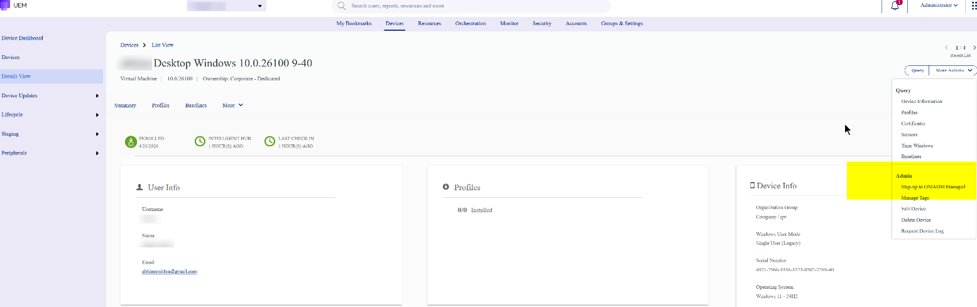 Figure 5: Step-up enrollment
Bulk Step-Up via Device List View and APIs
Administrators can now perform step-up enrollment at scale. From the Device List View in the UEM console, select multiple Hub Registered or Hub Managed devices and trigger a bulk step-up to Full MDM management in a single action. Step-up is also available via UEM API’s, enabling automation and integration with existing IT workflows for large-scale fleet migrations.
API Details –
Request
POST /API/mdm/devices/action
Sample Body
{
"action_name": "STEP_UP_TO_OMADM_MANAGED",
"filter": {
"organization_group_uuid": "23E6F54A-4FDA-4487-904F-44486C90B44F",
"device_uuids": [
"00cabff6-db34-4078-a296-3e422009e3ff",
"0c78c2b1-b785-423e-95a2-0f01ec2a82d9"
]
},
"requested_device_count": 2
}
Automatic Step-Up to OMADM on Enrollment User Sign-In
A new Auto Step-Up setting allows administrators to automatically transition eligible Hub Managed devices to Full MDM management without issuing individual step-up commands. When enabled at the organization group level, the Intelligent Hub automatically initiates OMA-DM enrollment upon user sign-in, post-enrollment, or after-device reassignment, ensuring devices reach full management with zero admin intervention per device.
To enable automatic step-up to OMADM on user sign-in, navigate to All Settings > Devices & Users > General > Enrollment > Management Mode. Under the Windows option, choose No OMADM Management -Intelligent Hub Managed mode - Auto Step-up to OMADM on User Login.
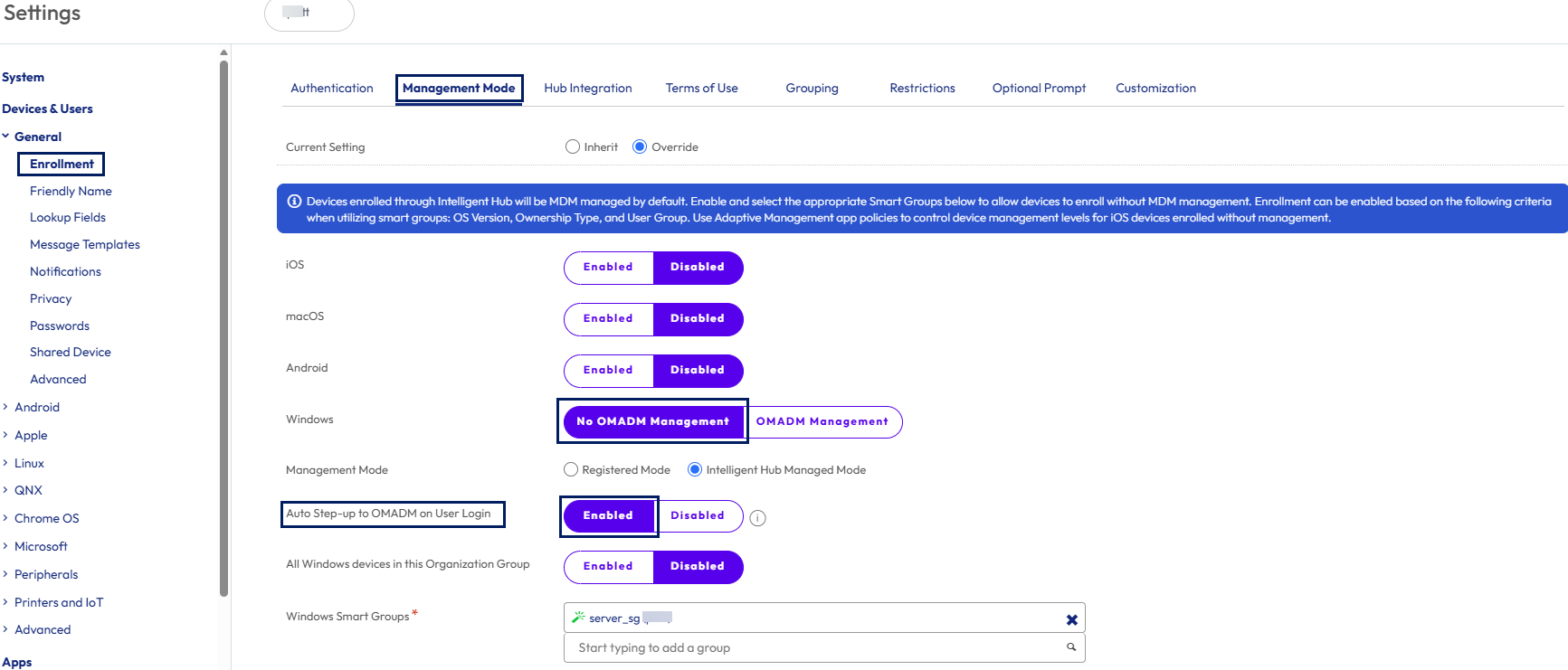
Figure 6: Auto Step up to OMADM on User Login
Side-by-side with existing MDM tools
Because Intelligent Hub Managed does not enroll the OMA-DM client, it can co-exist on devices that are simultaneously enrolled in SCCM co-management or another MDM without creating enrollment conflicts. Teams can deploy Workspace ONE capabilities incrementally, validating workloads before deciding whether to transition to Full MDM or remain in Intelligent Hub Managed long-term.
Keep in mind that Intelligent Hub Managed Mode can be a permanent solution for a wide range of enterprise Windows management requirements. Or, for Windows Desktops, it may be a stepping stone to Full MDM.
Feature comparison: all Management Modes
The table below covers all capabilities across the three management modes. ✓ = Supported ✗ = Not supported Roadmap = Planned for a future release.
| Capability | Registered | Intelligent Hub Managed | Full MDM |
| Enrollment & Provisioning | |||
| Silent / command-line enrollment (with or without AD) | ✓ | ✓ | ✓ |
| Agent-based self-service enrollment | ✓ | ✓ | ✓ |
| Dropship provisioning (online & offline) | ✗ | ✓ | ✓ |
| Out-of-box experience (Autopilot / Hybrid Join) | ✗ | ✗ | ✓ |
| Conditional access | ✗ | ✗ | ✓ |
| Multi-user / shared device management | ✗ | ✓ | ✓ |
| Offline domain join | ✗ | Roadmap | ✓ |
| Step-up from Registered to Intelligent Hub Managed | ✓ | ✓ | ✓ |
| Configuration & Policy | |||
| Freestyle Orchestration & scripts | ✓ | ✓ | ✓ |
| ADMX-based policy profiles | ✗ | ✓ | ✓ |
| Hub-targeted profiles | ✗ | ✓ | ✓ |
| Baselines | ✗ | ✓ | ✓ |
| Certificate management | ✗ | Roadmap | ✓ |
| Windows Hello for Business | ✗ | ✓ (via ADMX) | ✓ |
| Encryption / BitLocker management | ✗ | ✓ | ✓ |
| Firewall management | ✗ | Roadmap | ✓ |
| Local security policies | ✗ | Roadmap | ✓ |
| BIOS / firmware management | ✗ | ✓ | ✓ |
| Microsoft CSP-based profiles | ✗ | ✗ | ✓ |
| Application Management | |||
| Application catalog (web & Horizon apps) | ✓ | ✓ | ✓ |
| Full app inventory & lifecycle management | ✗ | ✓ | ✓ |
| Native app deployment (MSI, EXE, script) | ✗ | ✓ | ✓ |
| Self-service install / launch | ✗ | ✓ | ✓ |
| Ring-based deployment | ✗ | ✓ | ✓ |
| CDN / P2P content delivery | ✗ | ✓ | ✓ |
| APPX / MSIX deployment | ✗ | Roadmap | ✓ |
| OS Updates & Patch Management | |||
| Windows OS update control (via ADMX) | ✗ | ✓ | ✓ |
| Granular patch management | ✗ | ✓ | ✓ |
| Patch dashboards & reporting | ✗ | ✓ | ✓ |
| Pause & rollback capabilities | ✗ | ✓ | ✓ |
| Device Actions & Remediation | |||
| Reboot device | ✓ | ✓ | ✓ |
| Log collection | ✗ | ✓ | ✓ |
| Repair Hub | ✗ | ✓ | ✓ |
| Enterprise wipe (corporate data) | ✗ | ✓ | ✓ |
| Full device wipe / factory reset | ✗ | ✗ | ✓ |
| Analytics & Digital Employee Experience | |||
| Sensors & data collection | ✓ | ✓ | ✓ |
| DEX device information | ✓ | ✓ | ✓ |
| Security samples (AV, firewall, health) | ✗ | Roadmap | ✓ |
| Compliance engine & reporting | ✗ | Roadmap | ✓ |
Figure 7: Comparison of Management Modes
Configuration
Once you have decided which Management Mode works best for your environment, configuration is straightforward as shown below.
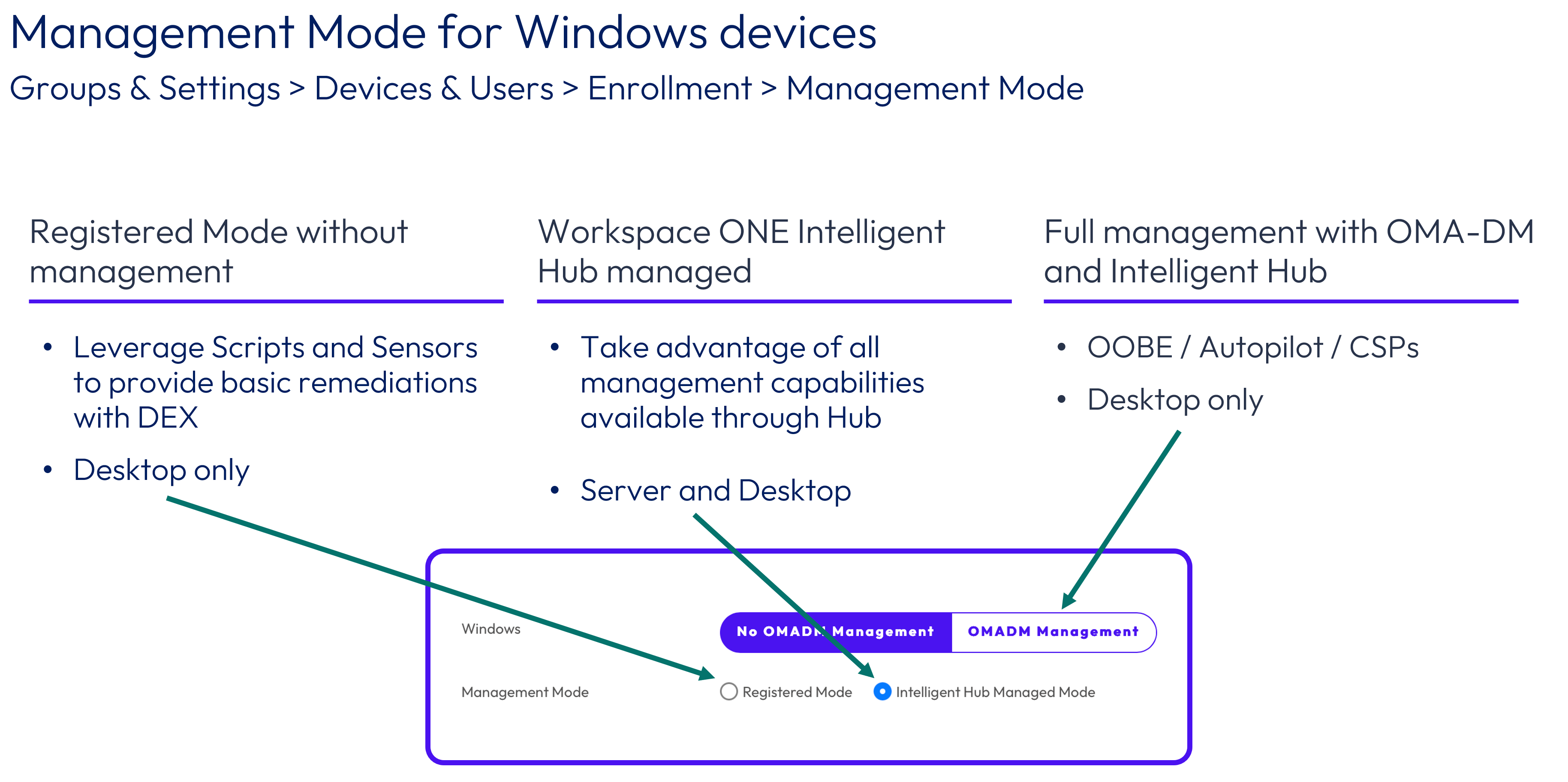
Figure 8: Management Mode configuration
Implementation
When ‘No OMADM Management’ is selected at the Organization Group level, the ‘All Windows Devices in this Organization Group’ setting function as a baseline which can be overridden through the implementation of ‘Windows Smart Groups.’
This means the default mode applies only when a device does not belong to any Smart Group which has a more specific management mode configuration. If an Administrator later assigns the device to a Smart Group that specifies a different mode (e.g., switching from ‘No OMADM Management’ to ‘Registered Mode’), the device will automatically adopt the Smart Group’s configuration during the next check-in. If the device is removed from that Smart Group, it reverts to the OG-level default. This priority-based behavior ensures that management mode is always determined by the most specific applicable assignment; this also means that changing the OG default or Smart Group membership can instantly alter how enrolled Windows Devices are managed. Please see the graphic below for implementation flow.
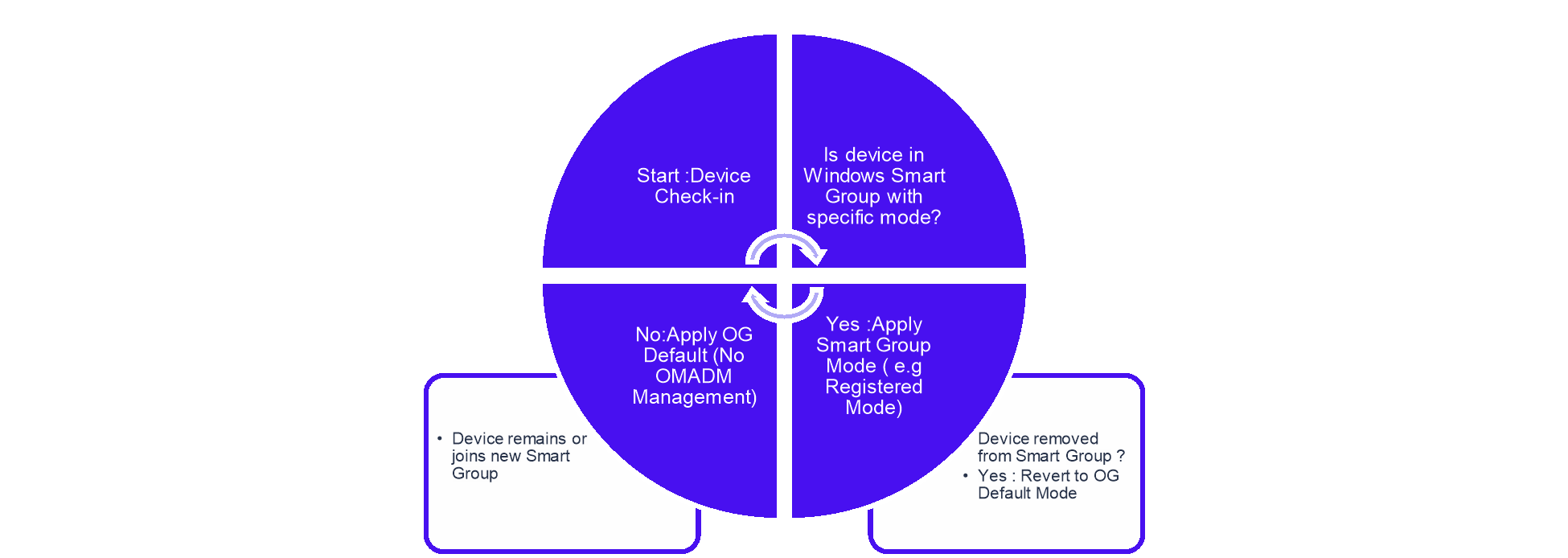
Figure 9 : Management Mode Implementation Flow
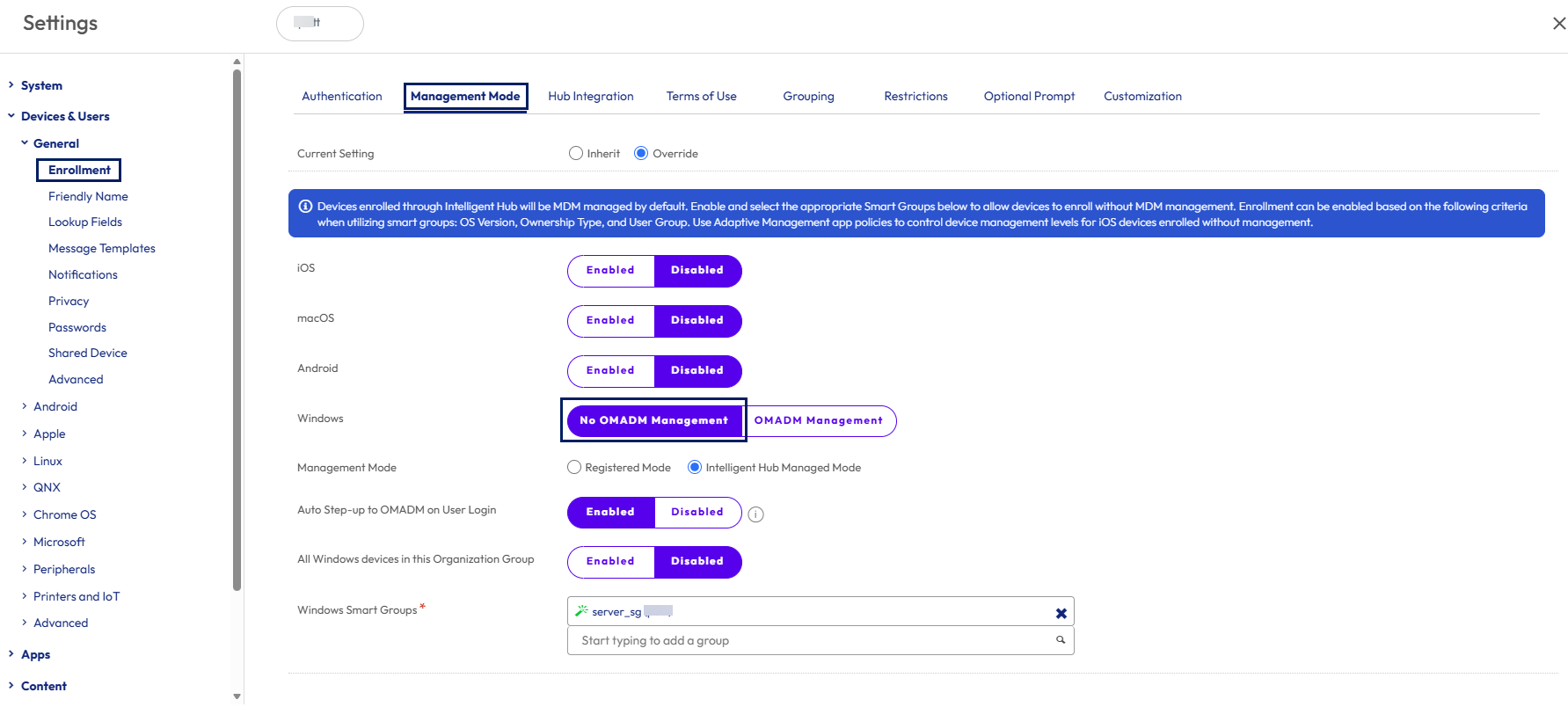 Figure 10 : Management Mode Settings
Validation
The Workspace ONE UEM console enables administrators to quickly identify and verify the management mode applied to each enrolled Windows device. By navigating to Devices in the top navigation bar and selecting Devices from the left sidebar, administrators can access the Device List view, where the current management mode for every windows endpoint is displayed.
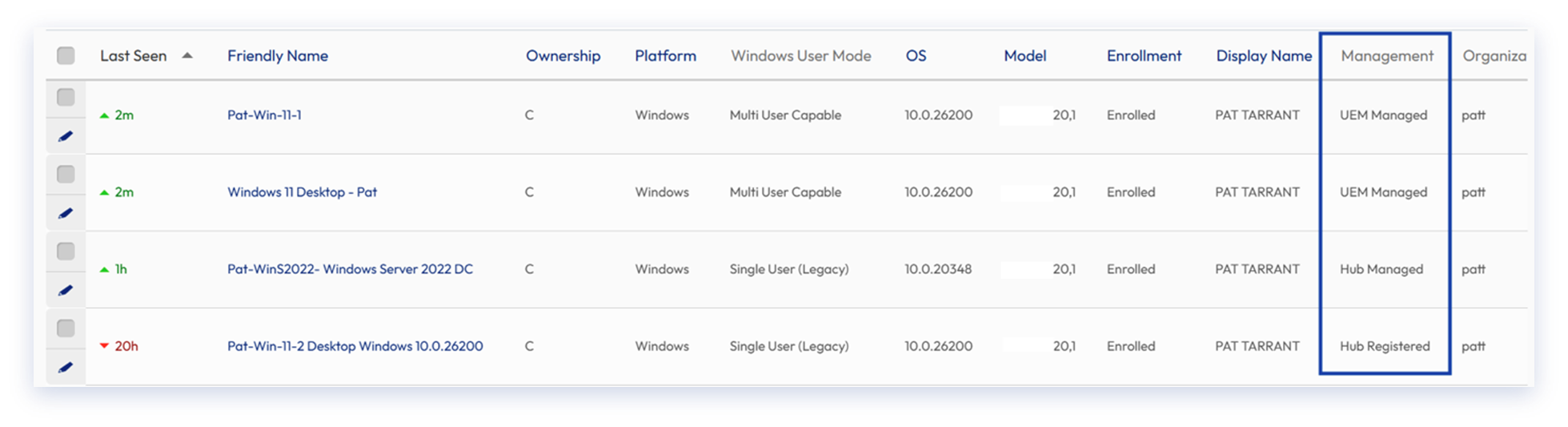 Figure 11: UEM Device List View of Windows Management Modes
The output from the Management column shown above lists the three modes –

Figure 12: Workspace ONE UEM management types
Troubleshooting
If a Windows device does not appear in the Devices page in Workspace ONE UEM displaying the expected management mode, verify that the configuration applied at the Organization Group (OG) level and any Smart Group assignments are aligned. Since Workspace ONE evaluates management mode based on priority (i.e., Smart Group assignment overrides OG defaults), a mismatch between the expected and actual mode usually indicates that the device is inheriting a different management configuration than intended.
Begin by reviewing the Configuration section within the Workspace ONE UEM UI to confirm that the OG-level setting is correct. Then check if the device belongs to any Smart Groups that assign a different mode.
If the device originally received one mode but later becomes part of a Smart Group with a different mode, Workspace ONE will automatically reassign the management mode during the next check-in. Conversely, if the device is removed from that Smart Group, it will revert to the OG-level default. This dynamic behavior means that unexpected mode changes could be related to Smart Group membership changes rather than console misconfiguration.
To validate the enrollment status of the device, check the Windows Registry. Navigate to HKEY_LOCAL_MACHINE\SOFTWARE\AirWatch\EnrollmentStatus
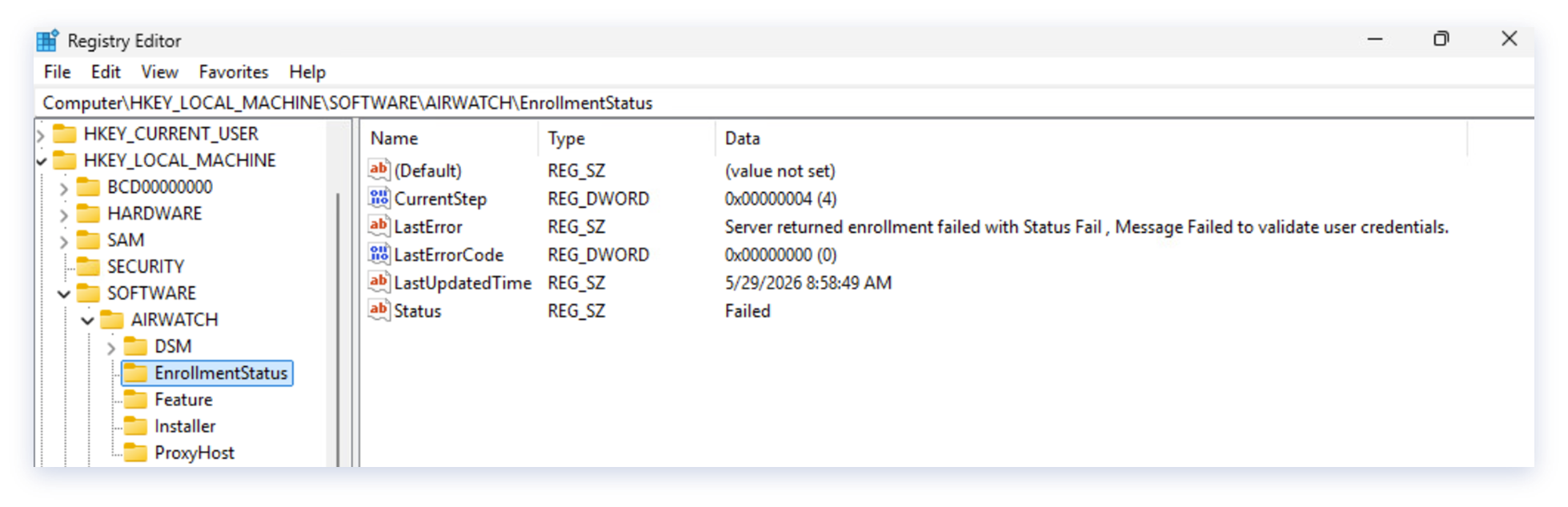 Figure 13: Windows Registry – Enrollment Status
If the registry values do not match the expected configuration, trigger a device to synchronize from the console.
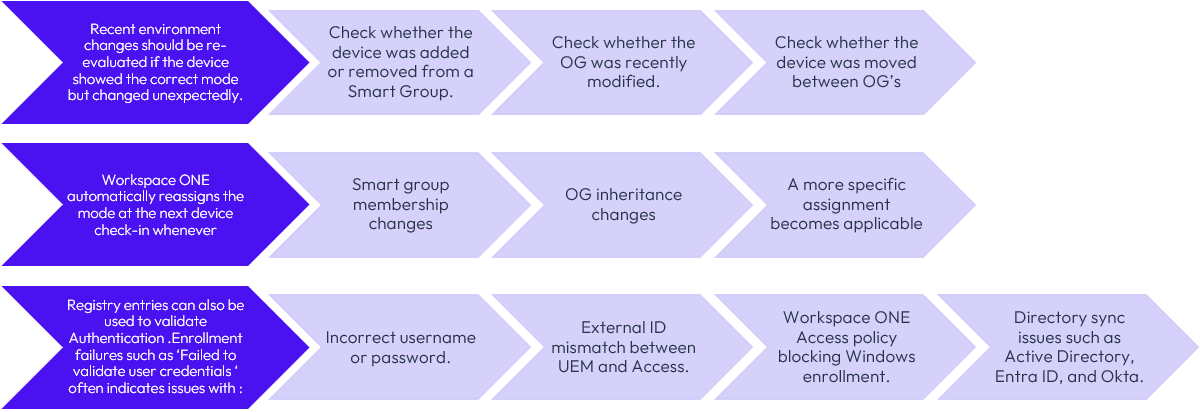
Figure 14: Troubleshooting Flow
Summary and additional resources
Intelligent Hub Managed mode represents a significant evolution in how Workspace ONE approaches Windows device management. By decoupling management capability from OMA-DM enrollment, Omnissa gives IT teams architectural freedom they have not had before: the ability to deliver comprehensive, enterprise-grade Windows management without a dependency on Microsoft's MDM client and without forcing a disruptive full re-enrollment during migrations.
The three-mode model is deliberately additive, and Full MDM enrollment is not going away. Workspace ONE continues to invest in all three modes, giving customers the flexibility to choose the approach that best fits each segment of their fleet. An enterprise can run Registered devices for DEX-only endpoints, Intelligent Hub Managed where OMA-DM enrollment is not required or desired, and Full MDM where the full spectrum of operating system and security controls are needed, all from a single Workspace ONE UEM console, without any forced migration.
As the Intelligent Hub Managed roadmap continues to mature — expanding into firewall management, SCEP, and compliance reporting — customers will have an increasingly capable option available to them whenever it meets their requirements. The goal is flexibility, not replacement.
Additional resources
Please also see these Omnissa Tech Zone resources:
'%3E%3Cpath id='Rectangle_1' data-name='Rectangle 1' d='M0,0H800V300H0Z' transform='translate(2297 1132)' fill='%23E2F0D9'/%3E%3Cg id='Group_5' data-name='Group 5' transform='translate(-6 -3)'%3E%3Ctext transform='translate(2534 1280)' font-size='50' font-family='Roboto-Regular, Roboto'%3E%3Ctspan x='0' y='0'%3ECurated Assets%3C/tspan%3E%3C/text%3E%3Ctext transform='translate(2611 1333)' font-size='20' font-family='Roboto-Regular, Roboto'%3E%3Ctspan x='0' y='0'%3ETile View (with image and controls)%3C/tspan%3E%3C/text%3E%3C/g%3E%3C/g%3E%3C/svg%3E)
Changelog
The following updates were made to this guide:
| Date | Description of Changes |
| June 2026 | Added Implementation, Validation & Troubleshooting |
| 04/08/2026 |
Author and contributors
Written by
- Pooja Chengappa, Director of Product Management, Omnissa
Contributors and reviewers:
- Jo Harder, Principal Product Specialist, Omnissa
- Pat Tarrant, Product Specialist, Omnissa
Feedback
Your feedback is valuable. To comment on this paper, contact the Omnissa Tech Zone team at tech_content_feedback@omnissa.com.