

Amazon WorkSpaces Core image import for Horizon Cloud deployments
Overview
Omnissa Horizon Cloud Service on Amazon Web Services (AWS) enables organizations to deliver secure, scalable virtual desktops and applications using cloud-based infrastructure while maintaining centralized management through Horizon. A critical part of this deployment is preparing and integrating custom operating system images so they can be consumed by Horizon Cloud for desktop and application provisioning.
This document provides guidance on importing AWS-based images into Horizon Cloud Service. It focuses on the end-to-end workflow required to prepare an image, convert it into an Amazon Machine Image (AMI), and make it available for use within Horizon Cloud environments.
Purpose of this guide
The purpose of this document is to guide administrators through the supported process of importing AWS images into Omnissa Horizon Cloud Service. Specifically, this document aims to:
- Explain the prerequisites and preparation required before importing an image.
- Describe the workflow to import an ISO or EC2 image into an Amazon Machine Image (AMI).
- Outline how the AMI is integrated and made available within Horizon Cloud.
- Ensure images meet Horizon Cloud and AWS compatibility requirements to support stable, repeatable desktop deployments.
By following this guide, administrators can create standardized, reusable images that align with Horizon Cloud best practices and operational requirements.
Audience
This guide is intended for IT professionals involved in deploying, managing, or administering Horizon Cloud environments on AWS, including:
- Horizon Cloud administrators
- Virtual Desktop Infrastructure (VDI) administrators
- Cloud architects and cloud operations engineers
- Omnissa consultants and partners
Readers should have a working knowledge of AWS concepts (such as EC2, AMIs, and IAM roles) and a basic understanding of Horizon Cloud and virtual desktop environments.
AWS image import methods and use cases
Horizon Cloud on AWS supports the import of images using three distinct methods
- Method 1: AWS EC2 custom instance import
This method involves creating a standard Amazon Machine Image (AMI) from a prepared EC2 instance within your AWS account and then having Horizon Cloud manage the conversion and import process into the WorkSpaces Core catalog
- Method 2: AWS WorkSpaces Core custom image import process
This approach leverages an image that has already been processed and published in the AWS WorkSpaces image catalog, rather than using standard EC2 AMIs
- Method 3: Import using AWS VM import/export process
AWS VM Import/Export serves as a foundational tool for migrating virtual machines from on-premises environments to Amazon EC2. It’s a general-purpose utility designed for broad infrastructure migration.
The key differences are summarized in the table below.
| Feature | Method 1: AWS EC2 custom instance import | Method 2: AWS WorkSpaces Core custom image import | Method 3: Import using AWS VM import/export (VMIE) |
| Primary goal in Horizon Cloud | Convert an existing EC2 instance into a managed WorkSpaces Core image. | Register an existing WorkSpaces Core image into Horizon Cloud management. | Migrate an on-premises VM into AWS as an EC2 AMI. |
| Starting asset | A running or stopped Amazon EC2 instance. | An existing image already in the AWS WorkSpaces image catalog. | A VM file (e.g., VMDK, VHD, OVA) stored in an S3 bucket. |
| Agent installation | Can be installed automatically by the Horizon Image Management Service (IMS) or manually pre-installed. | Must be manually pre-installed in the source image before import. | N/A (Part of the initial AMI preparation, not the VMIE step itself). |
| Dependency on other methods | Requires an existing EC2 instance (which may have been created using VMIE). | Requires the image to be pre-created in the WorkSpaces catalog using AWS tools. | A prerequisite step for creating the source EC2 instance used in Method 1 or Method 2. |
| Best for | Leveraging custom EC2 instances within Horizon Cloud with integrated agent installation. | Environments where image preparation is handled by separate AWS automation or teams. | Bringing on-premises virtual machines into the AWS cloud environment. |
Disclaimer: The graphics used in this document are based on the AWS user interface as it appeared in November 2025. Please note that the AWS UI may change over time, and actual screens or options may differ from those shown
Preparation
The image creation process applies to all the AWS image import methods described below:
- Method 1: AWS EC2 custom instance import.
- Method 2: AWS WorkSpaces Core custom image import process.
- Method 3: Import using AWS VM import/export process.
Common preparation steps
Before using any of these methods, you must first complete a series of common image preparation steps. These steps are essential to ensure the image is properly configured for deployment in AWS environments. Here is a step-by-step process to import a Windows ISO into AWS EC2 Image Builder.
The procedure includes Setting up Amazon Workspaces Core as a capacity provider for Horizon, downloading the ISO, uploading it to an S3 bucket, creating infrastructure configurations, and importing the image.
Here are the steps for Image creation.
- Obtain Windows 11 ISO image.
- Create or utilize existing S3 bucket and upload the Windows 11 ISO image.
- Create IAM role for importing image with EC2 image builder.
- Create Infrastructure Configuration for importing image with EC2 image builder.
For more information and guidance on completing these steps, see Common Preparation Steps for Creating Windows Images for Horizon on AWS in the product documentation.
Method 1: AWS EC2 custom instance image import
This approach allows you to create and prepare an image from an Amazon EC2 instance, then directly import it into Horizon Cloud on Amazon WorkSpaces Core.
The process consists of the following steps as provided below.
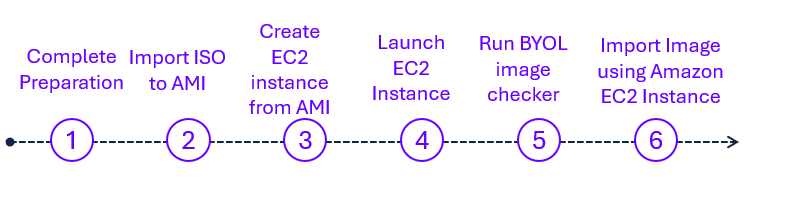
- Complete the preparation given at the start of this guide.
- Import ISO using EC2 image builder to create an AMI.
- Create an EC2 instance from AMI.
- Launch an EC2 instance from the AMI.
- RDP into the instance, install applications and run the BYOL ImageChecker.
- Import image using Amazon EC2 Custom Instance.
For more information and guidance on completing these steps, see Method 1: AWS EC2 Custom Instance Import in the product documentation.
Method 2: AWS WorkSpaces Core custom image import for Horizon Cloud
When using Omnissa Horizon Cloud on Amazon WorkSpaces Core, you can import and deploy images from preexisting WorkSpaces Core custom images. This approach allows you to create and prepare an image from an AWS WorkSpaces core, then directly import it into Horizon Cloud on Amazon WorkSpaces Core.
The process consists of the following steps as provided below.
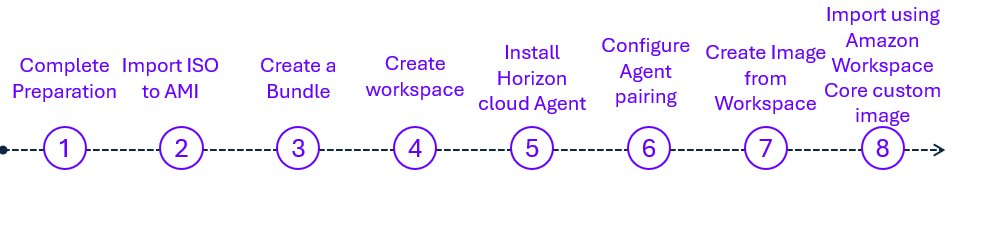
- Complete the preparation given at the start of this guide.
- Import ISO to AMI.
- Create Bundle.
- Create a WorkSpace from bundle.
- RDP into the WorkSpace and Install Horizon Cloud Agent.
- Download Pairing code and Configure Agent pairing.
- Create image from WorkSpaces.
- Import Image using Amazon WorkSpaces Core Custom Image.
For more information and guidance on completing these steps, see Method 2: AWS WorkSpaces Core Custom Image Import in the product documentation.
Method 3: Import using AWS VM import/export
This process converts an on-premises or cloud VM (OVA) file into an AMI (Amazon Machine Image).
To know more about AWS VM Import/export process, click here.
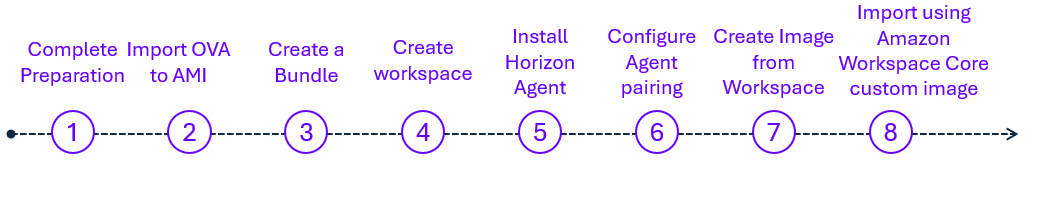
- Complete the preparation given at the start of this guide.
- Convert OVA to AMI and then AMI to WorkSpaces image
- Create Bundle from Image
- Create a WorkSpace from bundle.
- RDP to WorkSpace machine and Install Horizon Cloud Agent.
- Download Pairing code and Configure Agent pairing
- Create image from WorkSpaces.
- Import image using Amazin WorkSpaces core custom Image.
For more information and guidance on completing these steps, see Method 3: Import Using AWS VM Import or Export in the product documentation.
Summary and additional resources
This guide outlines the supported methods for importing Amazon Web Services (AWS) images into Omnissa Horizon Cloud Service. It describes the required image preparation steps, the process of converting images into Amazon Machine Images (AMIs), and guidance on integrating them with Horizon Cloud. It also highlights when to choose each import method, helping administrators select the most appropriate approach for their deployment and ensure consistent, reliable virtual desktop provisioning.
Additional resources
For more information about the products mentioned in this guide, you can explore the following resources:
Changelog
The following updates were made to this guide:
| Date | Description of Changes |
| 2025/12/10 | Initial version |
About the author and contributors
- Babita Mazumdar, Senior Product Specialist, Omnissa
- Graeme Gordon, Senior Staff Architect, Omnissa
Feedback
Your feedback is valuable.
To comment on this paper, contact us at tech_content_feedback@omnissa.com.