

Amazon WorkSpaces Core image import for Horizon 8 deployments
Overview
Omnissa Horizon 8 on Amazon Web Services (AWS) enables organizations to deploy virtual desktops and applications using AWS cloud infrastructure while retaining the advanced management, feature set, and control of Horizon 8. A key prerequisite for delivering desktops through this model is the ability to prepare and import custom AWS images that can be consumed by the Horizon Cloud integrations supporting Horizon 8.
This document describes the process for importing AWS-based images into Horizon Cloud integrations for Horizon 8 environments. It provides guidance on image preparation, Amazon Machine Image (AMI) creation, and integration requirements needed to ensure images are compatible, repeatable, and ready for production use.
Purpose of this guide
The purpose of this document is to guide administrators through the supported workflow for importing AWS images into Horizon Cloud integrations used by Omnissa Horizon 8. Specifically, the document aims to:
- Explain the prerequisites and image preparation requirements for Horizon 8 on AWS.
- Describe supported methods for importing and converting images into AMIs.
- Provide guidance on integrating imported images with Horizon Cloud components.
- Help ensure consistency, stability, and compliance with Horizon 8 best practices.
By following this guide, administrators can create standardized images that simplify desktop provisioning and lifecycle management in AWS-based Horizon 8 deployments.
Audience
This document is intended for technical users responsible for designing, deploying, or managing Horizon 8 environments that integrate with AWS, including:
- Horizon 8 administrators.
- Virtual Desktop Infrastructure (VDI) administrators.
- Cloud and infrastructure architects.
- AWS administrators supporting Horizon environments.
- Omnissa partners and professional services teams.
Readers are expected to have a foundational understanding of AWS services (such as EC2, AMIs, and IAM) and familiarity with Horizon 8 concepts and workflows.
AWS image import methods and use cases
Integrating images with Omnissa Horizon 8 on AWS involves two separate import methods, each using a different AWS service.
- Method 1: AWS WorkSpaces Core custom image import process
Setting up an image with Horizon 8 on AWS WorkSpaces Core involves a defined set of configuration steps. It begins with preparing a base image in Amazon EC2, followed by importing it into the WorkSpaces Core platform using the Horizon management console.
- Method 2: Import using AWS VM import/export process
The difference between AWS WorkSpaces Core image import and AWS VM import/export for Horizon 8 lies in their purpose and the target environment within AWS.
| Feature | AWS VM import/export process | AWS WorkSpaces Core image import process |
| Primary goal | Migrate VM disk files into AWS EC2 | Upload a prepared EC2 AMI into WorkSpaces Core for VDI |
| Output type | Standard Amazon Machine Image (AMI). | Specialized WorkSpaces Core Image (BYOP). |
| Infrastructure | General-purpose Amazon EC2. | Managed AWS WorkSpaces Core platform. |
| Management | AWS CLI commands (import-image). | AWS CLI/Partner VDI console (e.g., Horizon 8). |
| Input format | VM disk files (VMDK, VHD, OVA). | An existing, running EC2 Instance/AMI. |
| Agents required | No specific VDI agents needed during import. | Requires VDI agents (e.g., Horizon Agent) pre-installed on source AMI. |
| Use cases | Lift-and-shift of on-premises servers to AWS EC2. | Deploying custom virtual desktops using Omnissa Horizon 8. |
Disclaimer: The graphics used in this document are based on the AWS user interface as it appeared in November 2025. Please note that the AWS UI may change over time, and actual screens or options may differ from those shown.
Preparation
The image creation process applies to both AWS image import methods described below:
- Method 1: AWS WorkSpaces Core custom image import for Horizon 8.
- Method 2: Import using AWS VM import/export.
Common preparation steps
Before using either method, you must first complete a series of common image preparation steps. These steps are essential to ensure the image is properly configured for deployment in AWS environments.
The procedure includes Setting up Amazon Workspaces Core as a capacity provider for Horizon, downloading the ISO, uploading it to an S3 bucket, creating infrastructure configurations, and importing the image.
Image creation tasks - (Please refer below for the detailed steps).
- Obtain Windows 11 ISO images.
- Create or utilize existing S3 bucket and upload the Windows 11 ISO image.
- Create IAM role for importing image with EC2 image builder.
- Create Infrastructure Configuration for importing image with EC2 image builder.
For more information and guidance on completing these steps, see Common Preparation Steps for Creating Windows Images for Horizon on AWS in the product documentation.
Method 1: AWS WorkSpaces Core Custom Image Import to Horizon 8
AWS WorkSpaces Core custom image import enables administrators to bring Windows images prepared in Amazon WorkSpaces into Omnissa Horizon 8 environments. This approach allows organizations to reuse existing WorkSpaces images by converting them into compatible AWS images for Horizon 8 integration.
To complete the image import process, follow these steps below:
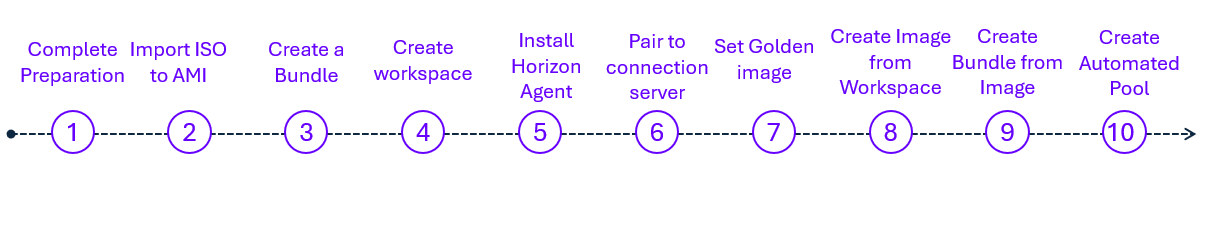
- Complete the preparation given at the start of this guide.
- Import Image (ISO) to Amazon Machine Image (AMI) and convert AMI to WorkSpace Image.
- Create a bundle from the image.
- Create WorkSpaces from bundle.
- RDP into WorkSpace and Install Horizon Cloud Agent.
- Pair WorkSpaces Image to Horizon Connection Server.
- Set golden image.
- Create Image from WorkSpaces.
- Create bundle from Image.
- Create automated pool.
For more information and guidance on completing these steps, see Method 1: AWS WorkSpaces Core Custom Image Import to Horizon 8 in the product documentation.
Method 2: Import Using AWS VM Import/Export
This method involves setting up an image with Horizon 8 on AWS WorkSpaces Core involves a defined set of configuration steps. It begins with preparing a base image in Amazon EC2, followed by importing it into the WorkSpaces Core platform using the Horizon management console.
To know more about AWS VM Import/export process, please find Amazon documentation – VM Import/Export.
To complete the image import process, follow these steps below:
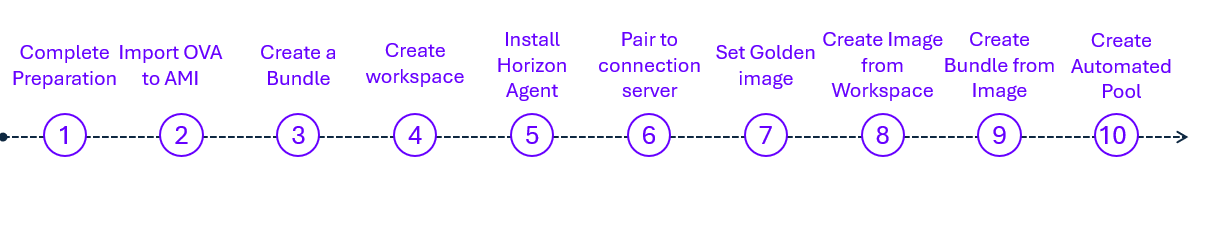
- Complete the preparation given at the start of this guide.
- Import Image (OVA) to Amazon Machine Image (AMI) and convert AMI to Workspace Image.
- Create a new custom image and bundle.
- Workspaces creation.
- RDP into Workspace and install Horizon Agent.
- Pair WorkSpaces Image to Horizon Connection Server.
- Set golden image to Connection Server.
- Create image from Workspaces.
- Create bundle from image.
- Create automated pool.
For more information and guidance on completing these steps, see Method 2: Import using AWS VM import/export in the product documentation.
Summary and additional resources
This guide describes the supported methods for importing AWS images for use with Omnissa Horizon 8 integrations. It covers image preparation requirements, AMI creation and import workflows, and guidance on selecting the appropriate import approach. The document helps administrators create standardized, compatible images to enable reliable desktop and application delivery in AWS-based Horizon 8 environments.
Additional resources
For more information about the products mentioned in this guide, you can explore the following resources:
Changelog
The following updates were made to this guide:
| Date | Description of Changes |
| 2025/12/10 | Initial version |
About the author and contributors
- Babita Mazumdar, Senior Product Specialist, Omnissa
- Graeme Gordon, Senior Staff Architect, Omnissa
Feedback
Your feedback is valuable.
To comment on this paper, contact us at tech_content_feedback@omnissa.com.